


The Friction of Manual Google Lead Gen
Traditional approaches typically begin with downloading raw results or exporting CSV files, then cleaning and mapping columns by hand. In practice, Google results are not built for stable machine parsing. Pages vary by query intent, personalization, localization, and result layout. That means your “structured data” quickly becomes semi-structured text that needs normalization before it can even be imported.
Then the CRM step arrives. HubSpot and Salesforce both expect specific fields, and they do not tolerate sloppy formats. Phone numbers, website URLs, company domains, addresses, and role-based contacts must be transformed into consistent shapes. Every manual transformation step slows your throughput and increases the probability that a record ends up incomplete or duplicates an existing account. The real cost is not just time; it is lost speed to first-touch, which is often the difference between booked meetings and dead leads.
The Core Framework: How the Data Becomes a Lead in Your CRM
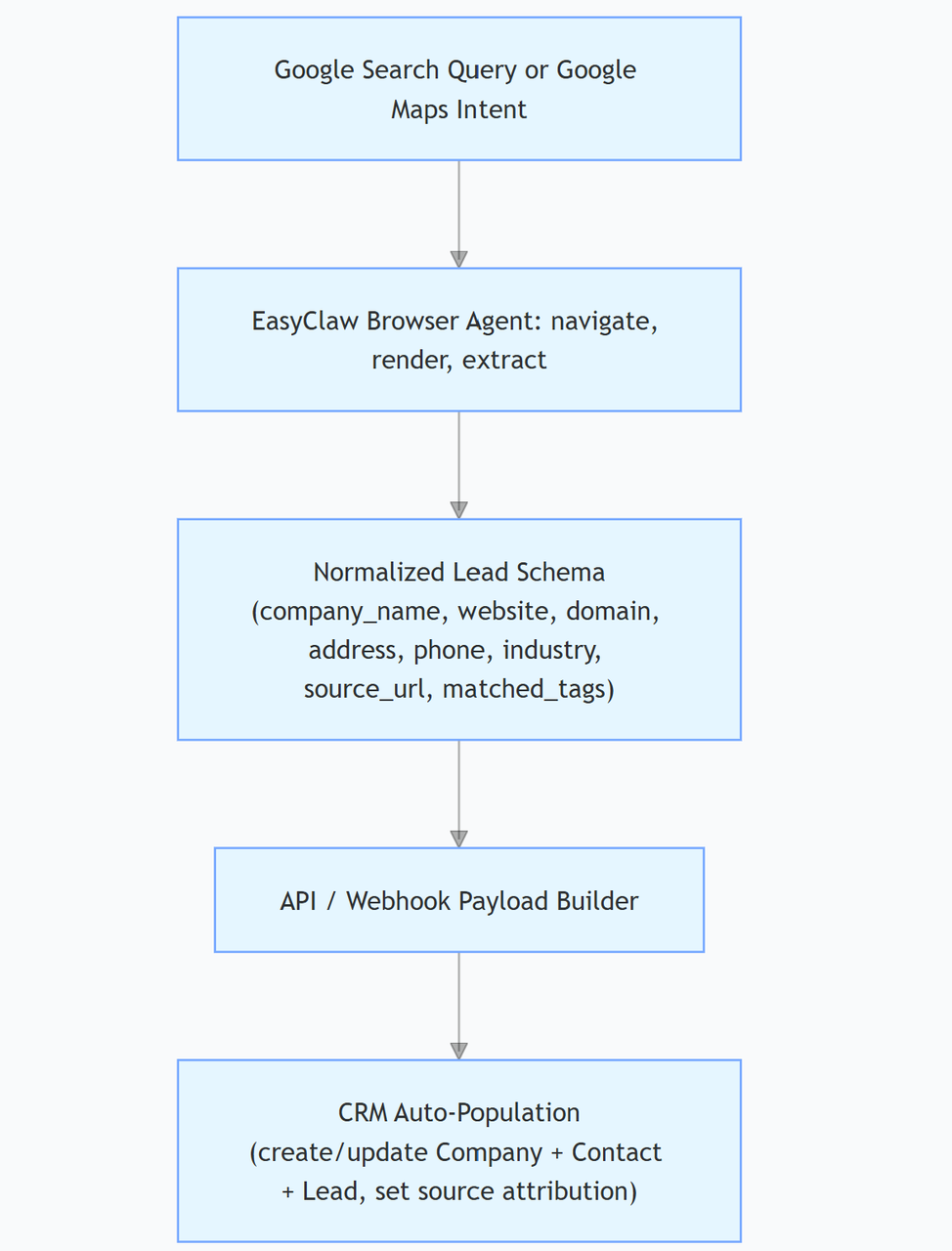
The easiest way to design this workflow is to think in terms of interfaces: one side speaks “Google queries,” the other side speaks “CRM field mappings.” EasyClaw sits in the middle as the extraction layer and delivers a deterministic payload for your CRM to ingest.
Here is the visual logic in plain text so you can map each boundary to an implementation detail:
Step-by-Step Implementation Guide (With Realistic Execution Logic)
Step 1: Defining Your High-Intent Google Search and Maps Queries
Start with intent, not keywords. If your goal is B2B lead generation and extract B2B leads from Google, your queries need to reflect the moment a buyer is actively searching for a service or supplier, usually with location or niche qualifiers. This is especially true when you are pulling data from Google Maps, where result relevance is shaped by “local intent” such as city, region, and proximity.
In practice, you’ll define a small set of query templates, then render them into concrete searches. A template might combine your ICP category with a role indicator and a geography marker so the results concentrate on the kind of companies that convert. Your extraction later will depend on this, because the agent will look for predictable elements such as company name, website, categories, and address block formatting.
To keep your pipeline stable, avoid overly broad queries that mix unrelated verticals and force your agent to apply heavy inference. The more you can align query intent with a narrow B2B category, the less brittle the extraction logic becomes. Once you have a clear query strategy, you can also define your deduplication keys up front, such as website domain plus company name normalization.
Step 2: Configuring the EasyClaw Browser Agent for Scraping
Once your queries are defined, you configure the EasyClaw browser agent to behave like a careful operator rather than a “blind scraper.” You do this by guiding it through a deterministic sequence: open results, scroll until the relevant tiles are visible, extract stable fields, and then stop when a completion condition is met. Instead of downloading raw CSV files and hoping the layout doesn’t change, you let the agent extract structured data directly from the rendered page.
For the configuration logic, you want three guarantees: first, the agent should confirm the match by checking categories or the visible business type; second, it should collect only fields you can confidently map into your CRM schema; and third, it should capture the source URL or reference so you can support attribution and debugging later.
A practical agent flow looks like this. It begins by navigating to a Google Search or Google Maps URL created from your query template. It then identifies the repeated result elements on the page, extracts company-level fields, and follows the “company details” path when available to retrieve website, phone, and address in a consistent format. Finally, it emits a normalized JSON object per company.
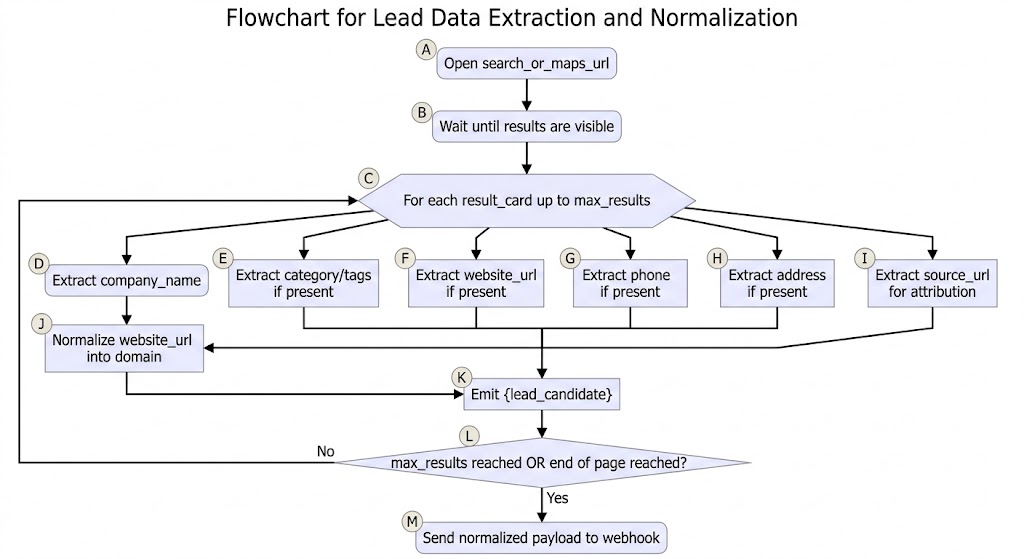
To make this concrete, here is a sample EasyClaw run configuration pattern that emphasizes prompts and extraction targets. The exact syntax can vary by EasyClaw setup, but the intent is consistent: you are telling the agent which elements to extract and how to format the output.
{
  "run": {
    "browserMode": "rendered",
    "input": {
      "googleUrl": "https://www.google.com/maps/search/industrial+cleaning+services+near+Austin+TX"
    },
    "agentInstructions": "Extract B2B company leads. For each business listing, capture company_name, website_url, phone, address, categories, and the listing source_url. Normalize website_url to a domain. If a field is missing, return null. Only include businesses whose category matches the target service intent.",
    "extractionTargets": [
      "company_name",
      "website_url",
      "phone",
      "address",
      "categories",
      "source_url"
    ],
    "outputSchema": {
      "lead_candidates": [
        {
          "company_name": "string",
          "website_url": "string|null",
          "domain": "string|null",
          "phone": "string|null",
          "address": "string|null",
          "categories": ["string"],
          "source_url": "string",
          "search_query": "string",
          "extracted_at": "iso_datetime"
        }
      ]
    },
    "completion": {
      "max_results": 50,
      "stopWhen": "end_of_results_or_max_results"
    }
  }
}
This is where google lead generation becomes operational instead of manual. The agent produces structured records at the moment it sees them, and those records are already in the shape your CRM needs.
Step 3: Setting Up the Live API Sync to Your CRM
After extraction, the next crucial step is to make your CRM accept leads without human involvement. The cleanest architecture is to have EasyClaw send a webhook payload to a lightweight sync service or directly to a CRM endpoint if your integration supports it$. Your integration layer should do validation, deduplication, and field mapping so you never rely on the CRM to “guess” missing values.
Instead of uploading a messy CSV, you transform each EasyClaw output record into a deterministic CRM payload. Here is a realistic JSON example for a webhook that upserts a company and associates a primary contact or lead record. Even if you only have company-level data initially, you can still create a lead with a “no-contact-yet” status while you enrich later.
{
  "event": "easyclaw.lead_upsert",
  "source": "google_lead_gen",
  "campaign": {
    "name": "Industrial Cleaning - Austin TX - Q2",
    "query": "industrial cleaning services near Austin TX"
  },
  "leads": [
    {
      "company": {
        "name": "Example Industrial Cleaners LLC",
        "website": "https://www.exampleindustrialcleaners.com",
        "domain": "exampleindustrialcleaners.com",
        "phone": "+1-512-555-0144",
        "address": "1234 Trade Center Dr, Austin, TX 78701",
        "categories": ["Industrial Cleaning", "Commercial Services"]
      },
      "lead": {
        "status": "new",
        "source_url": "https://www.google.com/maps?cid=1234567890",
        "extracted_at": "2026-06-18T05:12:09Z"
      },
      "dedupe": {
        "keys": ["domain", "name_normalized"]
      }
    }
  ]
}
Your sync layer can interpret `dedupe.keys` and decide whether to update an existing Company record or create a new one. If you are syncing to HubSpot, you typically map fields like company name, domain, phone, address, and website into Company properties, then create a Lead/Contact record as appropriate. If you are syncing to Salesforce, you map into Account and possibly Contact and Lead objects.
Most teams fail here by dumping the extraction payload straight into the CRM without normalization. The fix is to treat the payload builder as part of the system design. Keep the schema strict, keep field types consistent, and log the mapping decisions so you can debug when a property fails validation.
Also pay attention to attribution. When you store `source_url` and `search_query`, you preserve auditability. That means when sales asks “where did this come from,” you can answer without digging through old spreadsheets.
Comparison: Manual/Legacy Extraction vs. EasyClaw Auto-Sync Pipeline
The real question is not “can you scrape,” it is “can you move clean data into your CRM fast enough to matter.” This table frames the operational differences that affect outcomes in a B2B sales pipeline.
| Dimension | Manual / Legacy Extraction | EasyClaw Auto-Sync Pipeline |
|---|---|---|
| Handoff Speed | Periodic batch imports (weekly or monthly) | Live webhook updates inside your active session |
| Data Integrity | High risk of transcription gaps and manual shift errors | Strict schema mapping enforced at the browser agent boundary |
| Layout Resilience | Brittle CSS selectors break when Google alters result markup | Agent adapts to layout intent and visual container changes |
| Deduplication | Handled via spreadsheet cross-checks after extraction | Automated via unique keys prior to CRM ingestion logic |
| Pipeline Drift | Lead signals degrade before the first sales touch occurs | Instant availability ensures maximum outreach speed |
If your goal is to google lead generation at scale, these differences determine whether the system improves your pipeline velocity or just creates more work.
Seamless EasyClaw Integration (The Engine Behind the Pipeline)
EasyClaw is the component that makes the pipeline practical because it handles the browser automation and structured extraction that manual scraping workflows typically outsource to brittle scripts and fragile spreadsheets. With an agent-driven approach, your team does not need to rebuild scrapers every time a results page layout changes, as long as your extraction targets remain aligned with the rendered elements and your schema stays strict.
Once the integration exists, the operational model changes. Instead of scheduling “scrape jobs” that create files your team must import, you run continuous syncs that keep your CRM aligned with fresh Google Search and Google Maps results. That is how google lead gen shifts from a periodic task into a dependable growth system.
Conclusion and Actionable CTA
The strategic shift is simple: stop treating extraction as a dead-end deliverable and start treating it as a live input to your CRM. When you scrape B2B leads from Google and immediately auto-populate CRM records through an API or webhook payload, you remove the biggest bottleneck in manual lead ops: the handoff friction between “found leads” and “reachable leads.”
If you want to implement this end-to-end with EasyClaw, request a custom CRM integration workflow demo. Tell us your target vertical, your query templates, and which CRM you’re using (HubSpot or Salesforce, or another). We can help you design the extraction schema, dedupe keys, and webhook mapping so your next google lead generation cycle becomes a seamless, auto-synced pipeline rather than a spreadsheet project.