Connect EasyClaw via DingTalk
With the DingTalk channel, you can send commands to EasyClaw in direct messages or group chats — remote automation control anywhere. The process: create a bot in the DingTalk Developer Console → get Client ID and Client Secret → enter them in EasyClaw.
• EasyClaw is installed and running on your computer
• A DingTalk account that belongs to an enterprise / organization / team
• Select an organization where you have developer permissions, or apply for them
Sign in or register at the DingTalk website and create a team first, then proceed.
Step 1: Create an OpenClaw Bot with One Click Recommended
After signing in to the Developer Console, use the dedicated entry point to create a bot in one click — permissions are auto-configured, no manual requests needed.
Sign in to Developer Console and Create
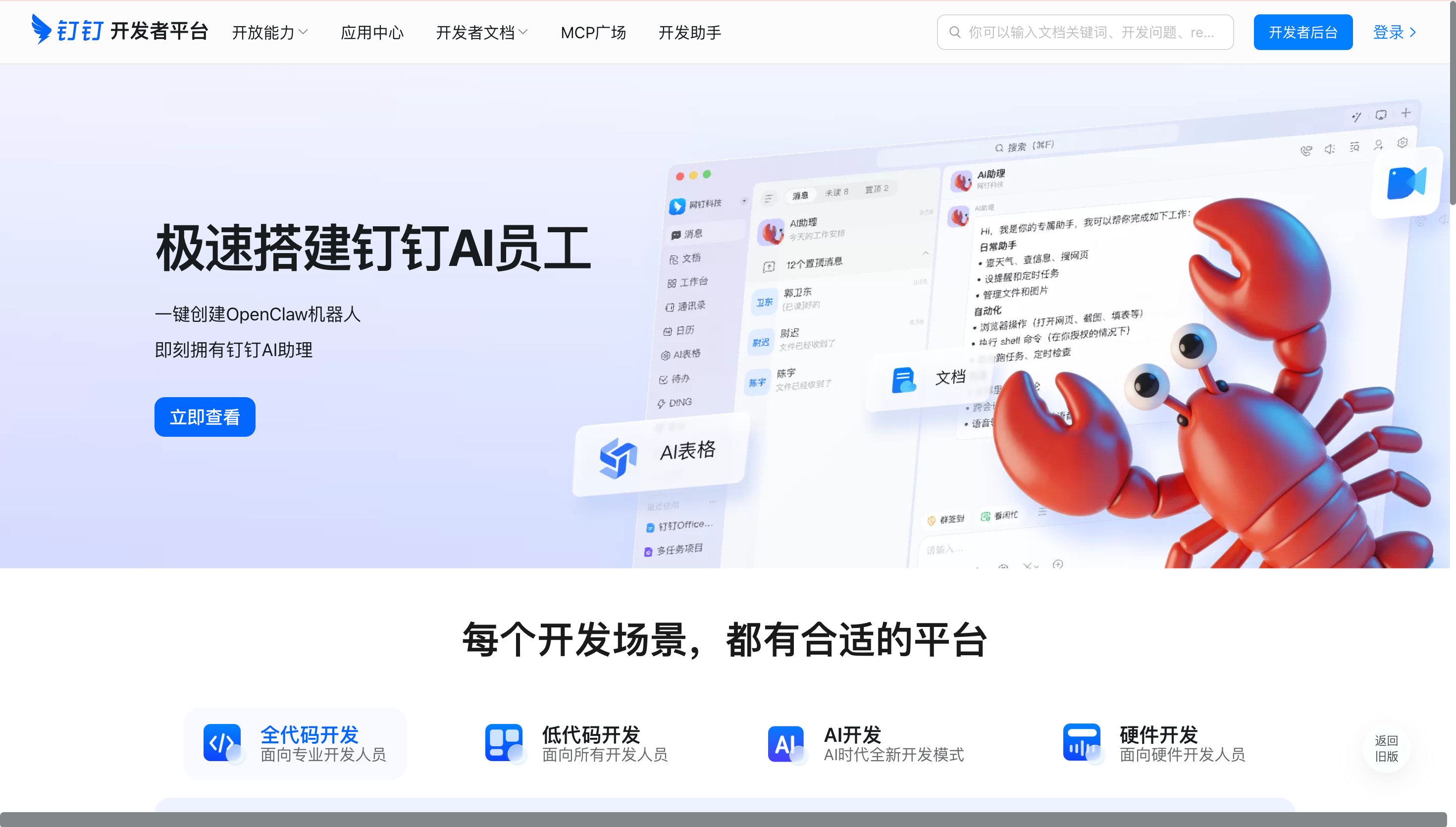
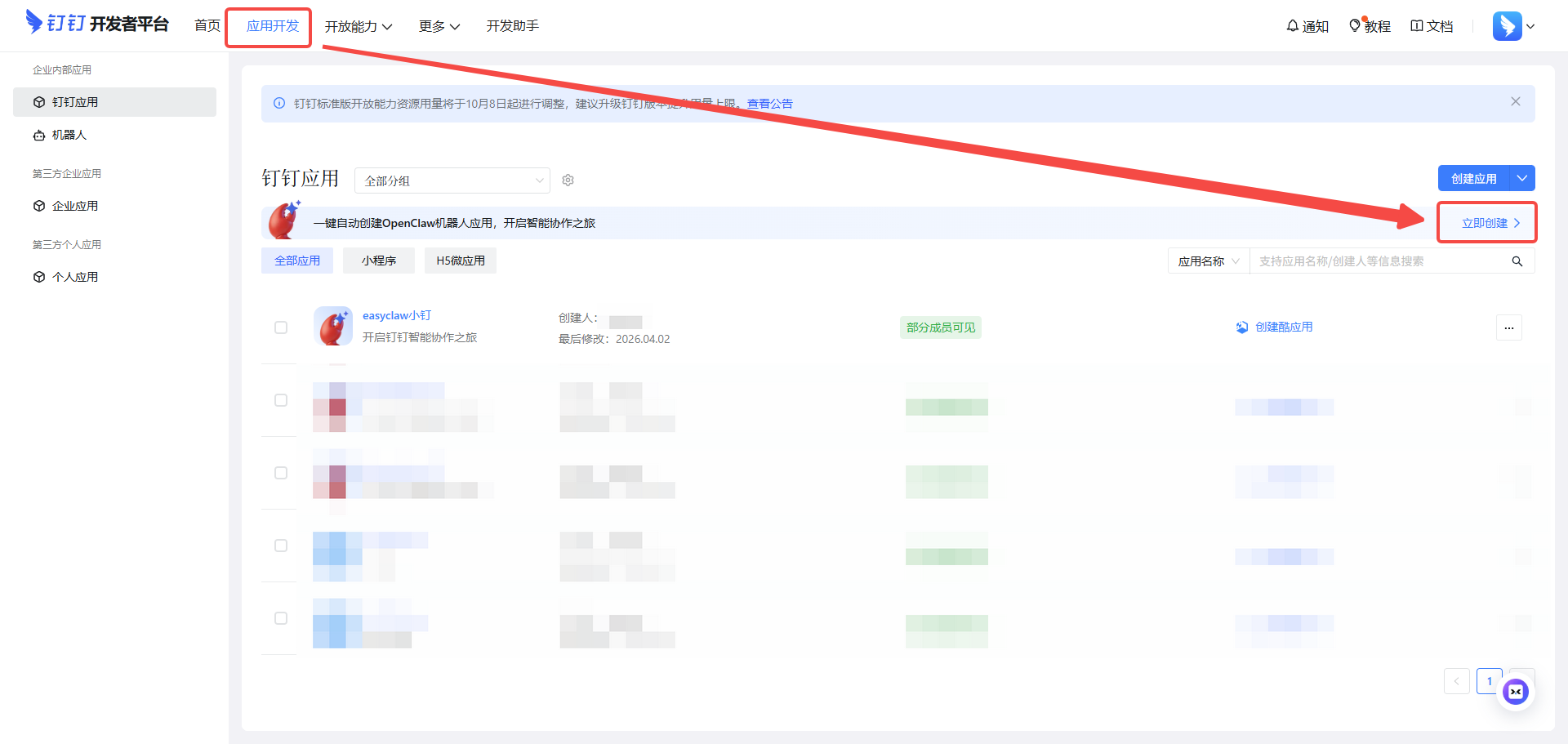
In the DingTalk Developer Console, after signing in click Create Now under App Development and select Create OpenClaw Bot.
Fill in Bot Details
Enter the bot name, description, and icon — or keep the defaults — then click Confirm.
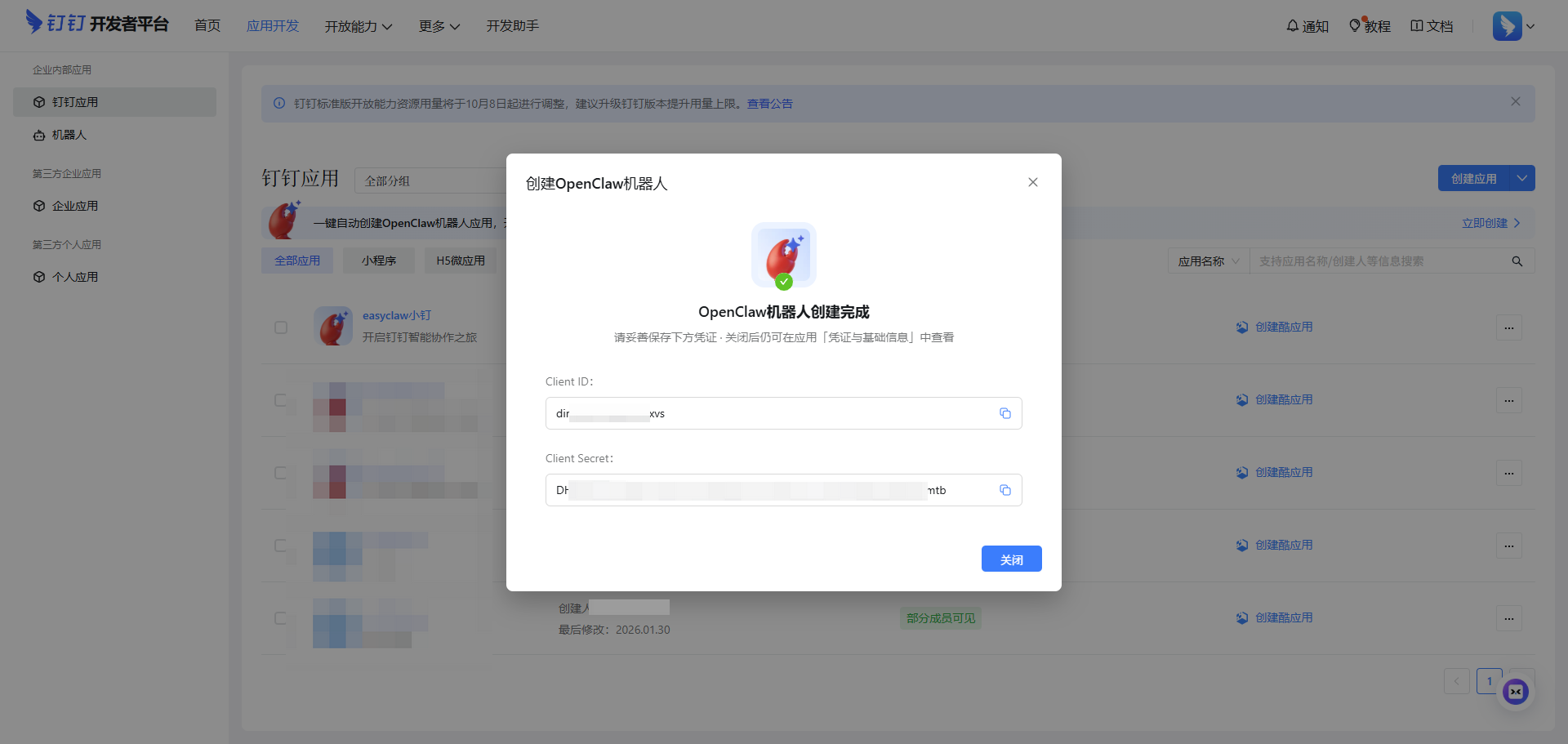
Get Client ID and Client Secret
After creation, the page shows the Client ID and Client Secret automatically. They're also available under the app's Credentials & Basic Info page. Copy and save both — you'll need them to bind EasyClaw.
Step 2: Configure DingTalk in EasyClaw
Open Channel Config
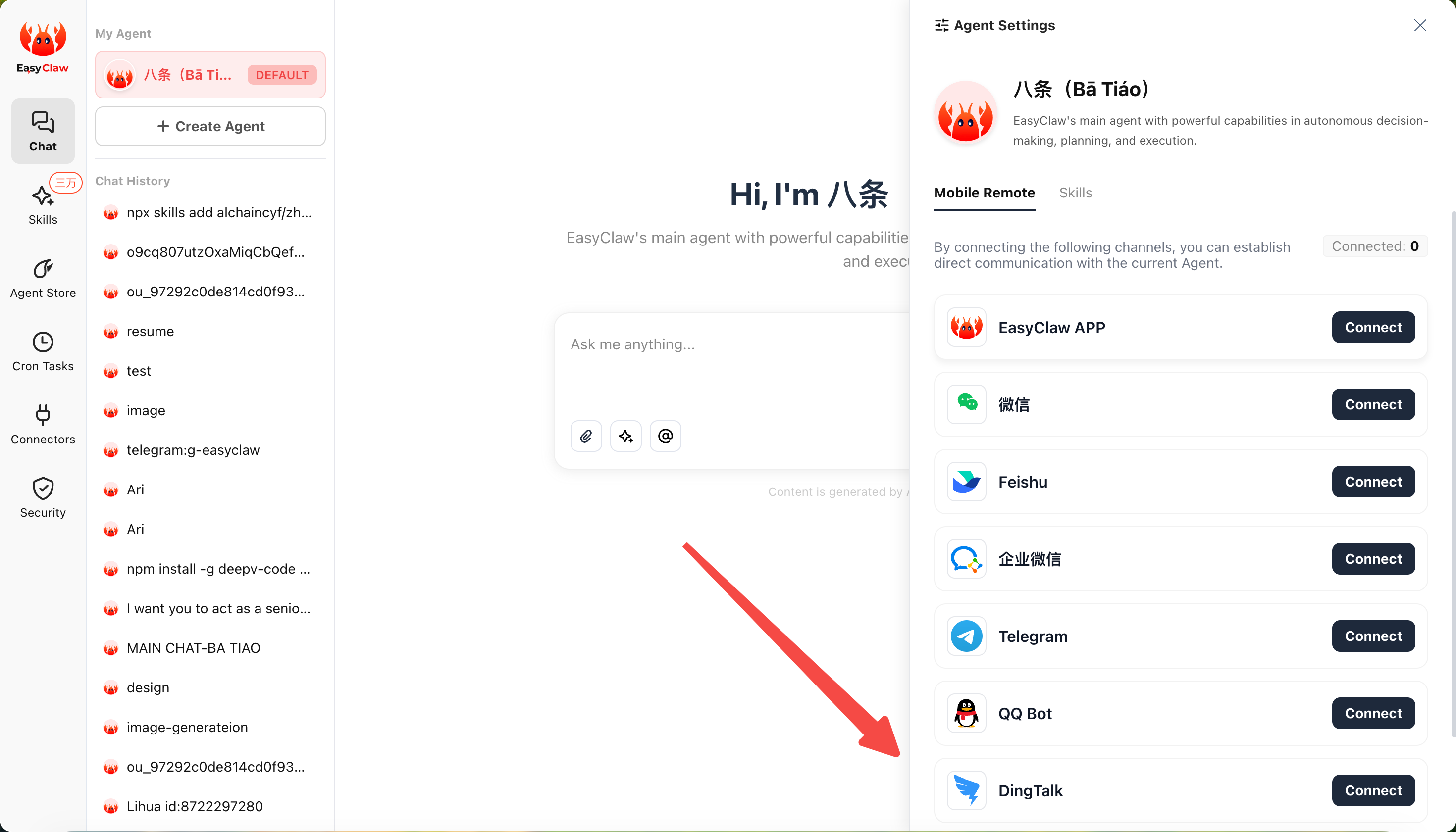
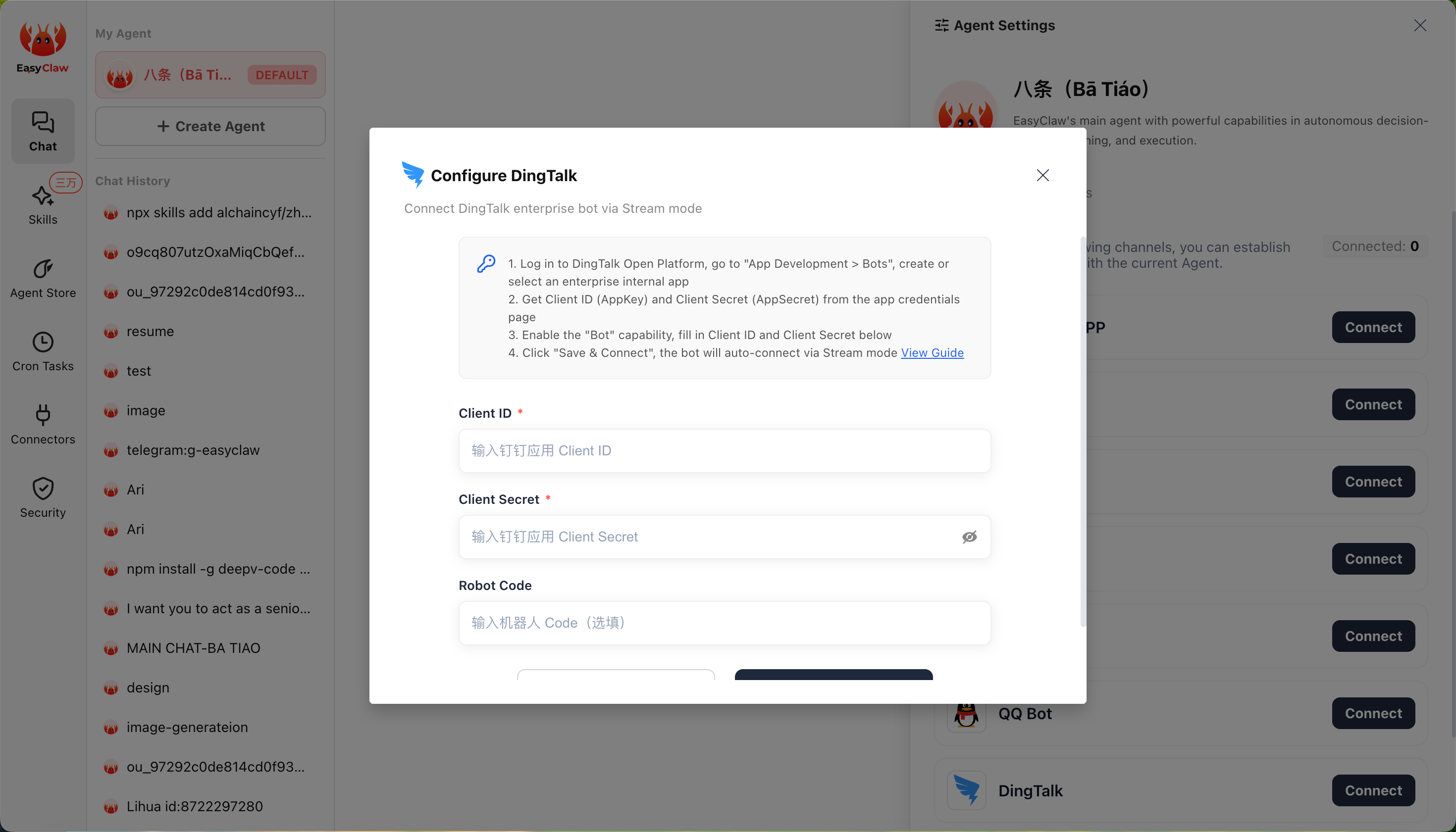
Open EasyClaw → click Phone Remote → Remote Control → select DingTalk → click Configure.
Enter Credentials and Connect
Paste the Client ID and Client Secret into the fields and click Connect. Allow a moment for the connection to establish.
Start Using
The DingTalk bot supports both direct messages and group chats.
Direct Message
Search for the bot name in DingTalk's search bar, open the chat, and send a message directly to give EasyClaw a command.
Group Chat
Create or open a group (the group's "Organization" must match the one used when creating the bot) → tap the settings icon in the top-right → Bots → Add Bot → select your bot and confirm. Then @mention the bot in the group to use it.
When creating the group, make sure the group's "Organization" matches the organization used when creating the bot — otherwise the bot cannot be added to that group.
Send a test message (e.g. "Hello") — if EasyClaw replies normally in DingTalk, you've successfully connected. Send commands from DingTalk anytime to remotely control your computer.
The DingTalk channel's conversation context is independent from the desktop app and other channels. To share important information or preferences across channels, ask the Agent to write it to MEMORY.md.