Connect EasyClaw via Slack
With the Slack channel, you can send commands to EasyClaw from a workspace channel or direct message. Create an app on the Slack API platform, install it to your workspace, and paste the token into EasyClaw to complete setup.
• EasyClaw is installed and running on your computer
• A Slack account, belonging to or having created a Workspace
• Your network can access Slack
Setup Steps
Go to Slack API Platform and Create a New App
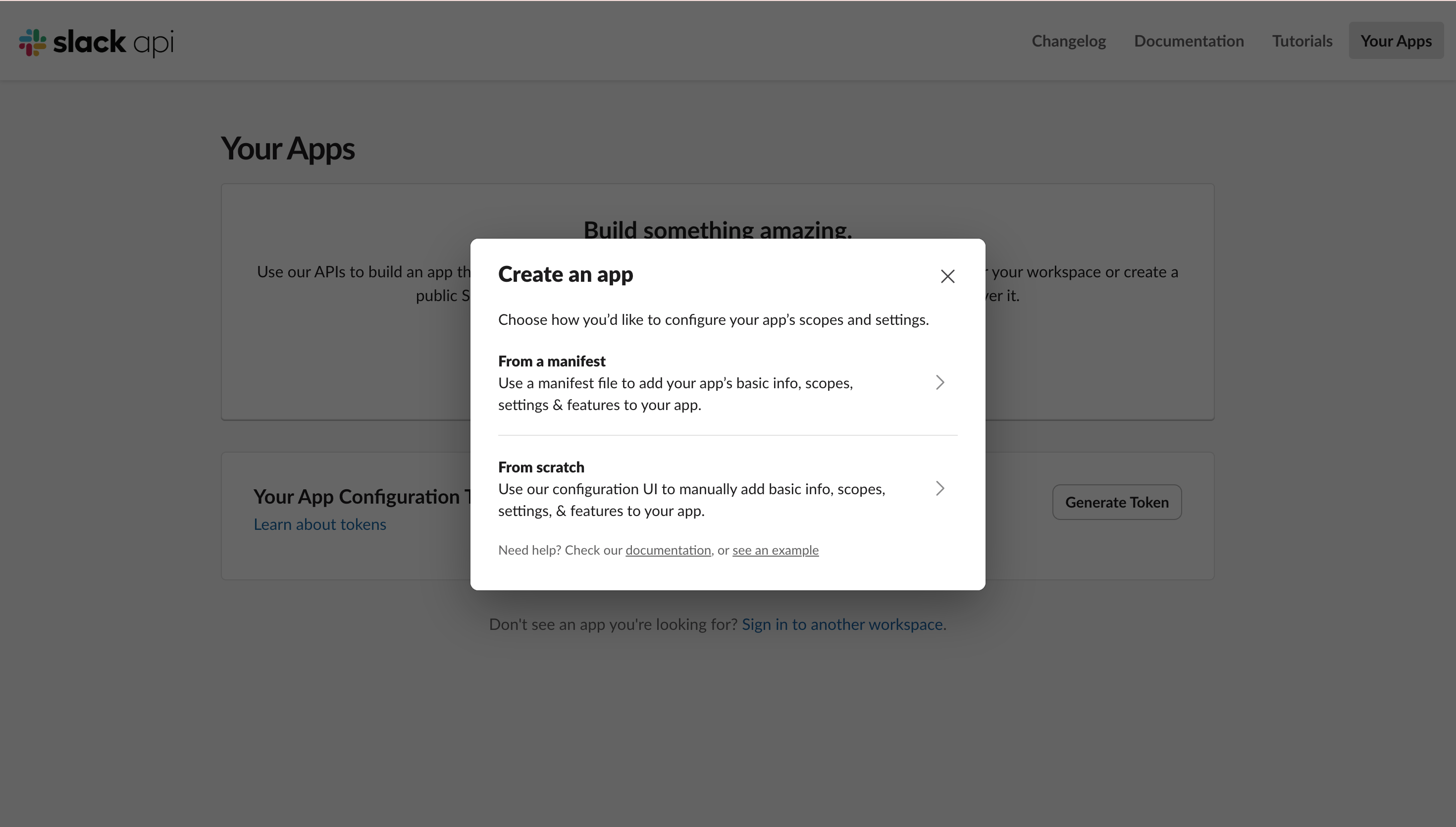
Visit api.slack.com/apps → click Create New App → select From scratch → enter an app name (e.g. "EasyClaw"), select your workspace, and click Create App.
Add Required OAuth Permission Scopes
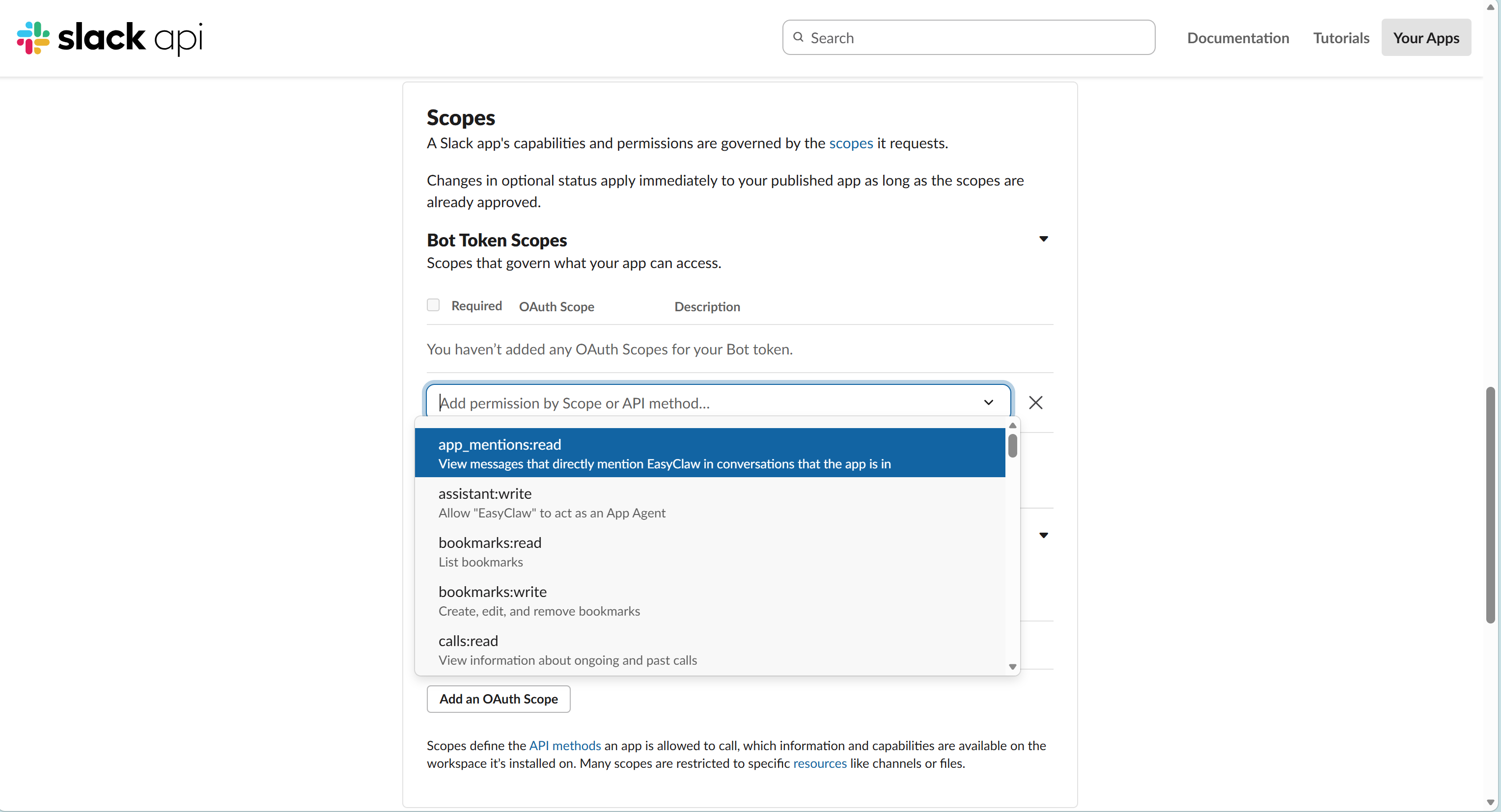
In the left menu, go to OAuth & Permissions, scroll down to Scopes, and under Bot Token Scopes click Add an OAuth Scope to add the following one by one:
chat:write— Send messagesim:history— Read DM historyim:read— View DMsim:write— Start DMschannels:history— Read channel messagesapp_mentions:read— Respond to @ mentions
Install App to Workspace
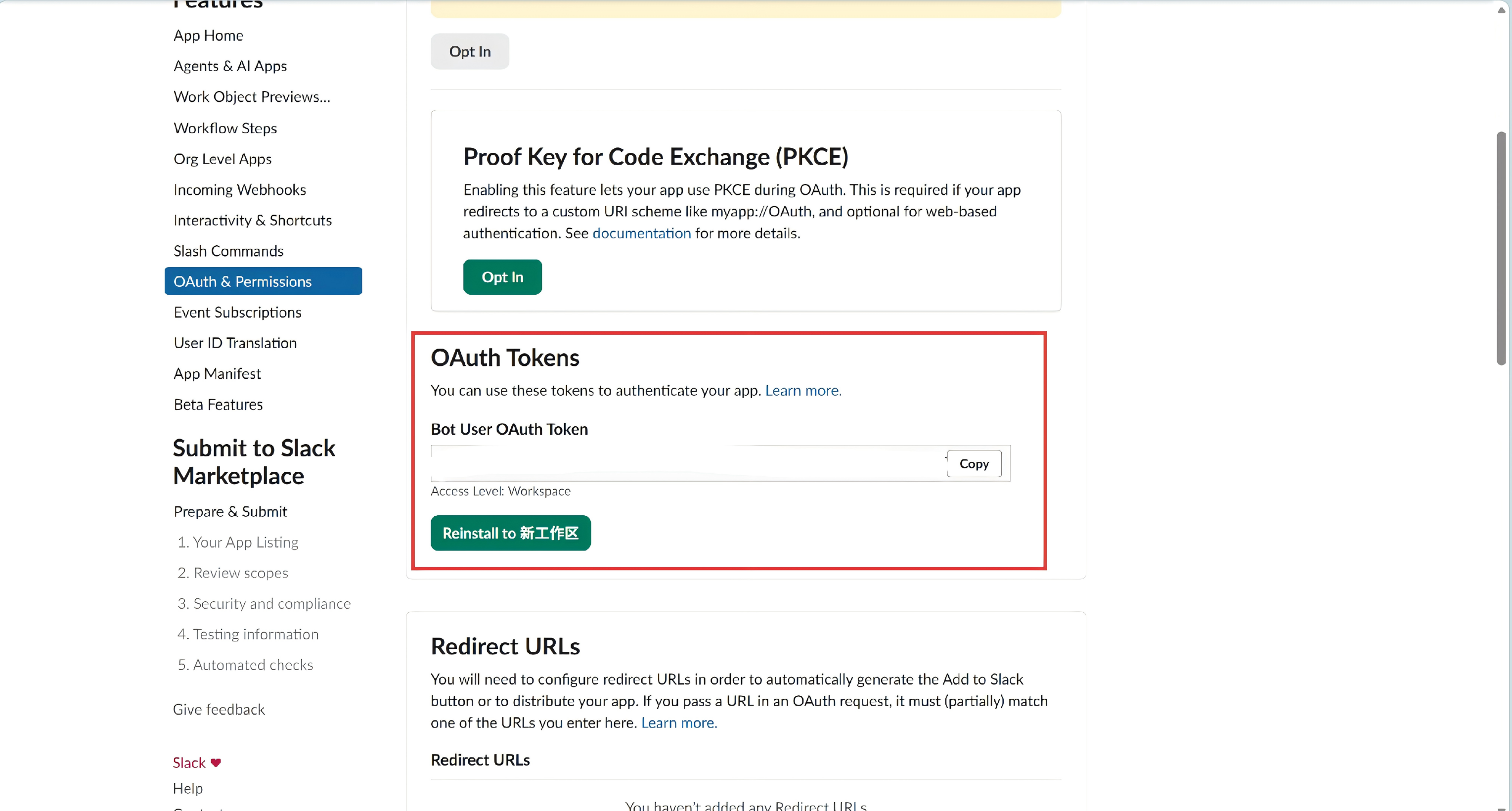
Still on the OAuth & Permissions page, scroll to the top and click Install to Workspace → on the authorization page click Allow to complete installation.
Copy the Bot Token
After installation, the page displays the Bot User OAuth Token (starts with xoxb-). Click Copy and save it safely — you'll need it in the next step.
Paste the Token into EasyClaw
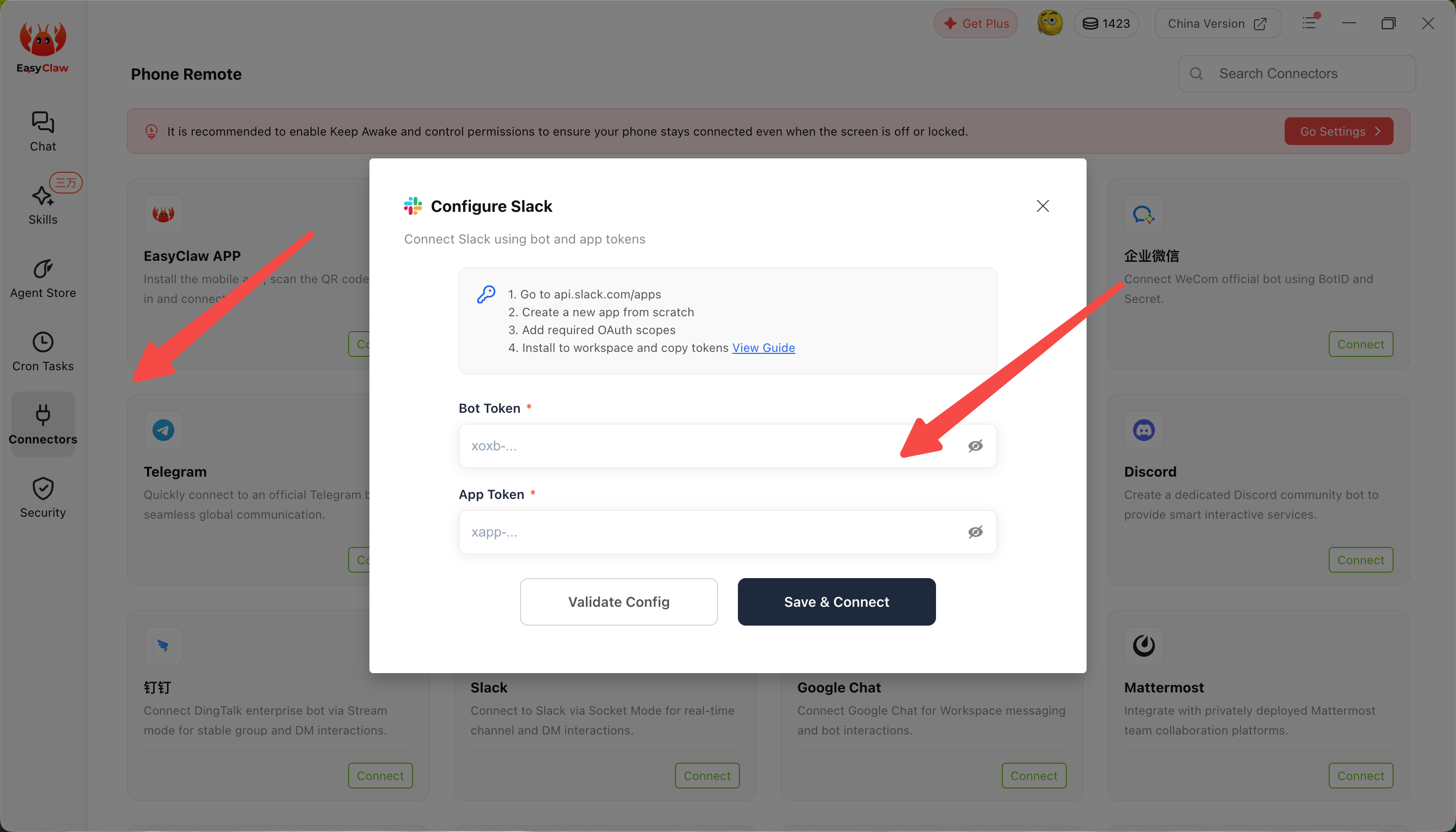
In EasyClaw desktop, click Connector → select Slack → paste the Bot Token into the input field and click Connect.
The Bot Token is the credential for your app to access the workspace. If it's ever leaked, immediately go to api.slack.com/apps, open your app, and regenerate the token.
Find your app bot in Slack and send a test message. If EasyClaw replies normally, the setup is successful — you can now send commands to EasyClaw from Slack anytime.
The Slack channel's conversation context is independent from the desktop app and other channels. To share important information or preferences across channels, ask the Agent to write it to MEMORY.md.