Frequently Asked Questions
Start here if you run into any issues. Covers product basics, credit usage, troubleshooting, and more.
5.1 Product Basics & Edition Choice
1. What editions of EasyClaw are available, and which one should I pick?
| Edition | Best for | Highlights | Website |
|---|---|---|---|
| Desktop (International) | Individual users worldwide | Sign in with Google, works on Windows & Mac | easyclaw.com |
| Cloud Bot | Users who need 24/7 uptime | Access via browser — no desktop client required | cloudbot.easyclaw.com |
| Enterprise | Teams & organizations | Role-based access, shared resources, collaborative workflows | Cloud: easyclaw.work Desktop: team.easyclaw.com |
2. Is the desktop app truly local? How does it compare to the cloud edition?
Yes, the desktop app runs locally. Your files, memory, and configuration stay on your device — nothing is uploaded to the cloud, giving you maximum data privacy.
Key difference: The local Agent runs on your computer and can control your desktop, but it stops when you shut down. The cloud edition runs on our servers 24/7, but it cannot access or control files on your local machine.
Quick comparison:
| Aspect | Desktop (easyclaw.com) | Cloud (easyclaw.work) |
|---|---|---|
| 24/7 uptime | ❌ Requires computer to be on | ✅ Always online |
| Local desktop control | ✅ Yes | ❌ Not available |
| Data privacy | ✅ Fully local | Data stored in the cloud |
| Setup difficulty | Install & configure | Sign up and use immediately |
3. What's the difference between the Desktop app and the Bot (mobile channel)?
| Dimension | Desktop | Bot (mobile channels) |
|---|---|---|
| Capabilities | Highest — can control desktop UI and browser | 24/7 online, suitable for lightweight remote tasks |
| Uptime | Requires computer to be powered on | 24/7 response |
| Best for | Complex desktop automation, local file operations | Simple queries, triggering remote tasks |
| Memory sharing | Memory is independent between the two (unless written to a shared file) | |
5.2 Usage Questions & Credit Rules
1. How do I switch models?
- Desktop: Click the current model name in the bottom-right corner of the chat box → select a new model.
- Cloud: Send the command
/model model-name(e.g./model claude-sonnet-4.6).
Note: model settings are per-channel. Feishu, Telegram, and other channels must be configured separately.
2. What's the relationship between credits and tokens?
- Credits: EasyClaw's universal pricing unit. Using any model consumes credits.
- Tokens: The model provider's metering unit. If you connect your own API key, you'll consume your own token quota plus EasyClaw's operational credits.
3. What are the differences between the credit types, and do credits expire?
- ✅ Purchased credits accumulate and never expire — as long as your subscription is active, they remain valid. They do not reset at the end of the month.
- ⚠️ The daily 200 free credits expire each day if not used. They do not roll over.
| Credit Type | How to Get | Validity | Consumption Order |
|---|---|---|---|
| Daily Credits (Daily Free Credits) |
Automatically refilled to 200 points every day at 00:00 | Valid for the current day only (unused credits expire) | 1 (first) |
| Subscription Credits | Automatically issued each month while membership is active; refreshed monthly on your subscription date | 3 months | 2 |
| Purchased Credits | Available for purchase by members only | 1 year | 3 |
4. My credits are running out too fast — what can I do?
Here are a few ways to reduce credit consumption:
- Immediate actions: Switch to a lower-multiplier model (e.g. Qwen 3.5 Plus 0.6x); periodically send
/newto clear conversation history (recommended every 10–20 turns); break complex tasks into smaller steps. - Long-term saving: Configure a custom API key — conversations using your own key will not consume platform credits.
- Further reading: Check our blog for tips on cutting token costs (link available on the official site).
5. Will I still be charged credits when using my own API key?
Chat requests: 0 credits.
Still consumes credits: browser-use, computer-use, image generation, speech-to-text, and other services that call official built-in APIs.
6. Can I get a refund or transfer credits?
Payments are non-refundable. However, starting from version V1.3.23, you can transfer credits between Desktop and Enterprise editions.
7. How do I cancel my auto-renewal subscription?
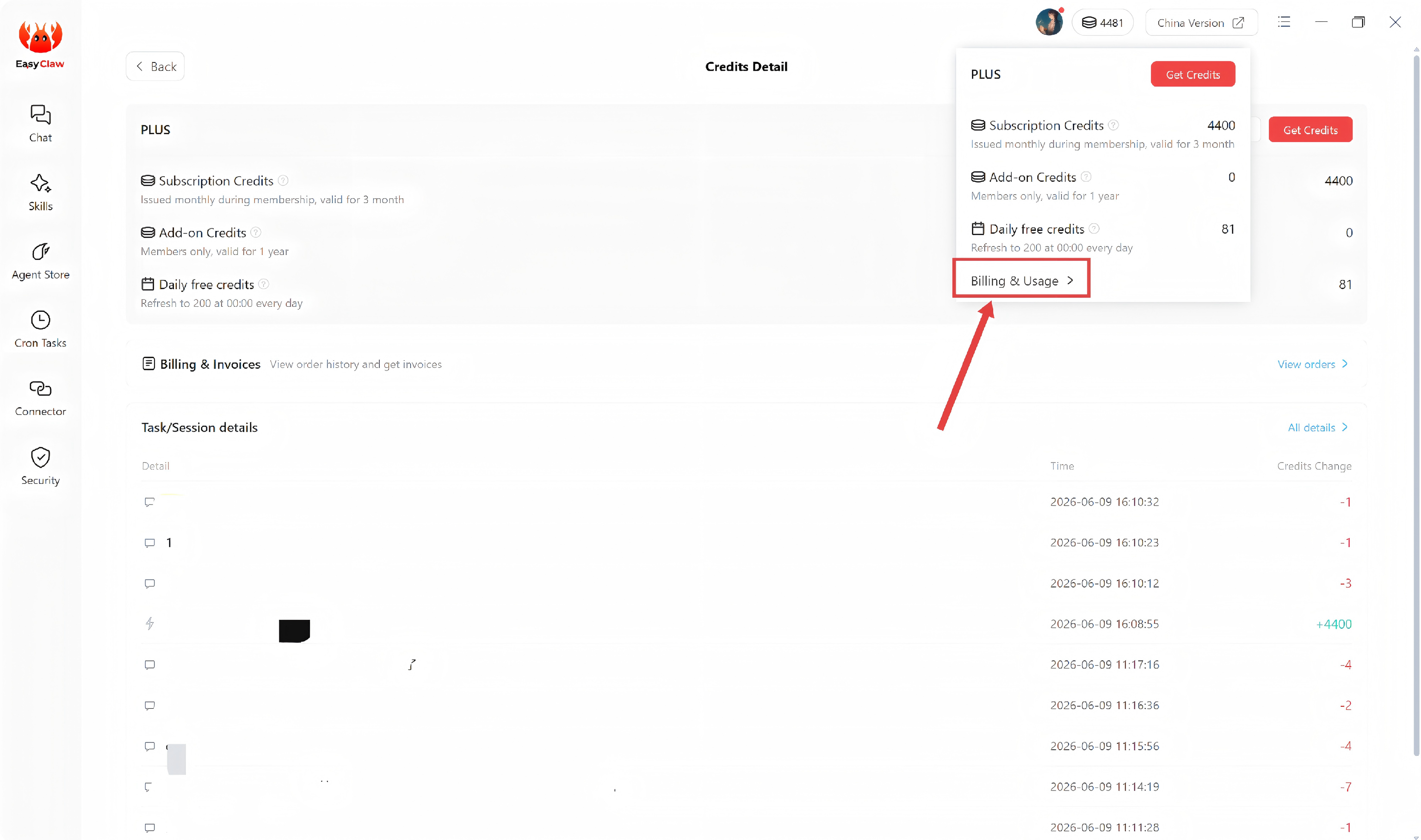
Open Billing & Usage
Hover over the credits display area in the top-right corner, then click 「Billing & Usage」 from the dropdown menu.
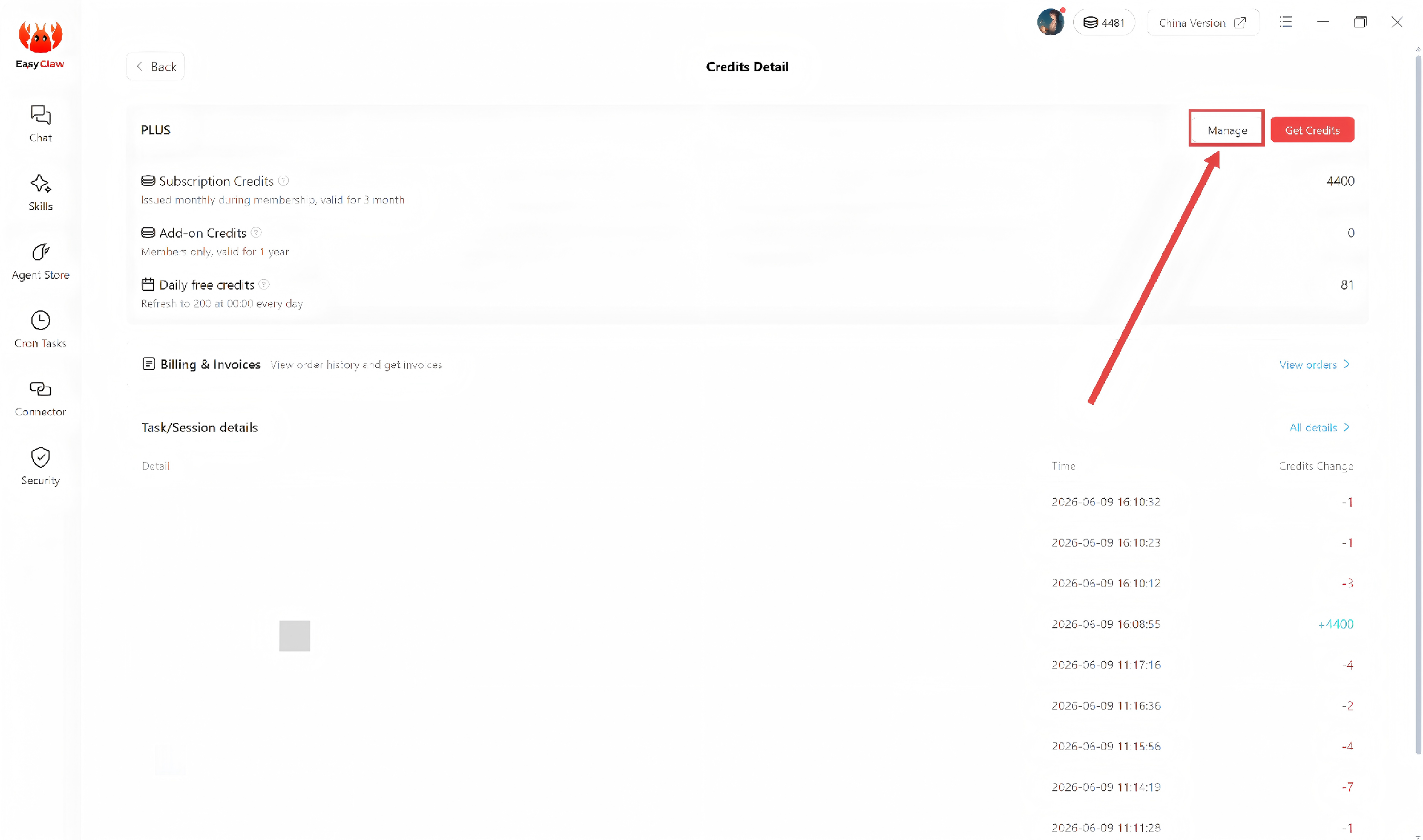
Click Manage
After entering the Billing & Usage page, find your current subscription plan and click the 「Manage」 button on the right side.
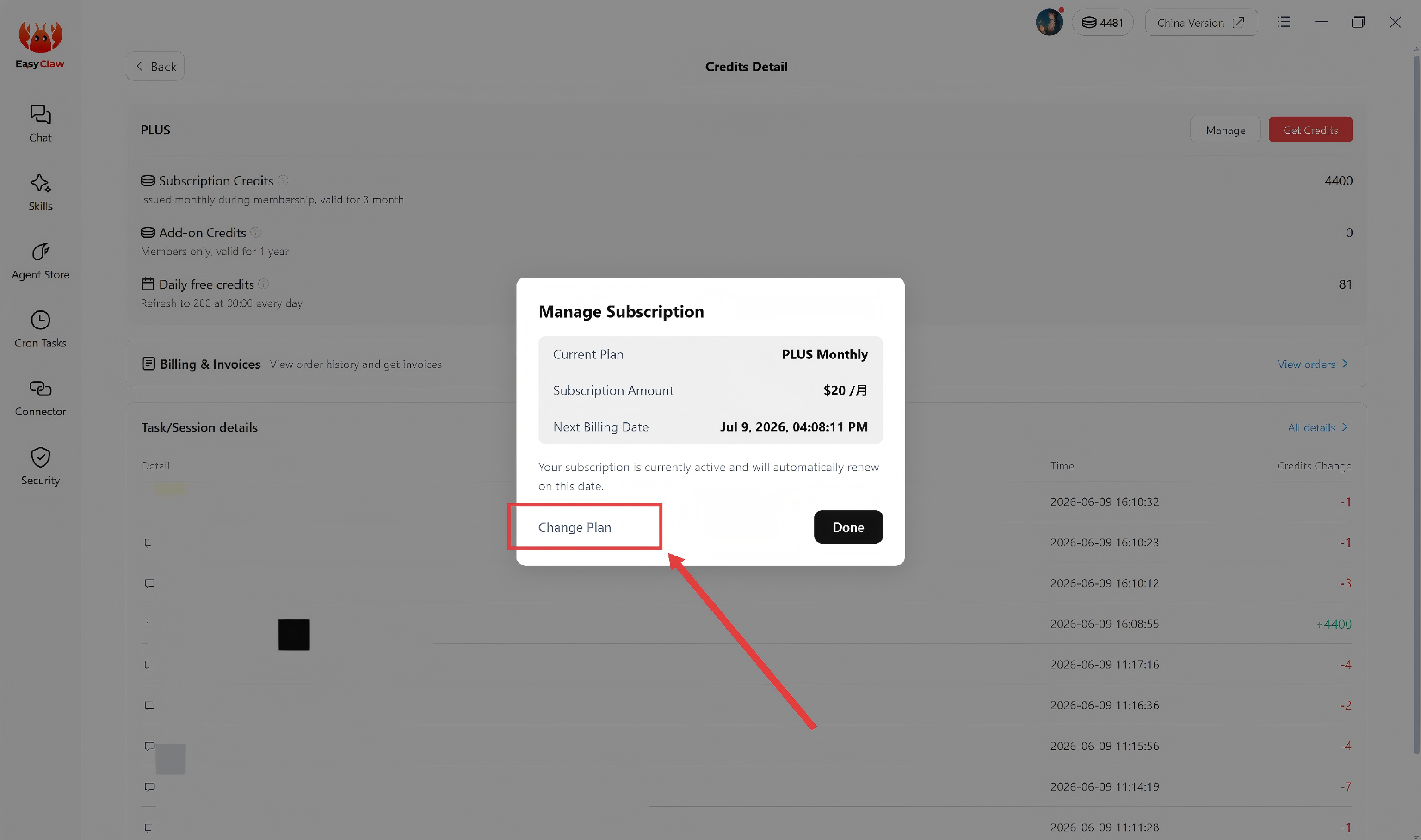
Click Change Plan
On the subscription management page, click the 「Change Plan」 button.
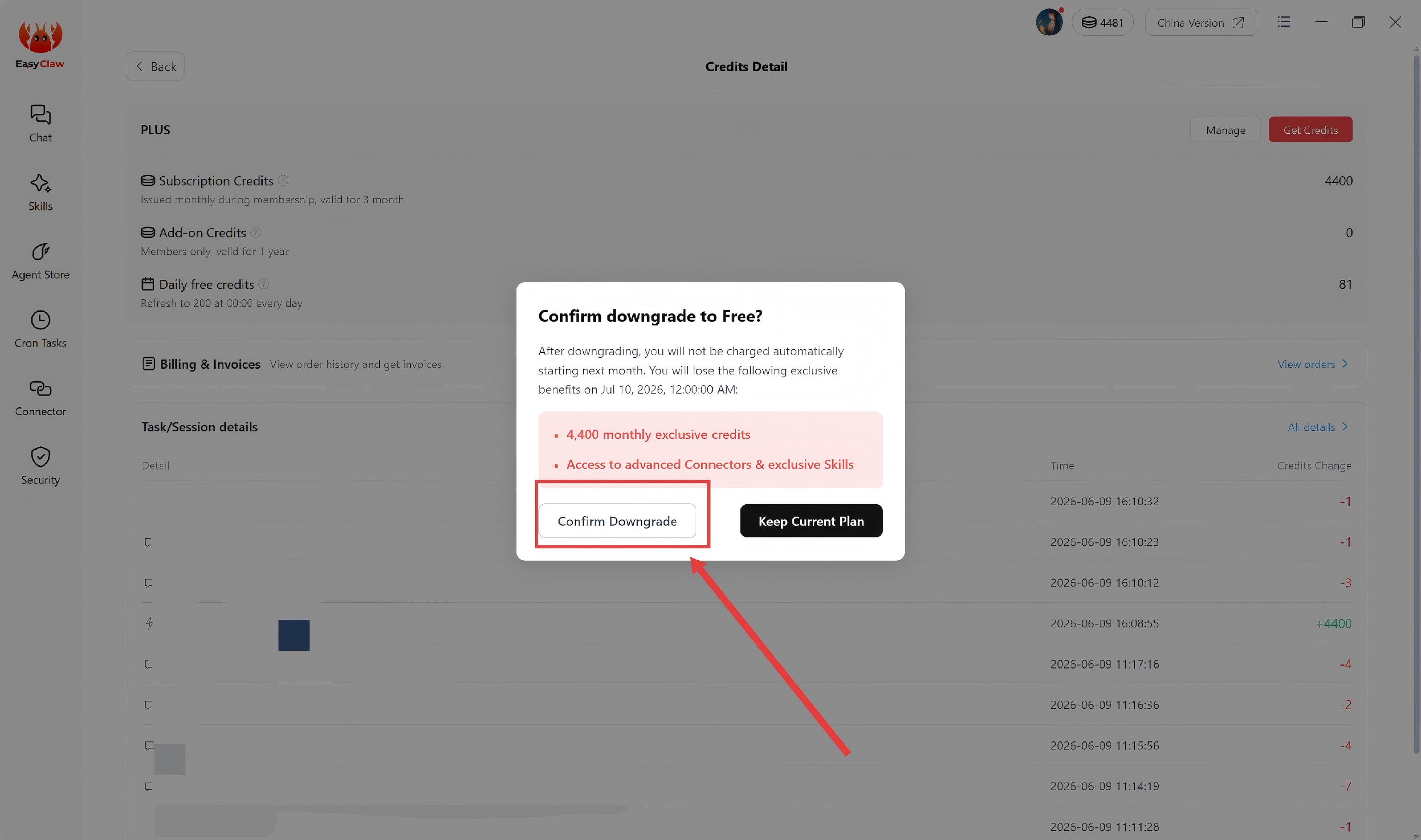
Click Confirm Downgrade
Click the 「Confirm Downgrade」 button. After successful cancellation, your subscription will stop auto-renewing at the end of the current billing cycle.
• Your subscription will remain active until the end of the current billing cycle, and you'll continue to enjoy the corresponding credits and features.
• After the billing cycle ends, your account will automatically downgrade to the Free plan (200 credits per day, capped at 2,000).
• Any purchased but unused credits will be permanently retained in your account and can be used at any time.
• If you change your mind, you can upgrade to a paid plan at any time.
Need help? If you encounter any issues while canceling your subscription, please contact our support team: support@easyclaw.com
7. What extra benefits do paid members get?
- Quota: Monthly credit allowance
- Priority: Higher task processing priority, plus the ability to purchase additional credits
- Best value: We recommend the annual plan for the most cost-effective experience
5.3 Installation & Data Migration
1. Mac says "app cannot be opened" after installation?
Solution: Go to Mac System Settings → Privacy & Security → Security → click "Open Anyway". Or hold the Control key and click the app icon to open.
Note: download the ARM version for Apple Silicon (M-series), and the Intel version for Intel-based Macs.
2. How do I migrate data when switching computers or reinstalling the OS?
Recommended: Cloud Backup (V1.3.33+)
Old computer: main interface → hover over avatar → Cloud Backup / Restore → create a new backup.
New computer: install and log in → Cloud Backup / Restore → restore backup.
Manual migration (older versions)
Manually copy SOUL.md, AGENTS.md, MEMORY.md, and the entire memory/ folder from the workspace directory to the corresponding directory on the new computer.
Important: channel configurations must be set up again. Credits and subscription plans cannot be manually transferred. Cloud backups are retained for 60 days, and backup data is cleared after membership expires.
5.4 Core Feature Operations
1. How do I set up remote channels?
Click Mobile Remote in the left sidebar → choose a channel → scan the QR code or follow the prompts to connect. Feishu is currently recommended for the most complete experience.
2. How do I switch models or connect my own API key?
Click the model switcher in the top-right corner of the chat box to change models on the fly. To add a custom API key, click Add Custom Model (requires version 1.3.24 or later).
3. Why is execution sometimes very slow?
Check your prompt
Make sure your instructions are complete and clear, to avoid unnecessary back-and-forth with the Agent.
Switch to a more capable model
Complex tasks should use an advanced model; using a basic model for heavy work often ends up slower overall.
Ask the Agent for optimization tips
You can directly ask: "What can be optimized in this workflow? Give me improvement suggestions."
5.5 Multi-Agent Architecture
1. Is one chat window equal to one Agent?
Not exactly. An Agent is an AI instance with its own personality, memory, and skill configuration. A chat window is a conversation session (history) with that Agent. To have truly separate workflows, you need to configure multiple Agents and bind each to a different Feishu app.
2. How does the Multi-Agent architecture work?
In a multi-agent setup, a Boss Agent orchestrates and delegates tasks to specialized Sub-Agents. Sub-agents complete their work and report back to the Boss Agent, who then delivers the final reply to the user.
3. Can a sub-agent reply directly in the Feishu chat after being dispatched?
Yes, but the result must always come from the Boss Agent, not from the sub-agent directly.
Flow: You → Boss Agent → sessions_spawn starts a sub-agent → sub-agent returns result to Boss → Boss replies to you in the Feishu chat.
5.6 System & Environment
1. Which version should I download for Mac?
- Apple Silicon (M1/M2/M3/M4) → download the ARM version
- Intel processor → download the Intel version
Not sure? Go to Apple menu → About This Mac, and check the "Processor" or "Chip" field.
2. What should I watch out for when running long automation tasks?
- Keep your computer plugged in and prevent it from going to sleep (a sleep interruption will halt the task).
- Enable high-performance mode and disable any system power-saving or automatic shutdown settings.
3. What gets affected by a version update?
Minor updates usually bring new features, bug fixes, and improvements to Skills and Memory files. After updating, please check that your MEMORY.md and installed Skills still work as expected.
If you run into anything unusual, contact support: support@easyclaw.com
5.7 Troubleshooting & Invoicing
1. I'm getting "LLM request timed out" — what now?
This usually means the model server is overloaded, the context is too long, or the task is too complex.
Most effective fix: send /new to clear conversation history. Alternatively, switch to a low-latency model (e.g. DeepSeek, Kimi, Qwen), and break complex tasks into smaller pieces.
For international users: please fill out the EasyClaw Invoice Request Form. Processing usually takes about 3 business days.