Connect EasyClaw via Discord
With the Discord channel, you can send commands to EasyClaw from a server or direct message. Create a bot in the Discord Developer Portal, copy the token, and paste it into EasyClaw to complete the setup.
• EasyClaw is installed and running on your computer
• A Discord account, logged in
• Your network can access Discord
Setup Steps
Create an Application
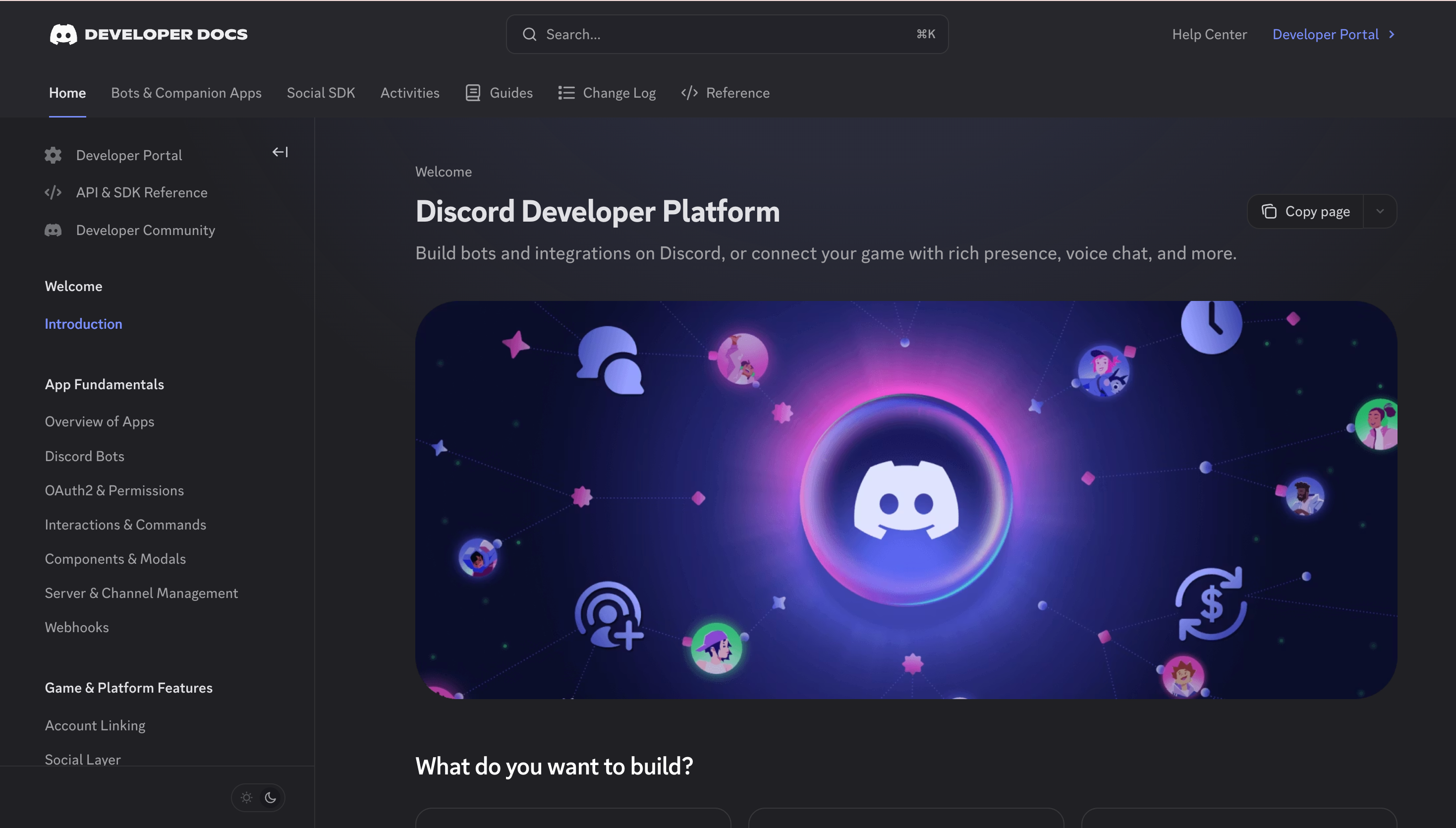
Go to the Discord Developer Portal → Bots & Apps → click Getting Started at the bottom, enter an app name (e.g. "EasyClaw Bot"), and click Create.
Add a Bot and Copy the Token
Select Create App from the menu → click Add a Bot to confirm → in the Token section click Reset Token to generate a token, then click Copy. Save it safely — you'll need it when filling in EasyClaw.
Enable Privileged Gateway Intents
Still on the Bot page, scroll down to Privileged Gateway Intents and enable both:
- Message Content Intent
- Server Members Intent
Click Save Changes at the bottom of the page.
Generate an Invite URL
In the left menu, go to OAuth2 → URL Generator:
• Under Scopes, check bot and applications.commands
• Under Bot Permissions, check the required message permissions (at minimum: Send Messages and Read Message History)
• Copy the generated URL at the bottom of the page.
Invite the Bot to Your Server
Paste the copied URL into your browser's address bar, select the server you want to add the bot to, and click Authorize.
Paste the Token into EasyClaw
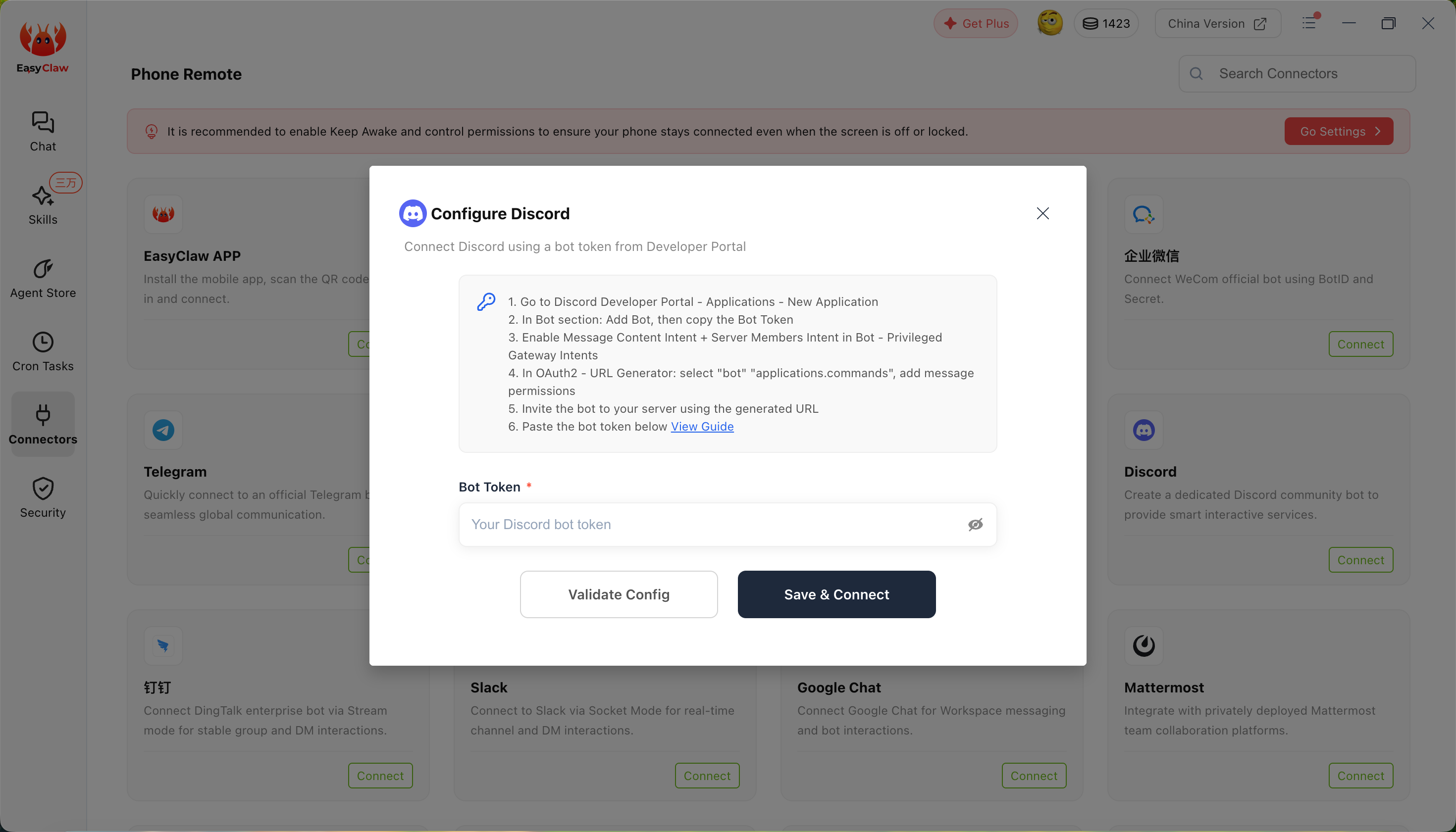
In EasyClaw desktop, click Connector → select Discord → paste the Bot Token from Step 2 into the input field and click Connect.
The Bot Token is the equivalent of your bot's password — anyone with it can control your bot. If it's ever leaked, immediately go to the Developer Portal and click Reset Token.
Send a message to the bot in your Discord server or via DM — EasyClaw will automatically execute the operation on your computer and reply with the result.
The Discord channel's conversation context is independent from the desktop app and other channels. To share important information or preferences across channels, ask the Agent to write it to MEMORY.md.