Connect Notion to EasyClaw
Link your Notion workspace to EasyClaw so you can read and edit your Notion pages right from your AI assistant. You'll need to create an integration on the Notion Developer Platform, paste the token into EasyClaw, and then connect the specific Notion pages you want EasyClaw to access.
• EasyClaw is installed and running on your computer
• You have a Notion account and belong to (or have created) a workspace
• Your network allows access to Notion
Setup Steps
Create a new integration on the Notion Developer Platform
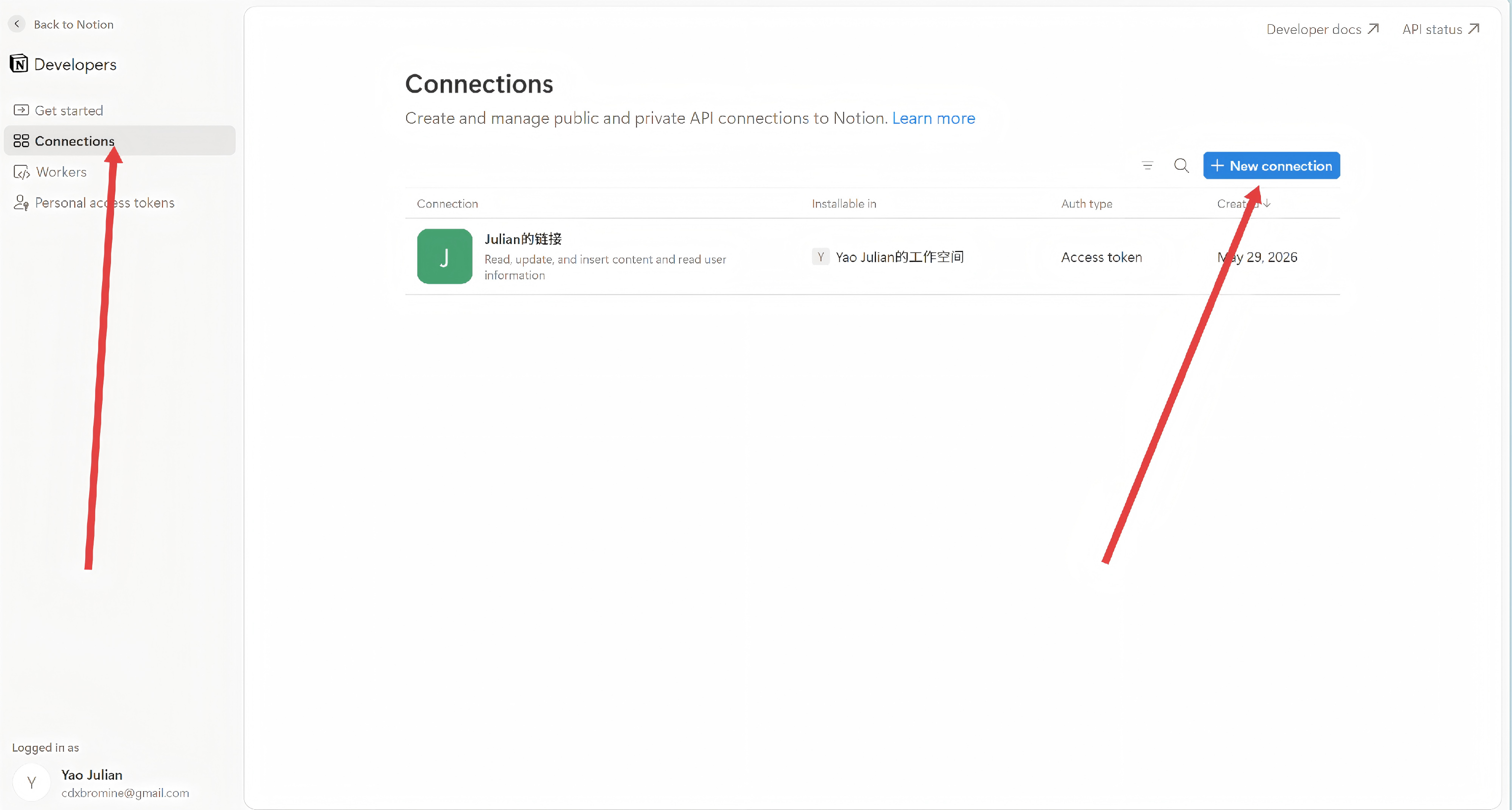
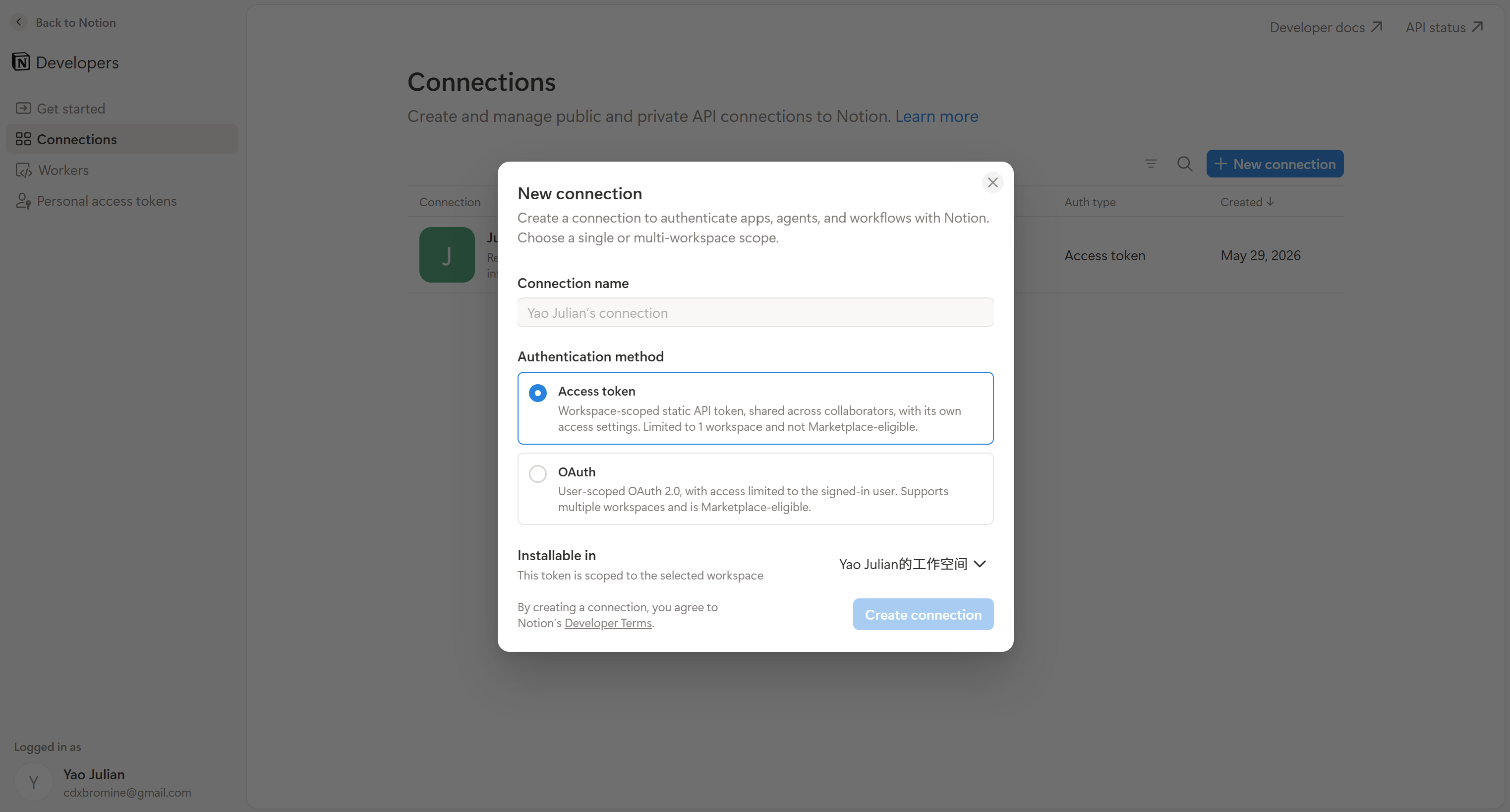
Go to Notion Developer Platform → click New connection → give it a name (e.g. "EasyClaw"), choose the workspace you want to connect, and click Creat connection.
Copy the token into EasyClaw
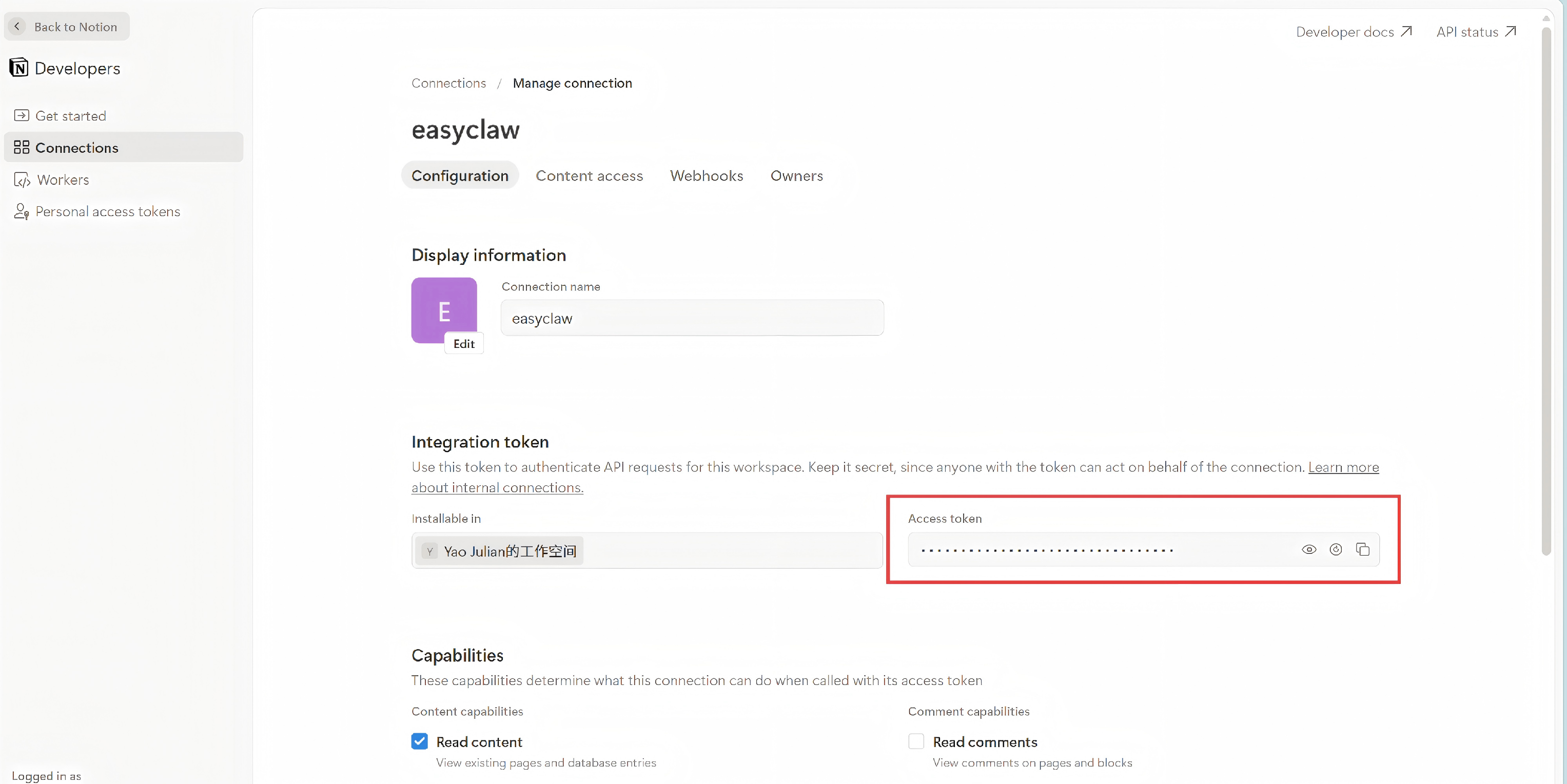
After creating the integration, you'll see a page with your token. Click Show and then Copy to save it.
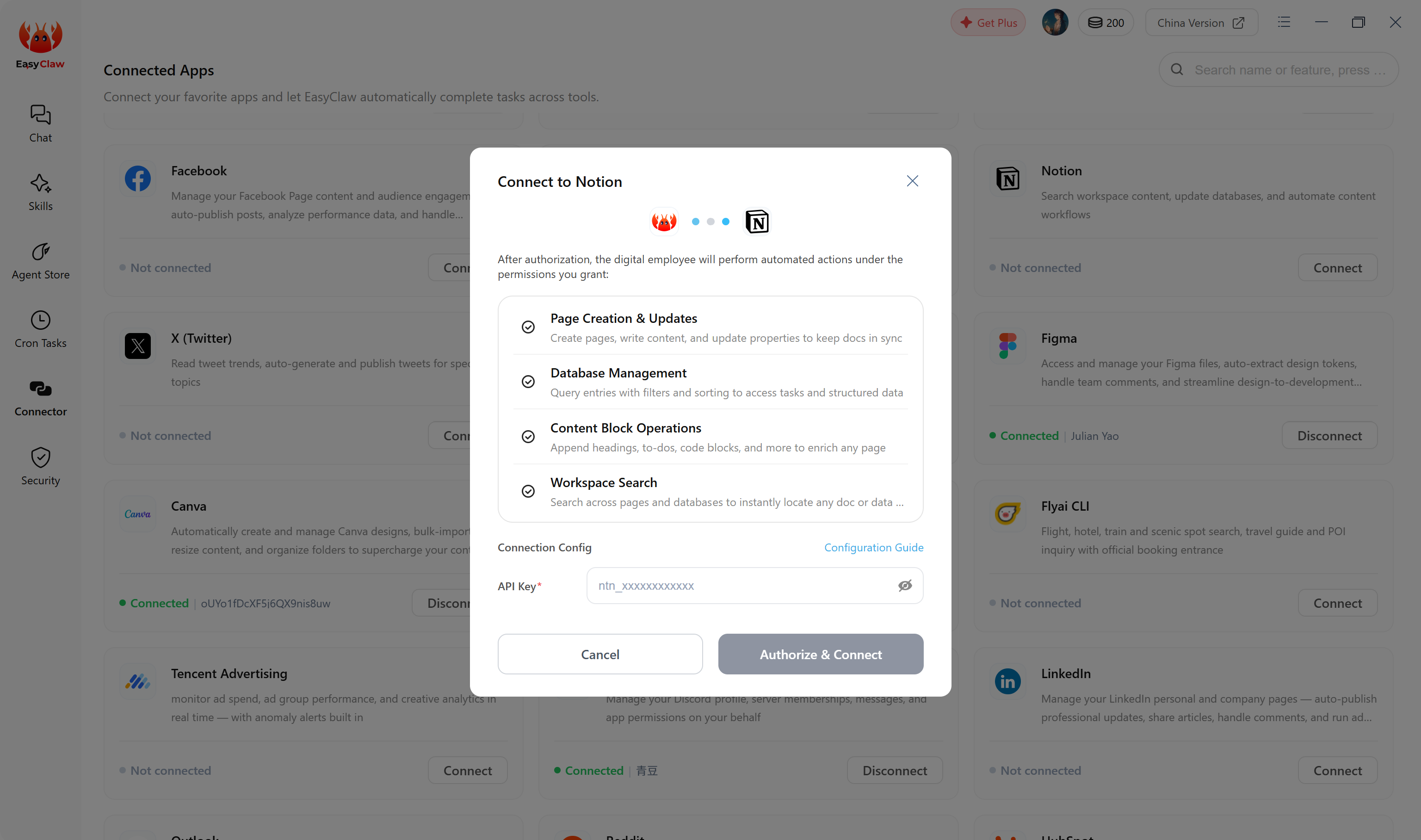
Now head back to EasyClaw, paste the token into the field provided, and confirm.
Grant access to your pages
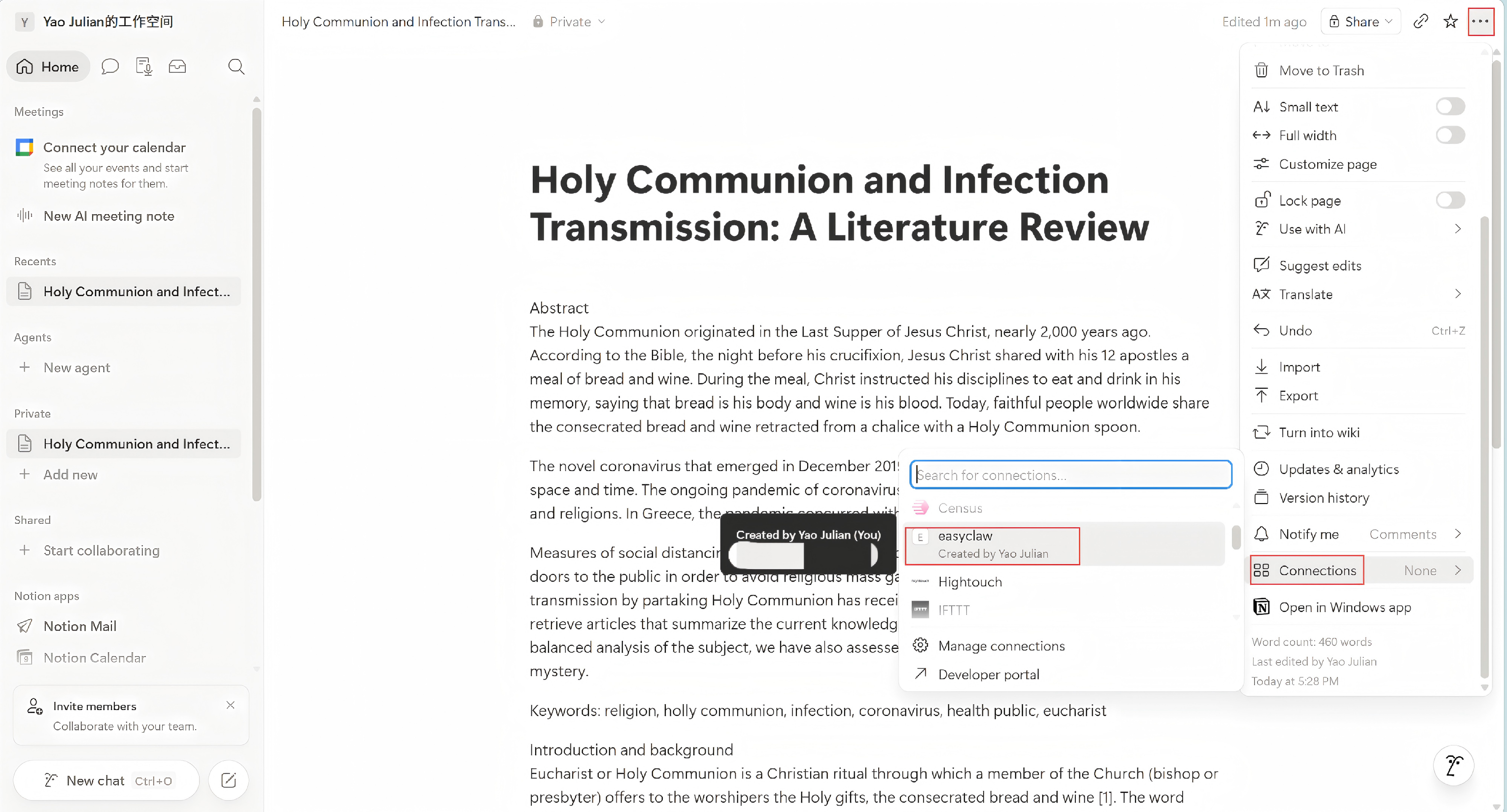
Inside Notion, open the page you want EasyClaw to access. Click the … menu in the top-right corner → Connections → select the integration you just created. If you skip this step, EasyClaw won't be able to see any of your pages.
That's it — you've connected Notion to EasyClaw and are ready to go.
Your integration token acts like a password for your workspace — anyone who has it can take actions on behalf of the integration. If your token is ever leaked, go back to Notion Developer Platform and regenerate it immediately.
Ask EasyClaw to read or update your Notion pages. If it replies normally, the connection was successful — you can now manage your Notion workspace right from EasyClaw.