Connect EasyClaw via QQ
With the QQ channel, you can send commands to EasyClaw directly from QQ — enabling remote automation control anytime, anywhere. The process: create a bot on the QQ Open Platform → get AppID and AppSecret → enter them in EasyClaw.
• EasyClaw is installed and running on your computer
• A QQ account that has completed real-name verification
The QQ Open Platform requires real-name verification before you can create a bot. Complete verification in QQ first, then proceed.
Step 1: Create a Bot on QQ Open Platform and Get AppID & AppSecret
Sign in to QQ Open Platform
Log in to the QQ Open Platform with your QQ account.
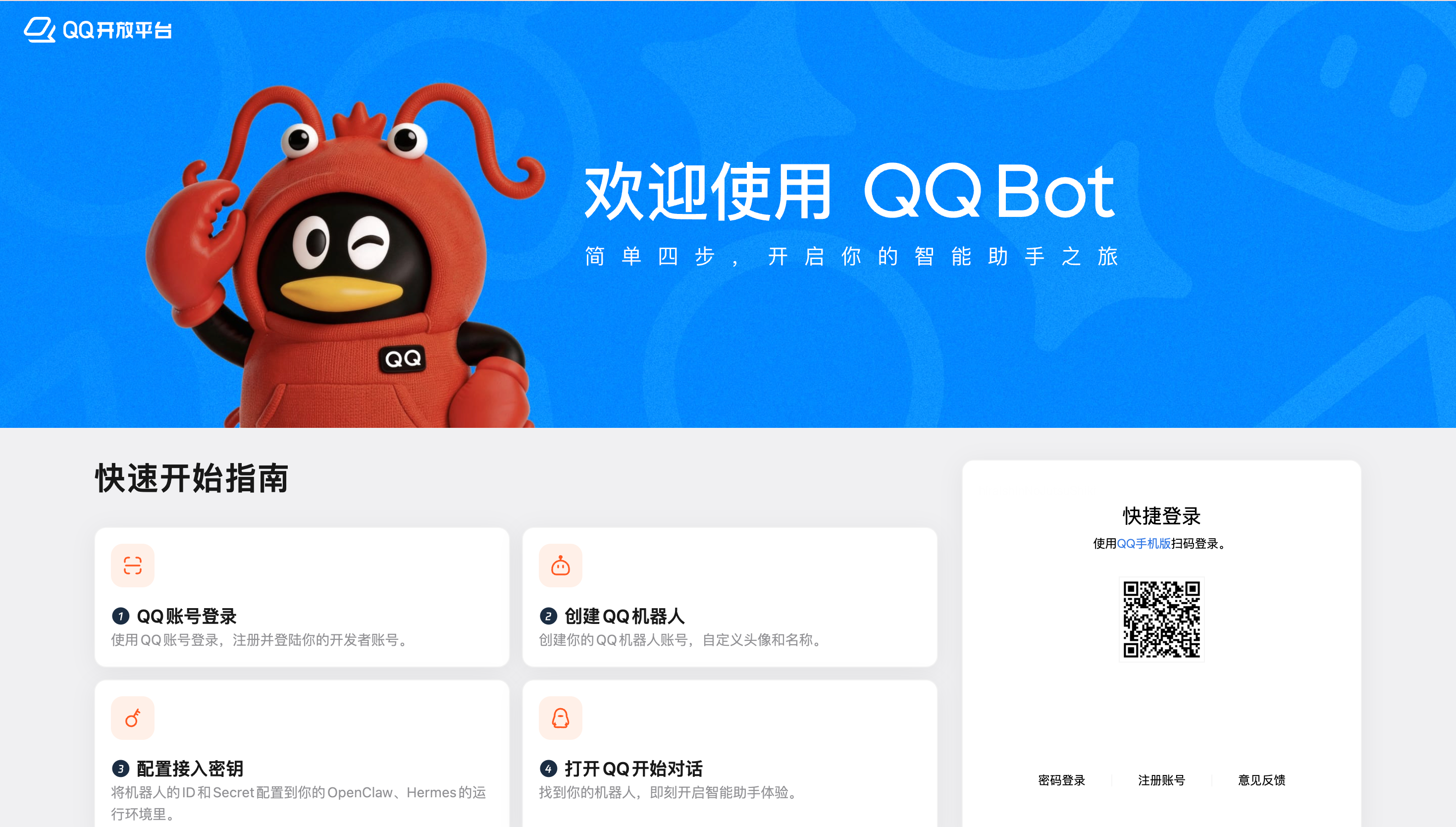
Create a Bot
After signing in, click Create Bot and enter a recognizable name, e.g. "EasyClaw Bot."
Get AppID and AppSecret
After creation, the page displays the AppID. Click "View" to get the AppSecret. Copy and save both — you'll need them to bind EasyClaw.
Step 2: Complete Binding in EasyClaw
Open Channel Config
In EasyClaw desktop, click Phone Remote → select QQ → click Configure.
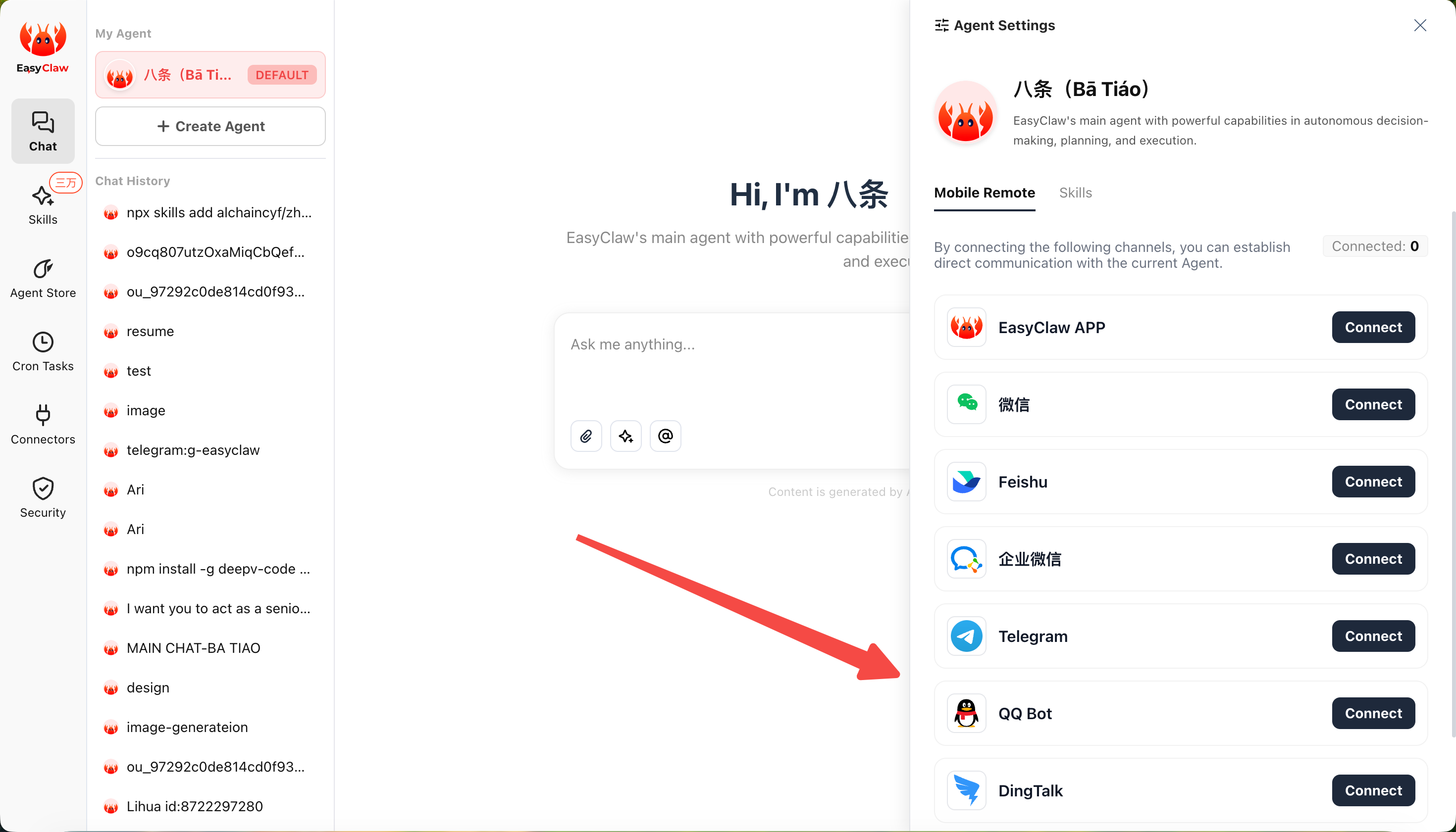
Enter Credentials and Connect
Paste the AppID and AppSecret into the fields and click Connect. Allow a moment for the connection to establish.
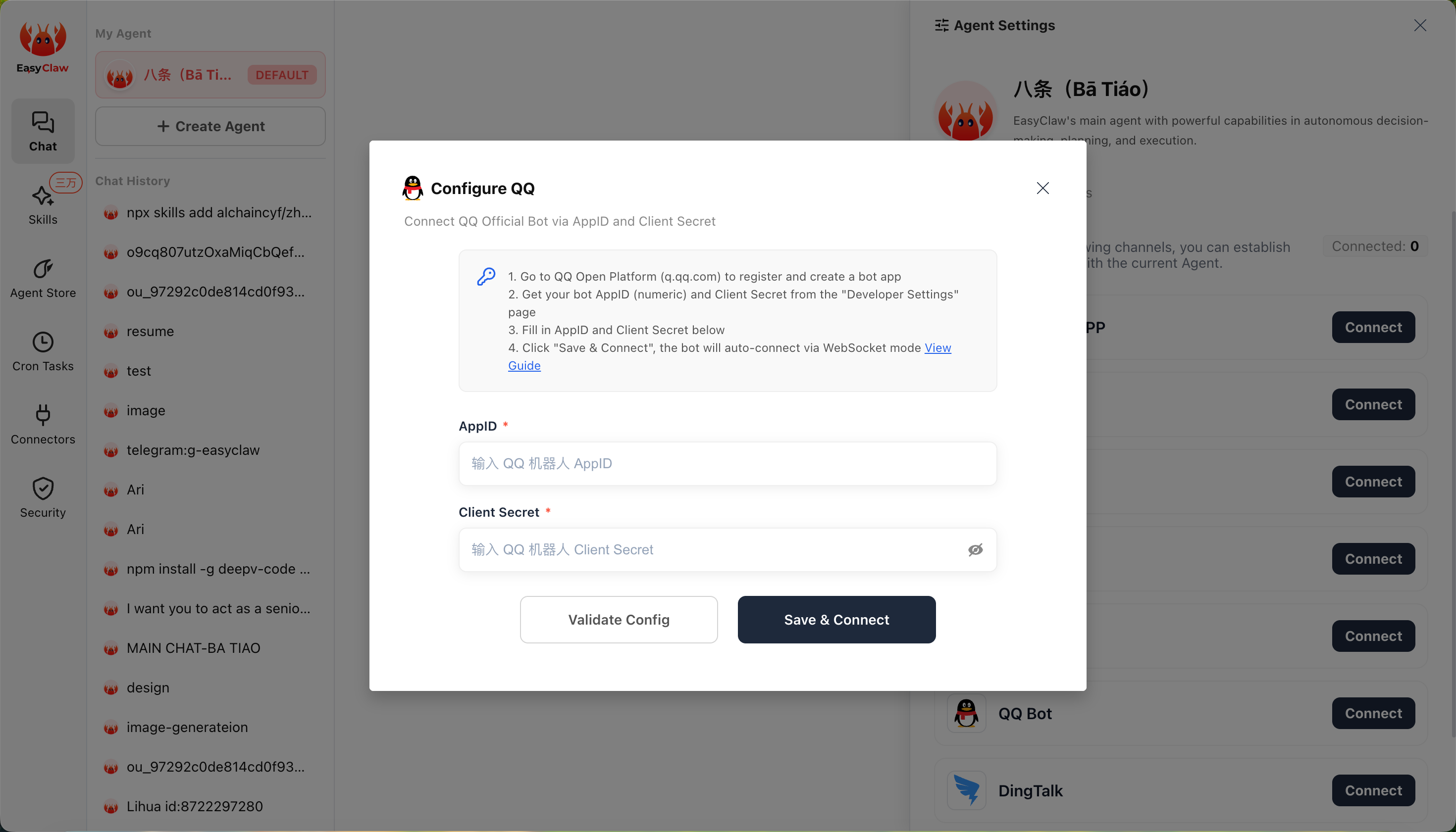
Step 3: Start Using
Find the Bot
Find your newly created bot in the QQ list and open the chat.
Send a Test Message
Send a simple message (e.g. "Hello") to test the connection. If configured correctly, EasyClaw will receive it and reply in QQ.
If the bot replies normally, you've successfully connected EasyClaw with QQ. Send commands from QQ anytime to remotely control your computer.
The QQ channel's conversation context is independent from the desktop app and other channels. To share important information or preferences across channels, ask the Agent to write it to MEMORY.md.