Set Up Your First AI Agent in 3 Steps
Start from scratch and create your own AI agent in 3 steps. The entire process takes under 5 minutes.
Set EasyClaw's default Agent as your "Main Agent" → Configure your AI agents → Save and run. Sub-agents and cross-channel collaboration can be iterated on later.
Step 1: Tell the Main Agent "Who You Are"
If you have multiple Agents, explicitly designate the default one as the "Main Agent." Type your rules directly in the chat box, then ask the Agent to save the important content to MEMORY.md:
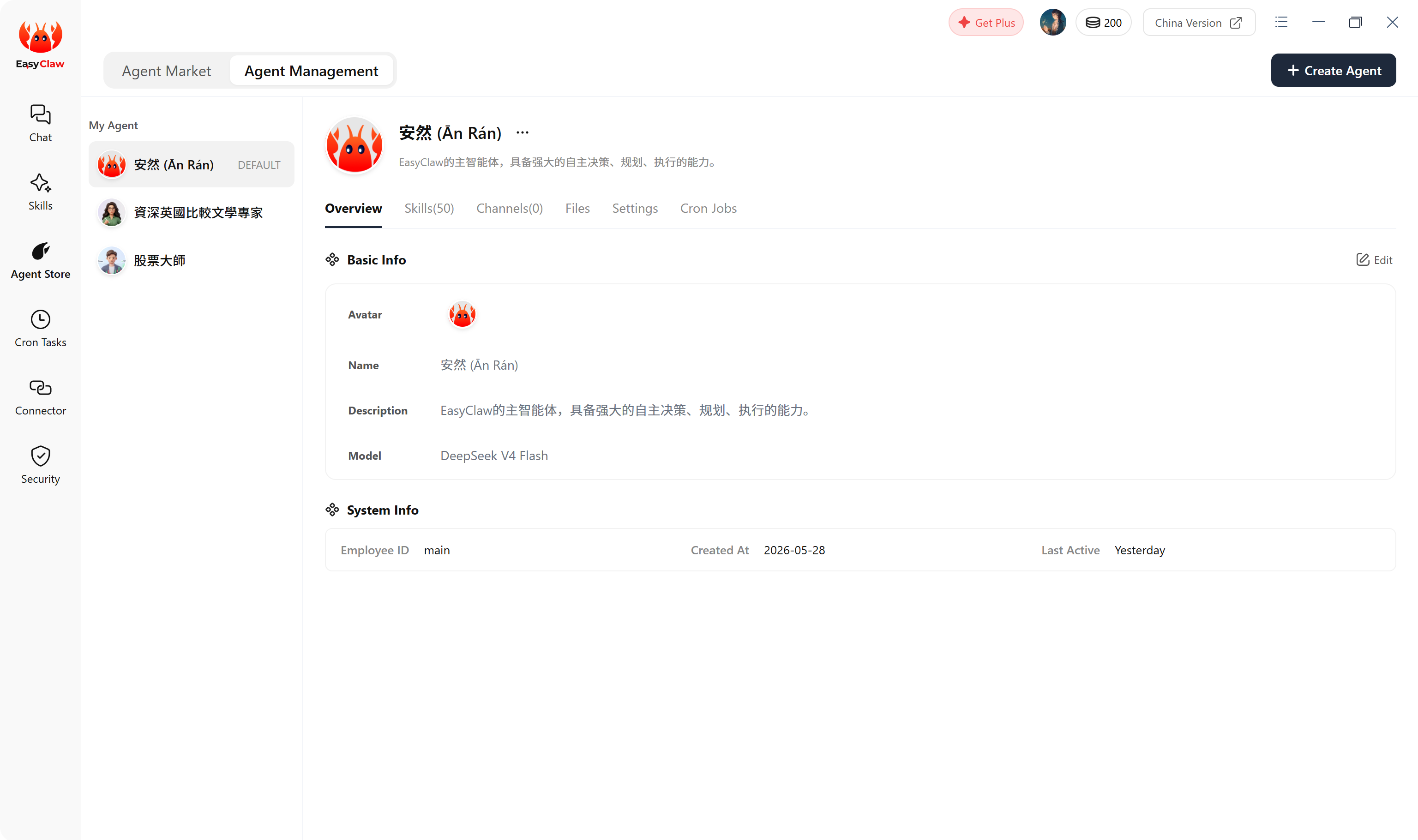
If you only tell the Agent verbally, it will forget everything as soon as the conversation ends. Information saved in MEMORY.md stays permanently — the Agent reads it every time it starts up.
Step 2: Configure Your AI Agents
In the "Creat Agent" panel, fill in the following information as prompted to quickly build your own dedicated Agent:
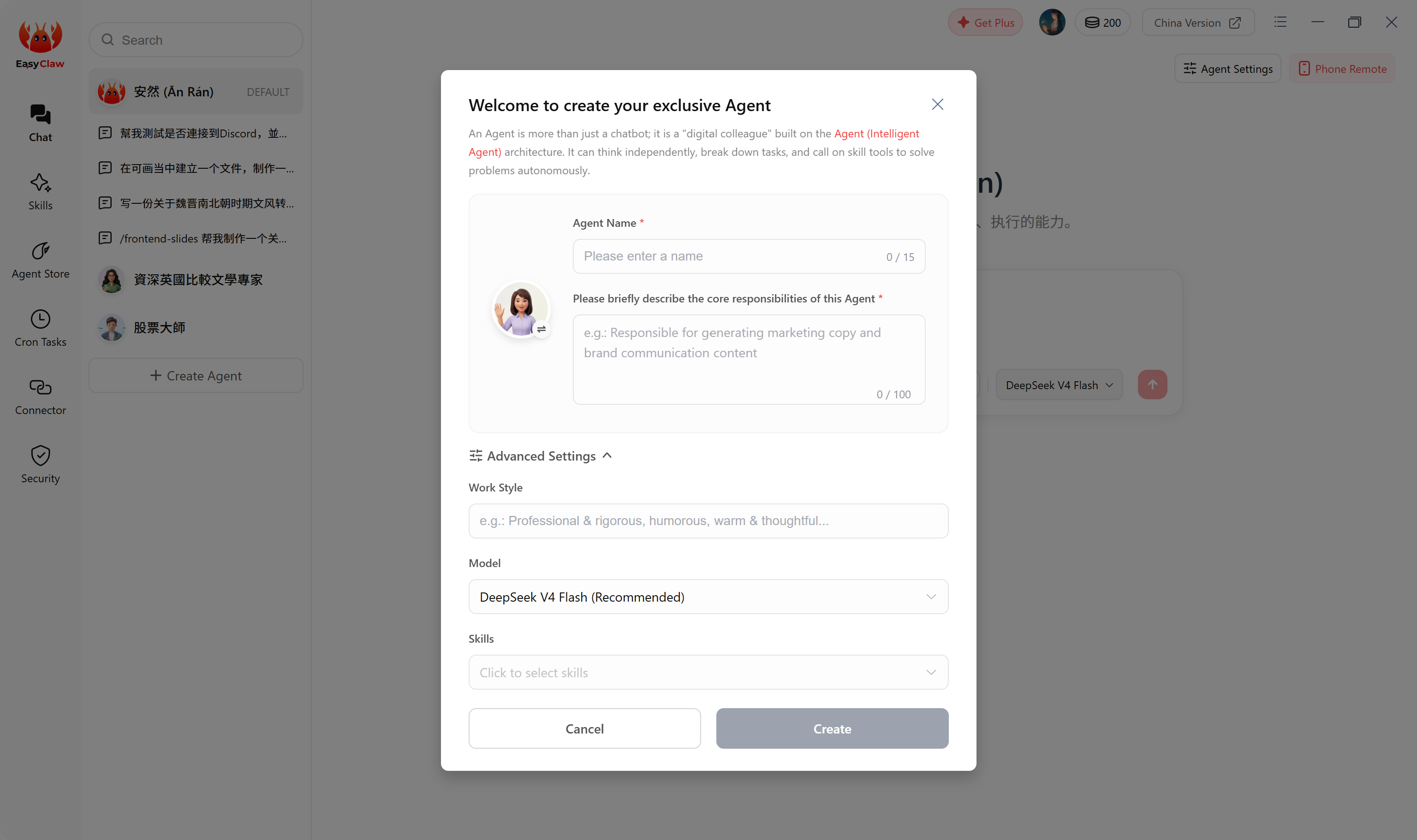
Fill in Basic details
Give your Agent a name and describe its responsibilities — for example “Daily News Assistant,” “Code Review Specialist,” or “Customer Support Bot.” The more specific the description, the more accurate the Agent’s work will be.
Assign Skills (Optional)
You can open the advanced settings to choose which Skills this Agent should have. A customer‑support Agent might need the “Knowledge Base Lookup” and “Feishu Message Sender” Skills, for instance.
Save and Test
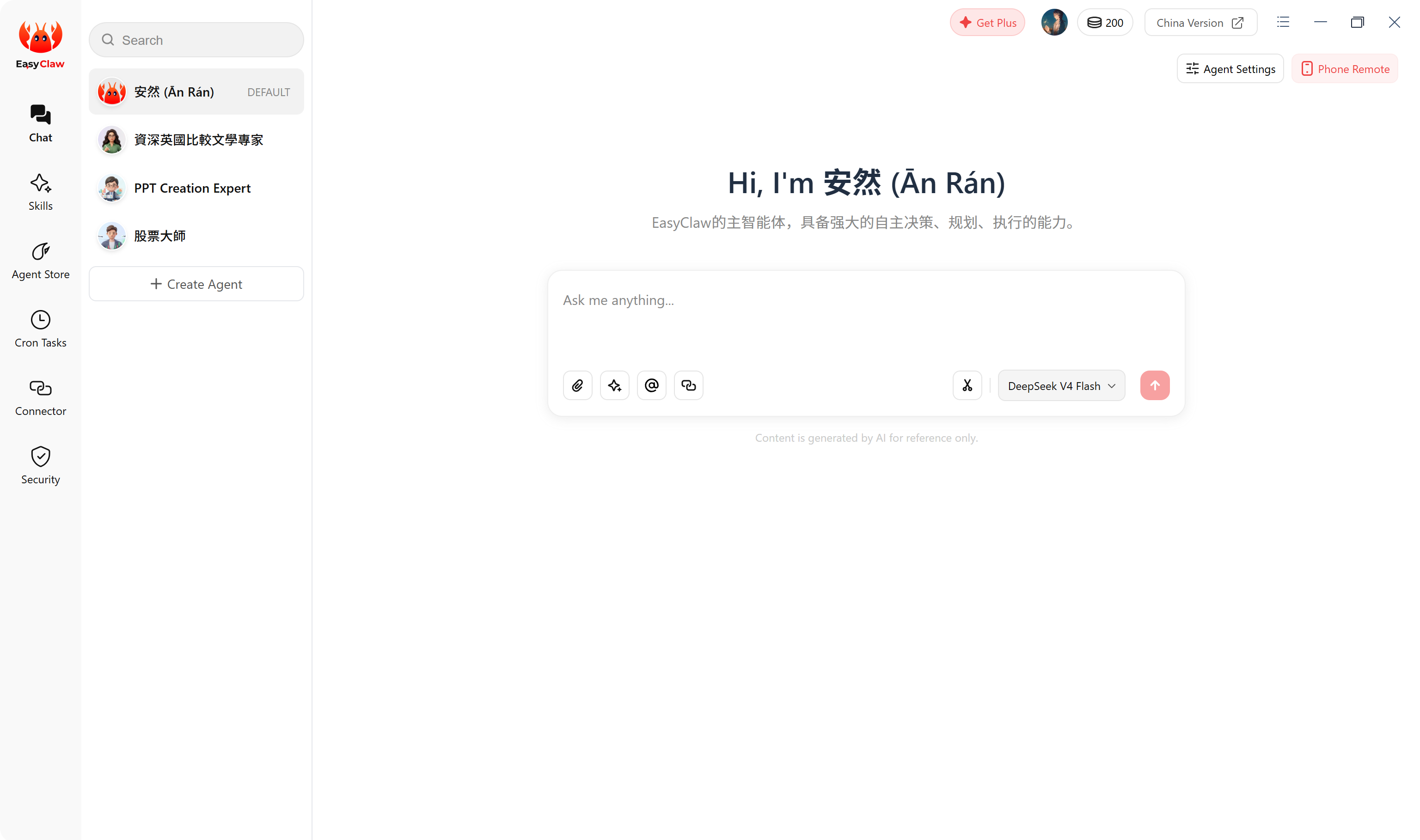
After saving, you can find the newly created Agent in the "AI Agent" list, then click to open a conversation, and send a test command to make sure everything works.
Each Agent has its own independent conversational memory. If you need to hand over an important conclusion from one conversation to another Agent, explicitly write it into MEMORY.md rather than just switching conversations.
Step 3: Save your configuration and start using it
Once everything is set up, your new Agent will appear in the “AI Employees” list. Click on it to begin chatting directly inside the interface, or bind it to a mobile remote channel so you can send tasks from anywhere.
Quick Start FAQ
How do multiple Agents work together?
- Multiple Agents can be aware of each other by sharing information through MEMORY.md.
- Each Agent keeps its own conversational memory, but they can all refer to the same MEMORY.md file.
- One Agent can directly call on another to perform a sub‑task — that’s exactly how multi‑agent collaboration works.
How do I introduce myself to an Agent for the first time?
Just explain what it needs to know in the conversation, and then ask the Agent to write the key points into its memory file. The next time you speak with that same Agent, you can simply refer to those details — you won’t have to repeat yourself.
Choose your remote channel
Now that your Agent is configured, the next step is to pick a mobile channel. This lets you send instructions to EasyClaw on your computer from your phone, anywhere and anytime.
| Channel | Best for | Recommendation | Setup guide |
|---|---|---|---|
| Telegram | International users | Highly recommended | View guide → |
| Feishu | Teams & organizations | Recommended | View guide → |
| Slack | International teams & businesses | Recommended | View guide → |
| International teams & businesses | Supported | View guide → | |
| X(twitter) | International teams & businesses | Supported | View guide → |
| Personal, everyday use | Supported | View guide → | |
| Discord | Gaming & community users | Supported | View guide → |
Most international users prefer Telegram for personal use, and Slack for teams. Feishu is also a great choice if your organization already uses it. You can even connect several channels at the same time — they work independently.