EasyClaw Interface Tour
EasyClaw is a ready-to-use AI desktop assistant. Use natural language to take deep control of your computer locally — with 24/7 automation and remote mobile control.
Start by learning the 4 core areas of the interface before doing anything else. EasyClaw condenses complex multi-Agent collaboration into 4 interaction entry points, keeping things natural even for complex tasks.
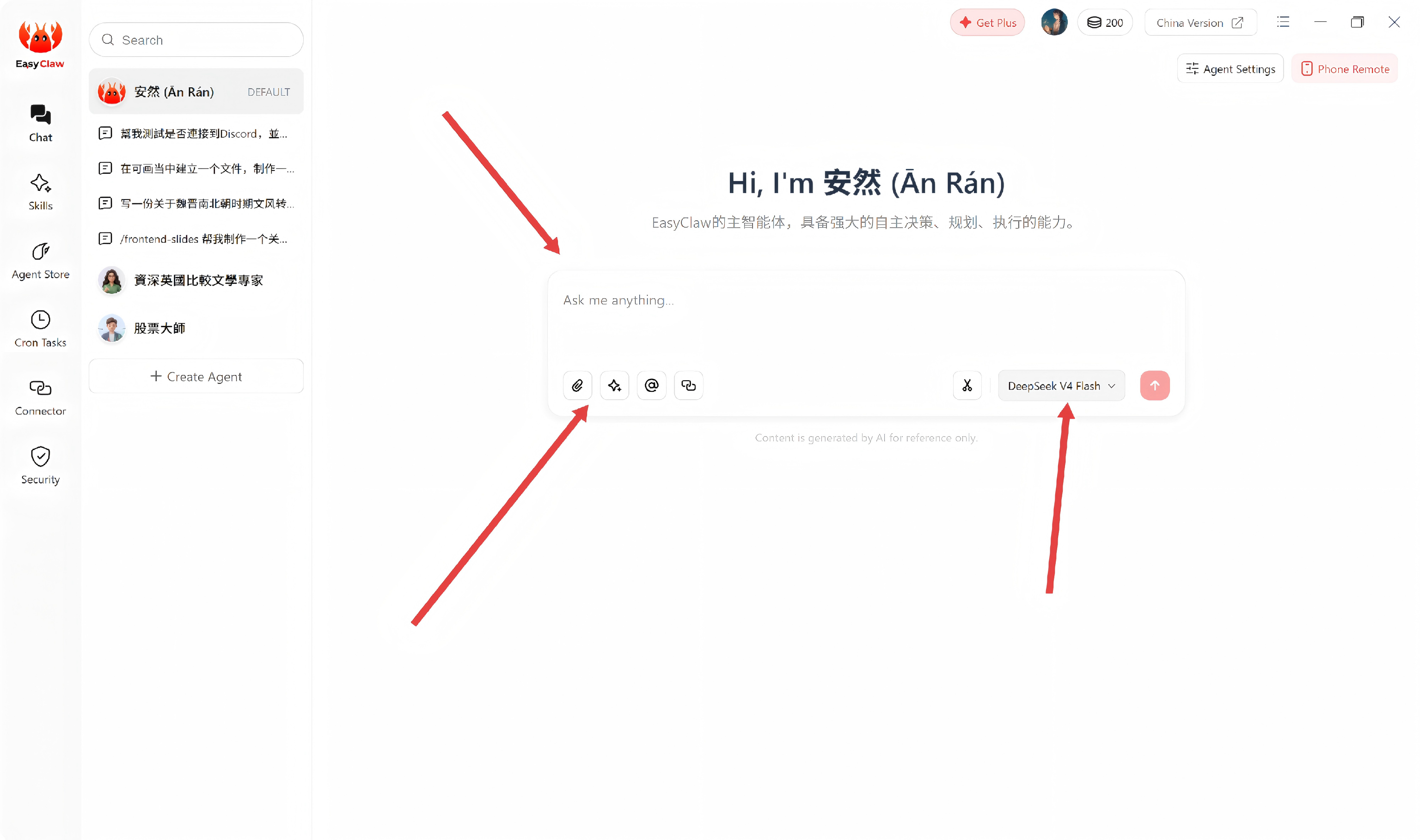
2.1 Chat View (Main Work Area)
This is the rightmost and most central area of the EasyClaw interface — the place you'll use most every day.
- Chat box: Submit tasks in natural language — no command syntax to memorize
- Model switcher: Switch between Claude-series models from the top-right corner, flexibly choosing between larger and smaller models as needed
- Multimodal input: Supports attachment uploads (images, files, etc.) and voice input
2.2 Skill Store (Expand Agent Capabilities)
Click Skills to freely browse, install, and manage extension Skills for your Agent.
- Browse existing Skills and install with one click — ready to use immediately, no extra configuration
- Create a new Skill: fill in the details following the prompts to quickly build a brand-new Skill
- Share Skills with other users: high-quality Skills can be contributed to the community
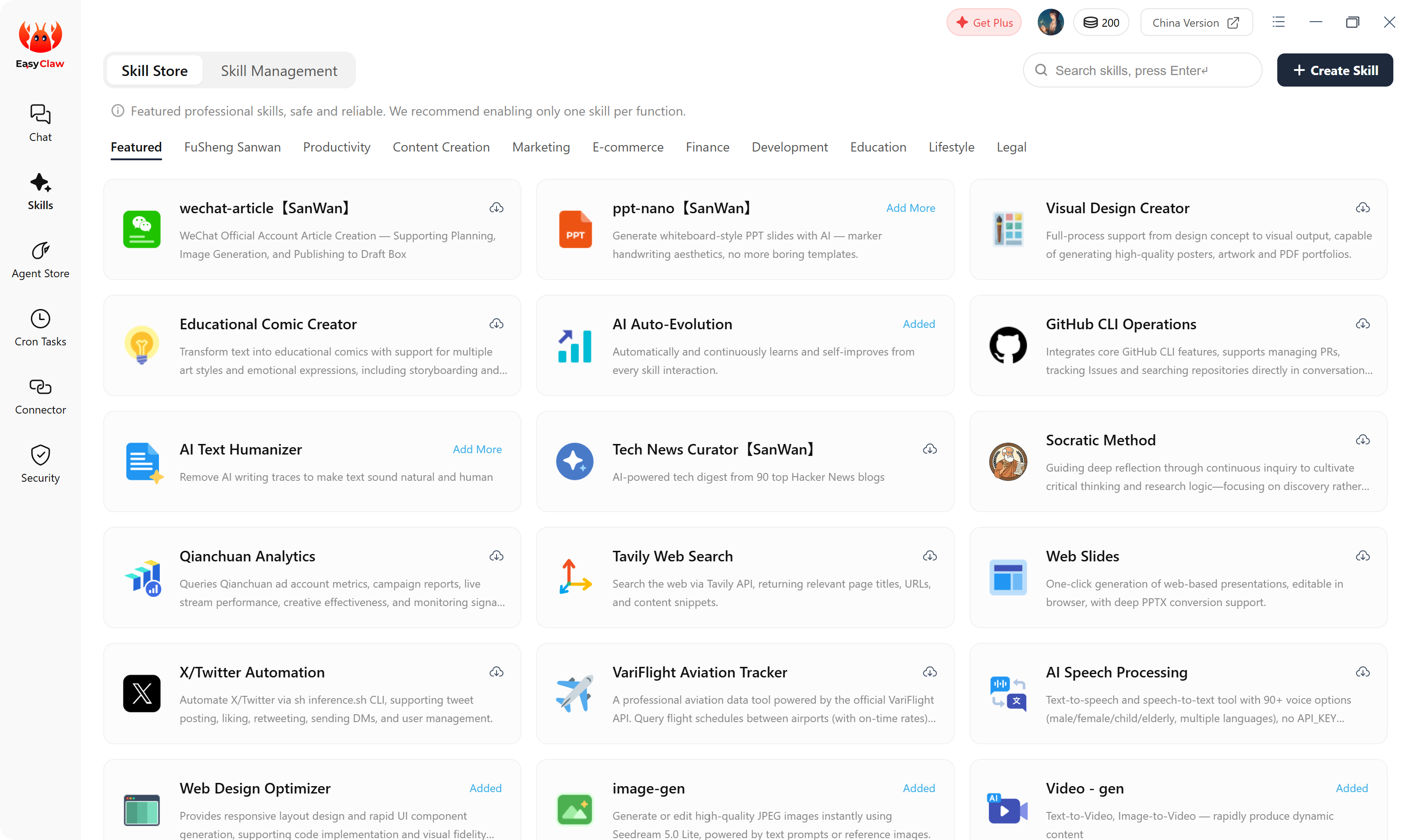
If you've built a solid workflow, package it as a Skill and share it — other users can use your work directly by clicking it in the Skill Store.
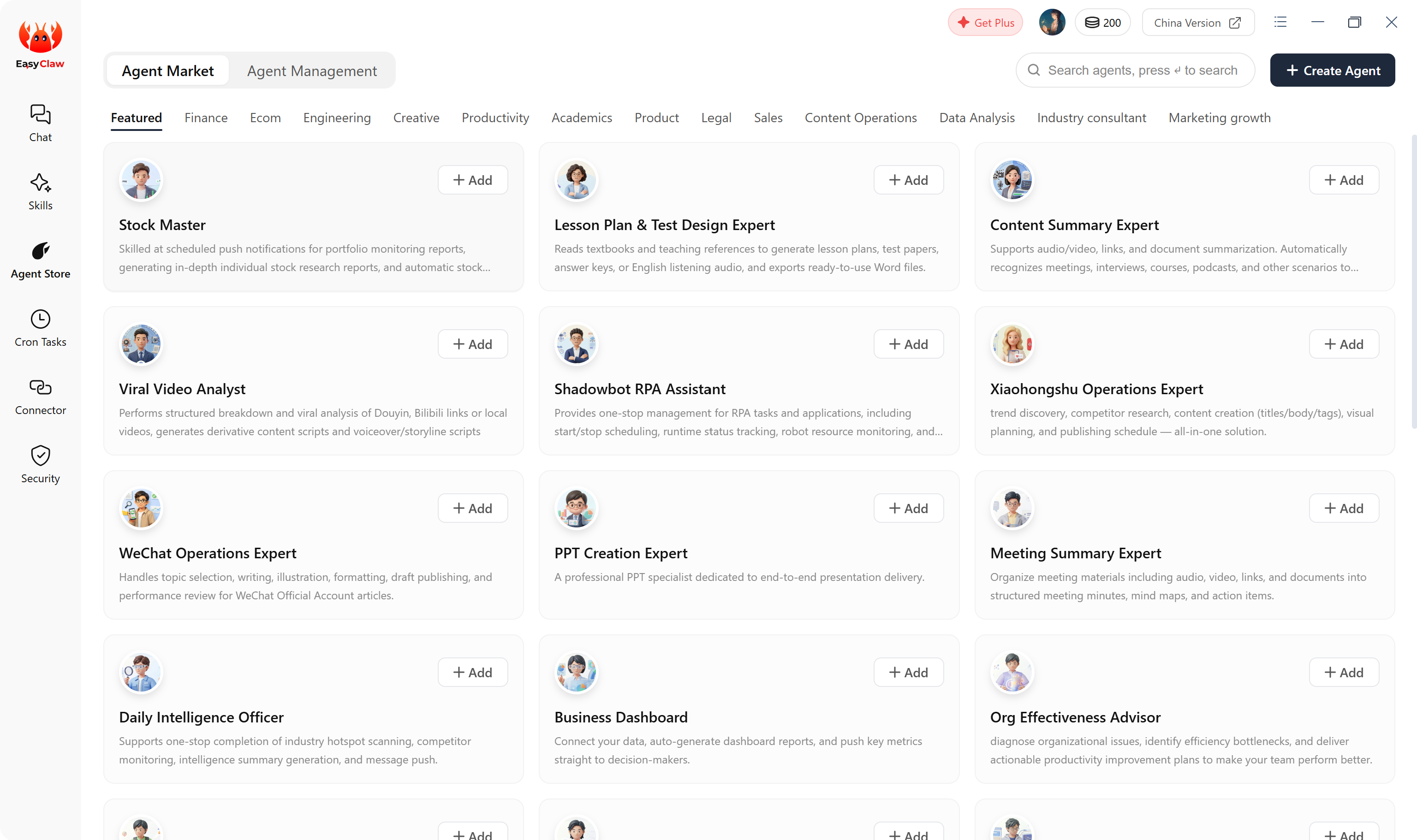
2.3 AI Agents (Configure Your AI Team)
Click AI Employees to:
- View and manage your configured AI agents (each is an independent Agent with its own role and responsibilities)
- Create new AI agents — click "Create AI Employee" in the top-right corner of the interface
- Conversation history supports "Delete" or "Rename" for easy organization
It depends on whether the content has been written to MEMORY.md or another persistent file. If yes → deleting history does NOT affect Agent memory. If no → deleting = permanent forgetting.
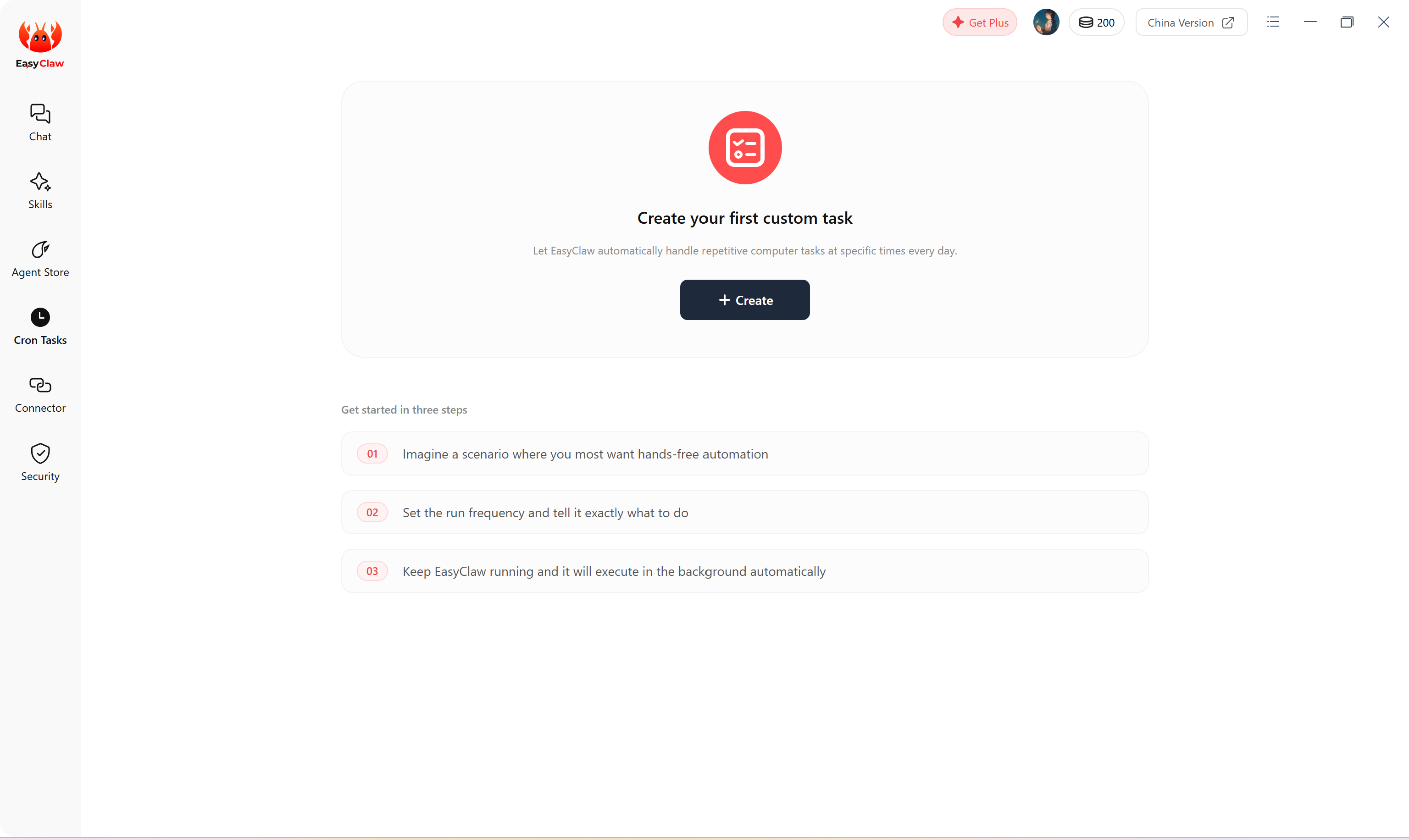
2.4 Cron Tasks (24/7 Automation)
Click Cron Tasks to set up timed automation jobs — EasyClaw keeps working even when you step away from your computer.
2.5 Connect Apps for Remote Control
Click Connector to see all supported remote channels. Click a channel and follow the prompts to connect.
The connected mobile channel acts as a bridge between you and EasyClaw — it does not screenshot or affect any data on your phone. Feishu is currently recommended for the most complete experience. Multiple channels can be connected simultaneously.
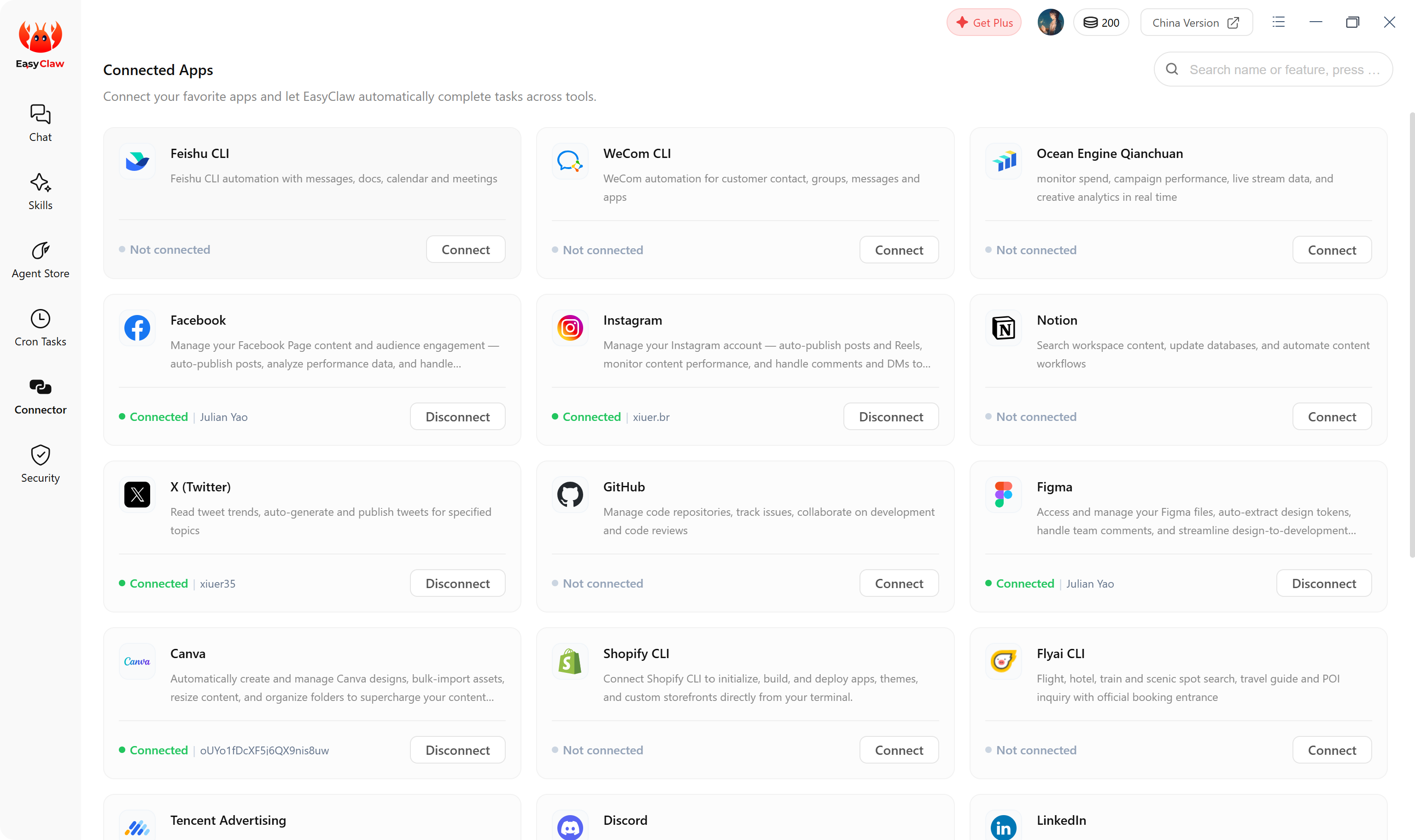
Conversation context is independent across channels. To share important content across channels, actively write it to MEMORY.md so it takes effect everywhere.
2.6 Account & Global Settings
Located in the top-right corner — use it to check account status and system configuration.
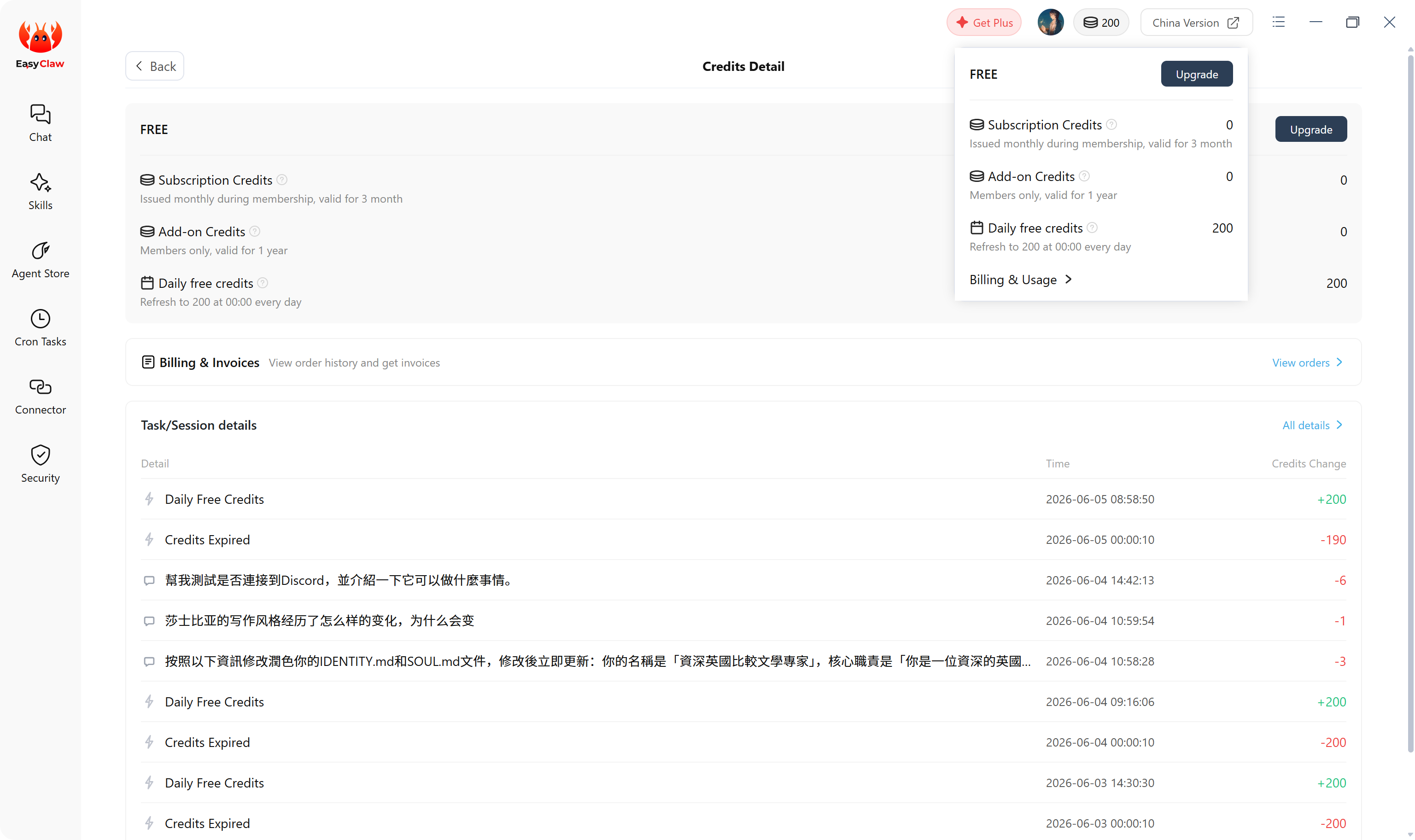
| Entry | Description |
|---|---|
| Plus Membership / Credit Status | View remaining credits and manage usage |
| Phone Remote | Switch the current conversation channel (Feishu recommended) |
| Agent Settings | Adjust the identity parameters of the current Agent |
| Billing & Usage | View credit consumption per operation |
| Credit Store | Purchase credits at easyclaw.com or easyclaw.cn |
| Feedback | Share your usage issues and suggestions with us |
| Support | Contact official support: support@easyclaw.com |
| Check for Updates | View current version number and trigger an update check |