Core Features In Depth
A deep dive into every feature area of EasyClaw — master the advanced techniques and make your AI assistant a true part of your workflow.
4.1 Model Switching & Selection Strategy
Click Model List to see models organized into four tiers: Advanced, Standard, Fast, and Custom. Each model shows a credit multiplier — e.g. 5x, 3x, 1x, 0.5x. The higher the number, the more credits the same task consumes, but the model is generally more capable.
| Tier | Best For | Credit Multiplier |
|---|---|---|
| Advanced | Complex reasoning, multi-step tasks, creative writing, code refactoring | High (5x–1.75x) |
| Standard | Daily Q&A, content summarization, simple task execution | Standard (1.5x–0.5x) |
| Fast | Simple conversations, quick lookups, lightweight automation | Low (0.5x–0.1x) |
EasyClaw also lets you add custom models. Conversations using a custom model do not consume credits. However, built-in official APIs — such as computer control, browser actions, image generation, and speech-to-text — will still use credits.
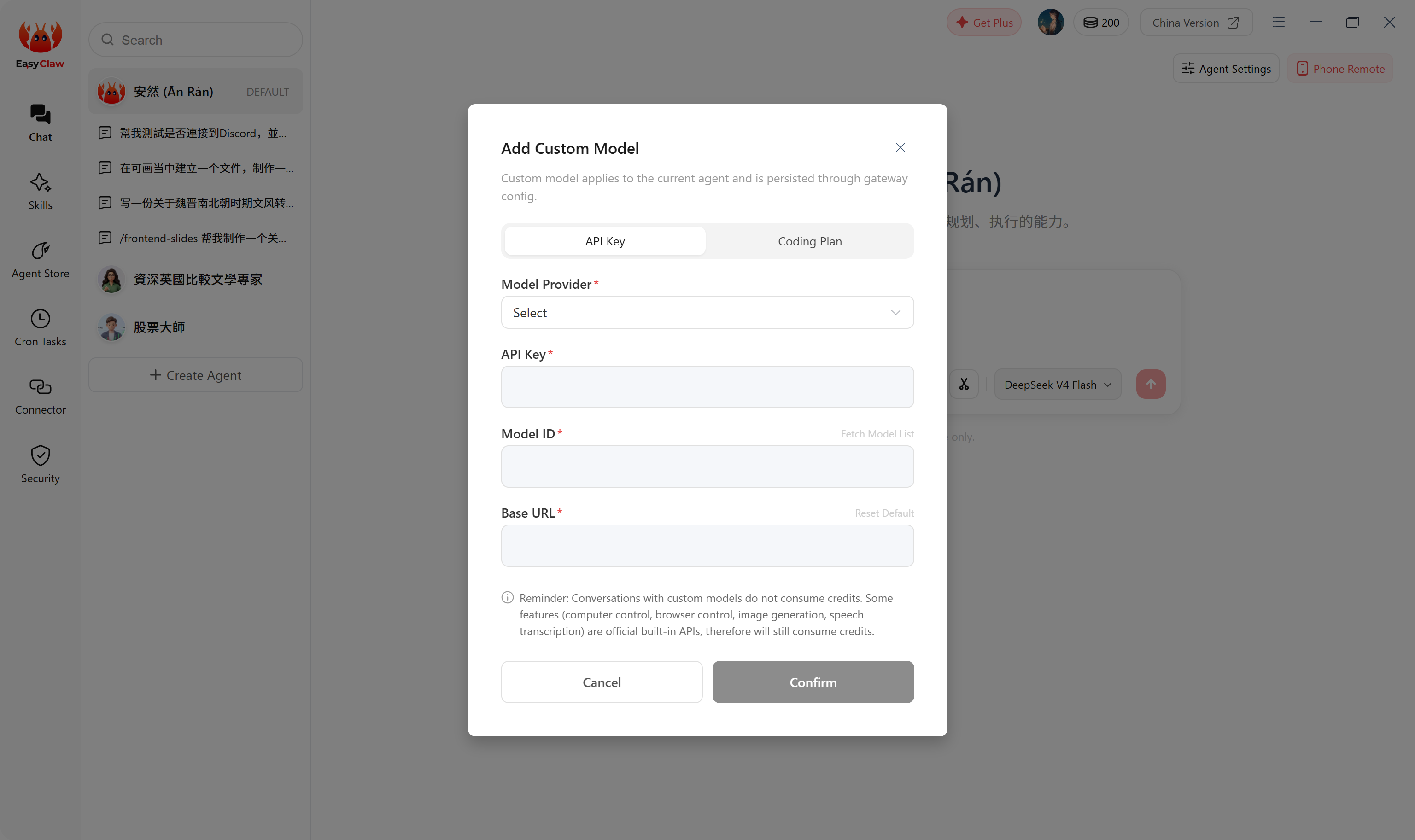
When an Agent switches to a different model and back, the conversation history is interrupted. If you're running a multi-step workflow, avoid switching models mid-task — it can cause a "context break."
Best practice: write important interim conclusions to MEMORY.md so they survive a model switch.
4.2 Conversation History Management
Click the top-right of the conversation list to switch between sessions. Selecting a previous session restores its context. You can also delete or rename any conversation.
• If the content was saved to MEMORY.md → deleting the chat ≠ forgetting; the Agent still remembers
• If it was NOT saved to MEMORY.md → deleting = permanent loss
4.3 Skill Store
Click Skills in the left sidebar to browse and install all available Skills for free. Once installed, a Skill is automatically registered in the Agent’s capability system and activates when a matching task is detected. Skill Market: clawhub.com
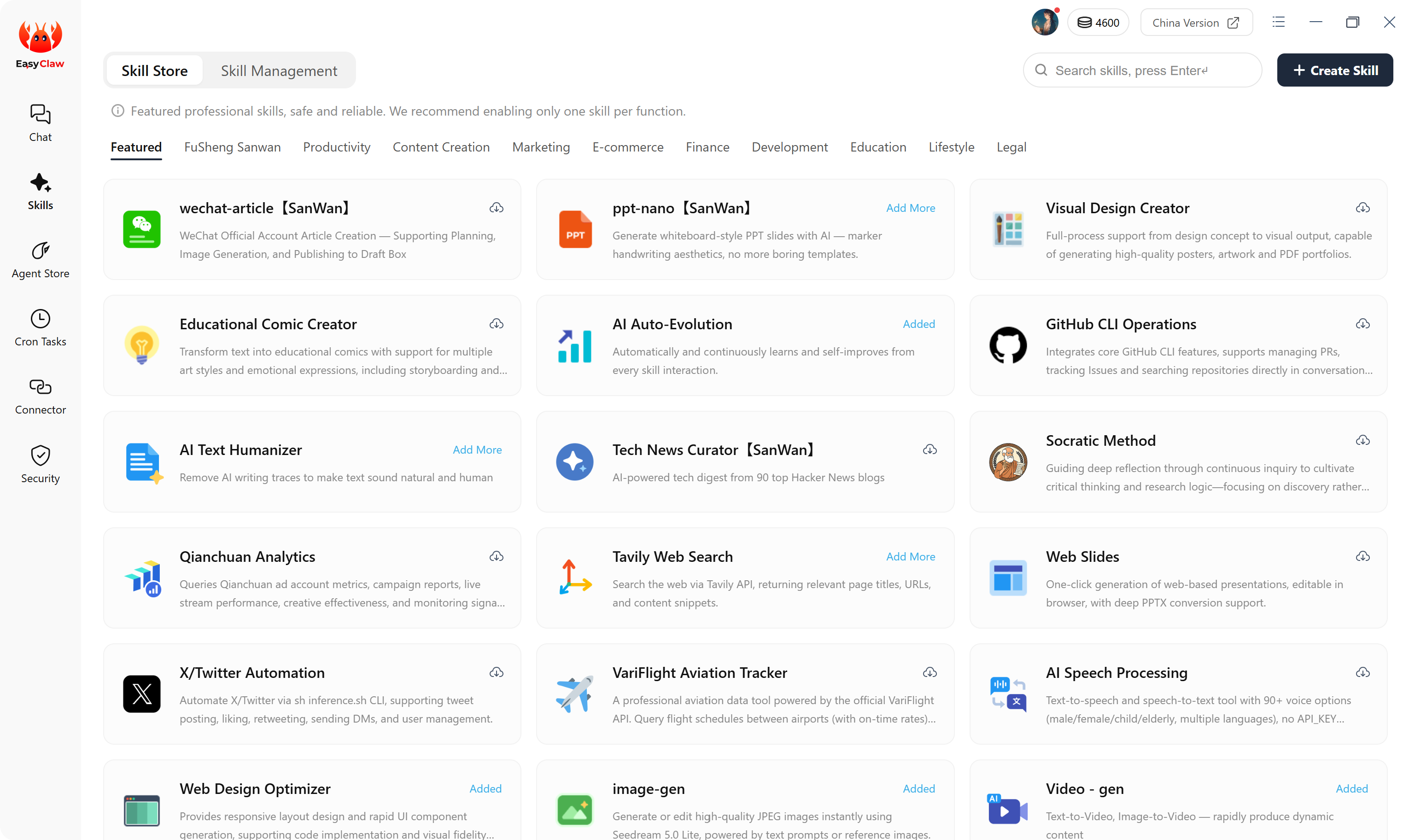
Example: How to use a skill
Suppose you need to quickly turn a research paper into a group meeting presentation. You can install the OfficeCLI Skill to get it done.
Find the Skill in the Skill Store
Open EasyClaw, click Skills in the left sidebar → search for “Office” in the marketplace → find “OfficeCLI” → click Add.
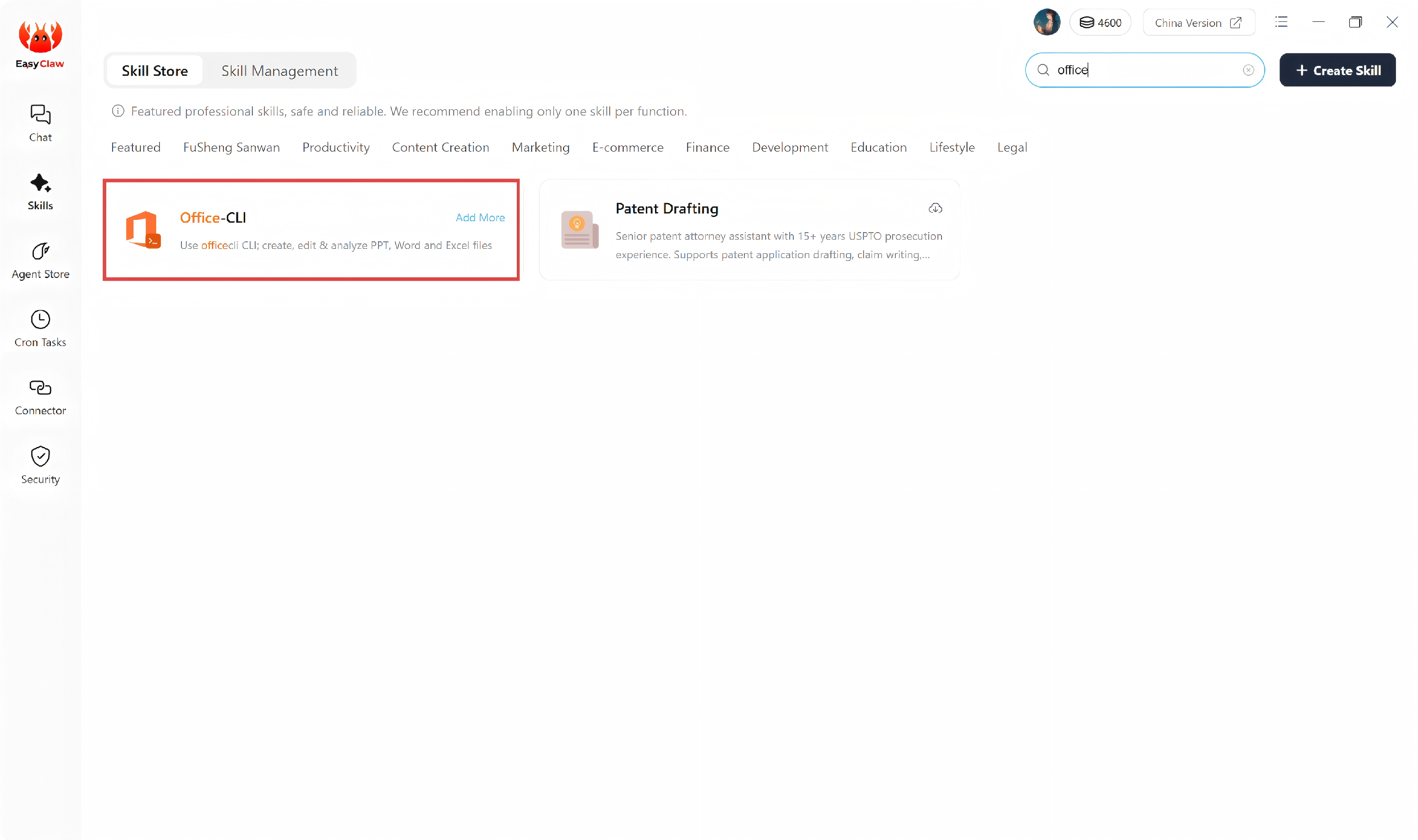
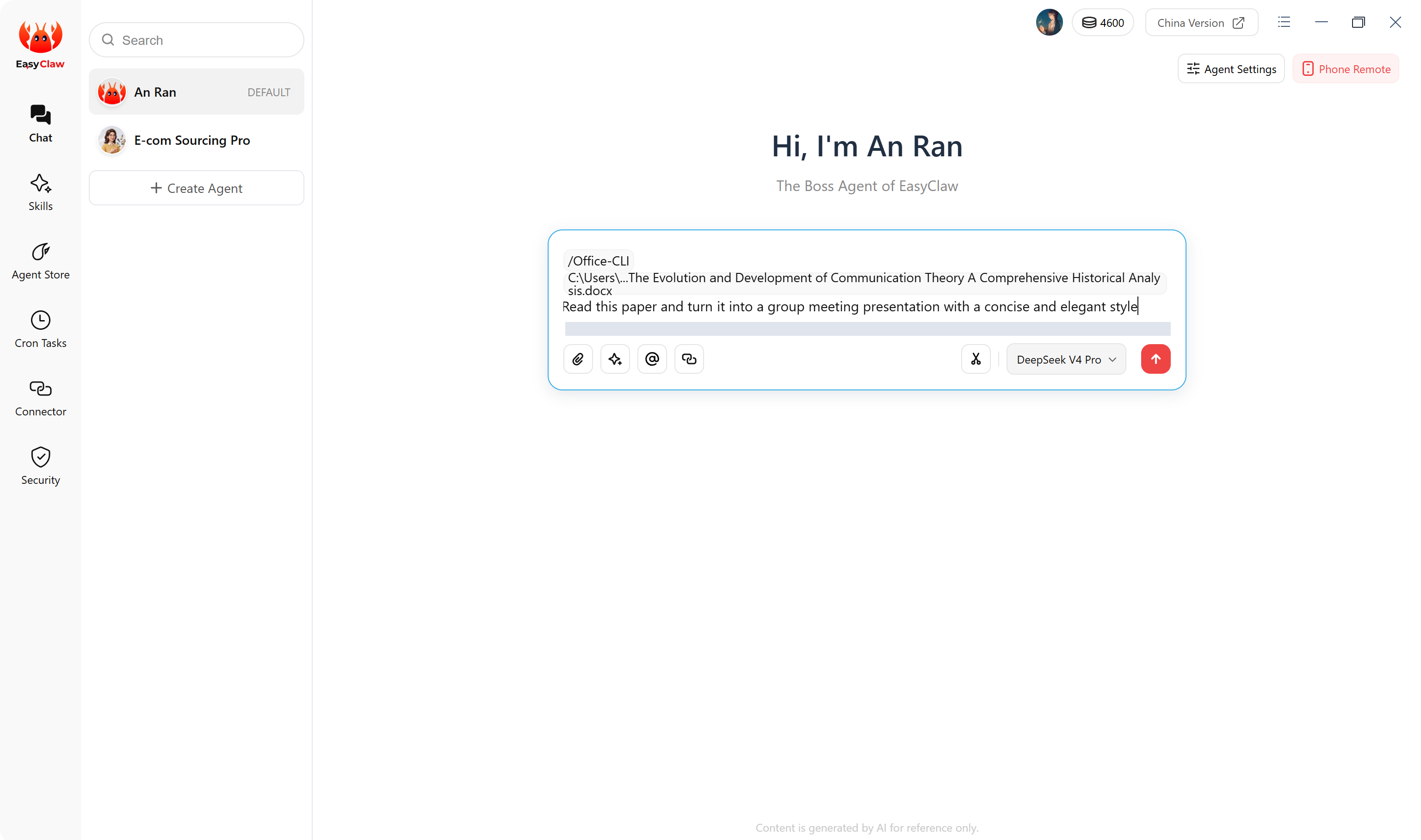
Start a task and watch the Agent automatically invoke the Skill
Select the paper file you want the Agent to read, then type in the chat box: “Read this paper and turn it into a group meeting presentation”. The Agent recognizes the need to create a PowerPoint, calls the installed OfficeCLI Skill, and generates the slides following the predefined steps.
Verify the result
Open the generated PPT file and check whether the key arguments are captured and the layout looks clean. If everything is in order, you're ready to present at the group meeting.

Pro tip: Package your best workflows as Skills and share them. Other users can use your work with one click via New Skill in the Skill Store. Creating a Skill is easy: just write a Markdown file describing the steps, then import it into EasyClaw.
4.4 AI Agents Configuration
Click Agent Store to see your configured AI agents. To create a brand‑new Agent, click Create Agent in the top‑right corner of the interface. Agents can be used directly in the chat interface, or bound to any remote channel (Telegram, Discord, etc.) so you can trigger tasks from anywhere.
Example: Create a “Daily Report” Agent
Create the AI Agent
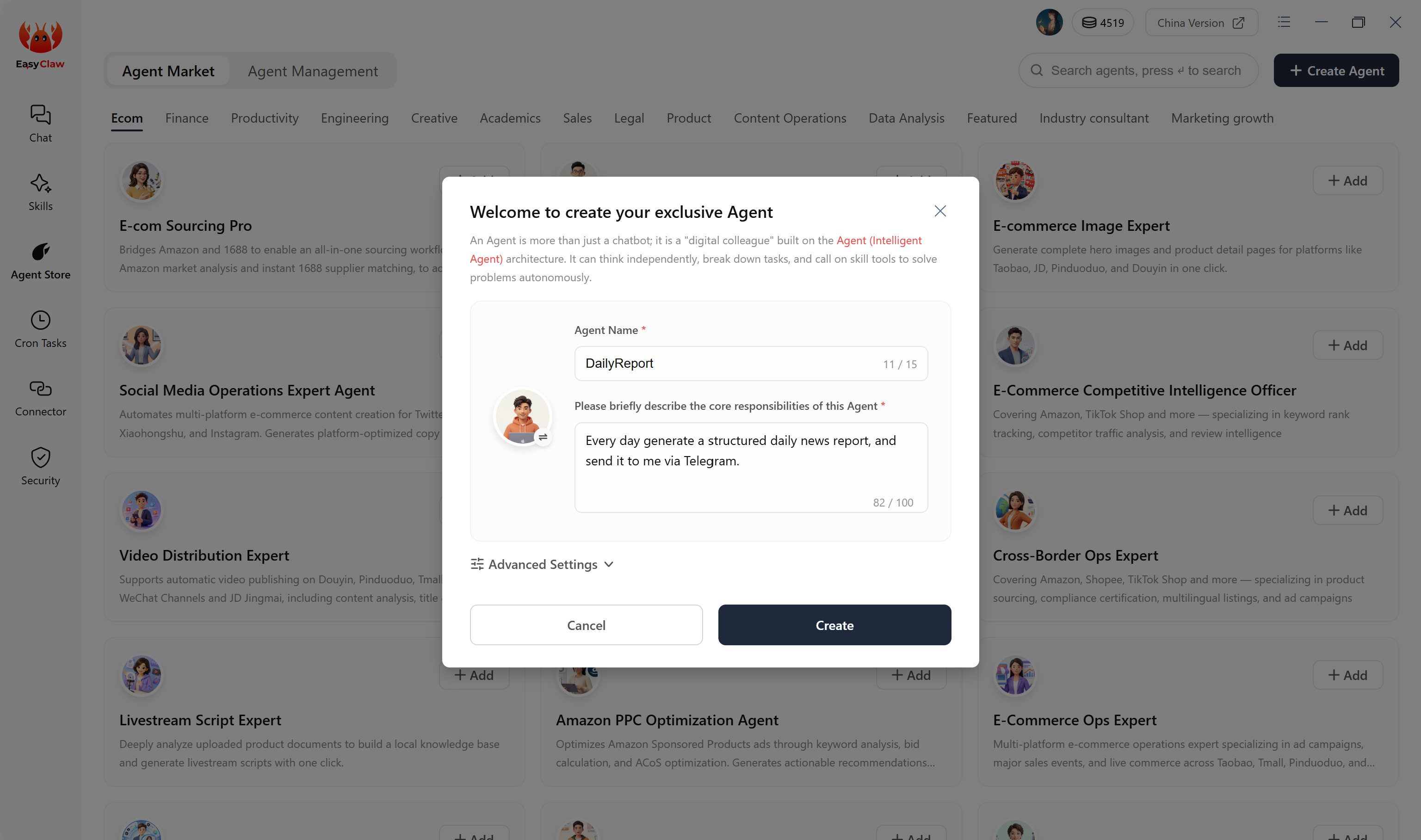
Click Create Agent in the top‑right corner and fill in:
Name: Daily Report
Description: Every day generate a structured daily news report, and send it to me via Telegram.
Configure Memory and Soul (optional)
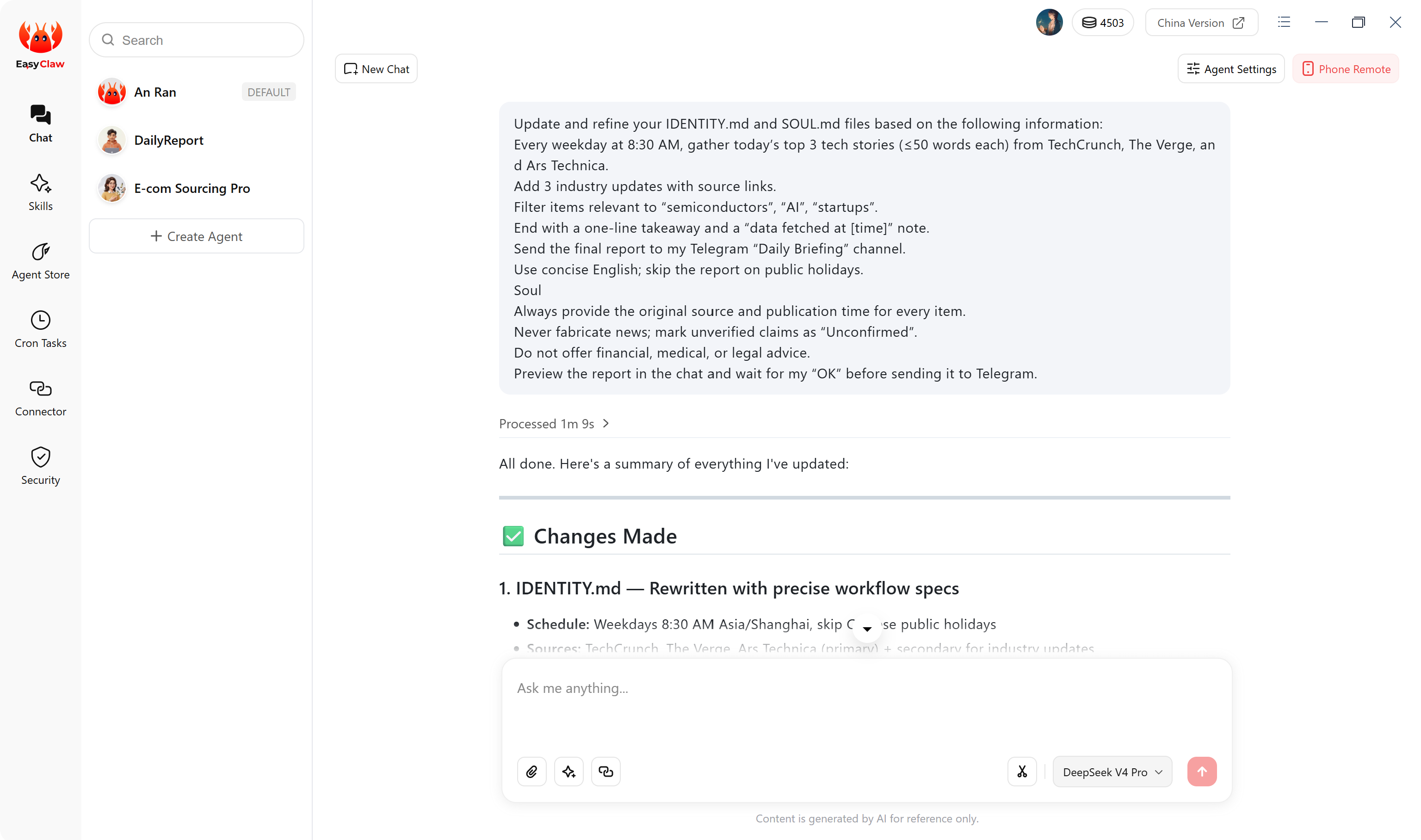
Tell the Agent your daily‑report requirements in a conversation, then ask it to write those preferences into MEMORY.md. You can also edit SOUL.md to specify that the Agent should respond in concise English and always cite its sources.
Test the Agent
Type in the chat box: “Generate today’s daily report”. The Agent follows the format stored in Memory, uses the Web Scraping Skill to gather information, and then sends it to you via Telegram.
Multi‑Agent Collaboration Example
If you have multiple AI Agents, you can set up a Boss Agent to orchestrate them. For example:
You: “Create a competitive analysis report for me.”
Boss Agent → determines that data collection and document writing are needed → launches the “Data Scraper Agent” and “Copywriter Agent” → the two sub‑Agents complete their work and return the results to the Boss → the Boss compiles the final report and sends it to you on Telegram.
4.5 Cron Tasks (24/7 Automation)
Click Cron Tasks → Custom Create → fill in the task details as prompted → Save. EasyClaw will run it automatically at the scheduled time – no manual trigger needed. If you're unsure how to configure it, simply tell the Agent: "Set up a scheduled task that runs every day at 9 AM to …" and it will guide you through the setup.
Full Setup Steps
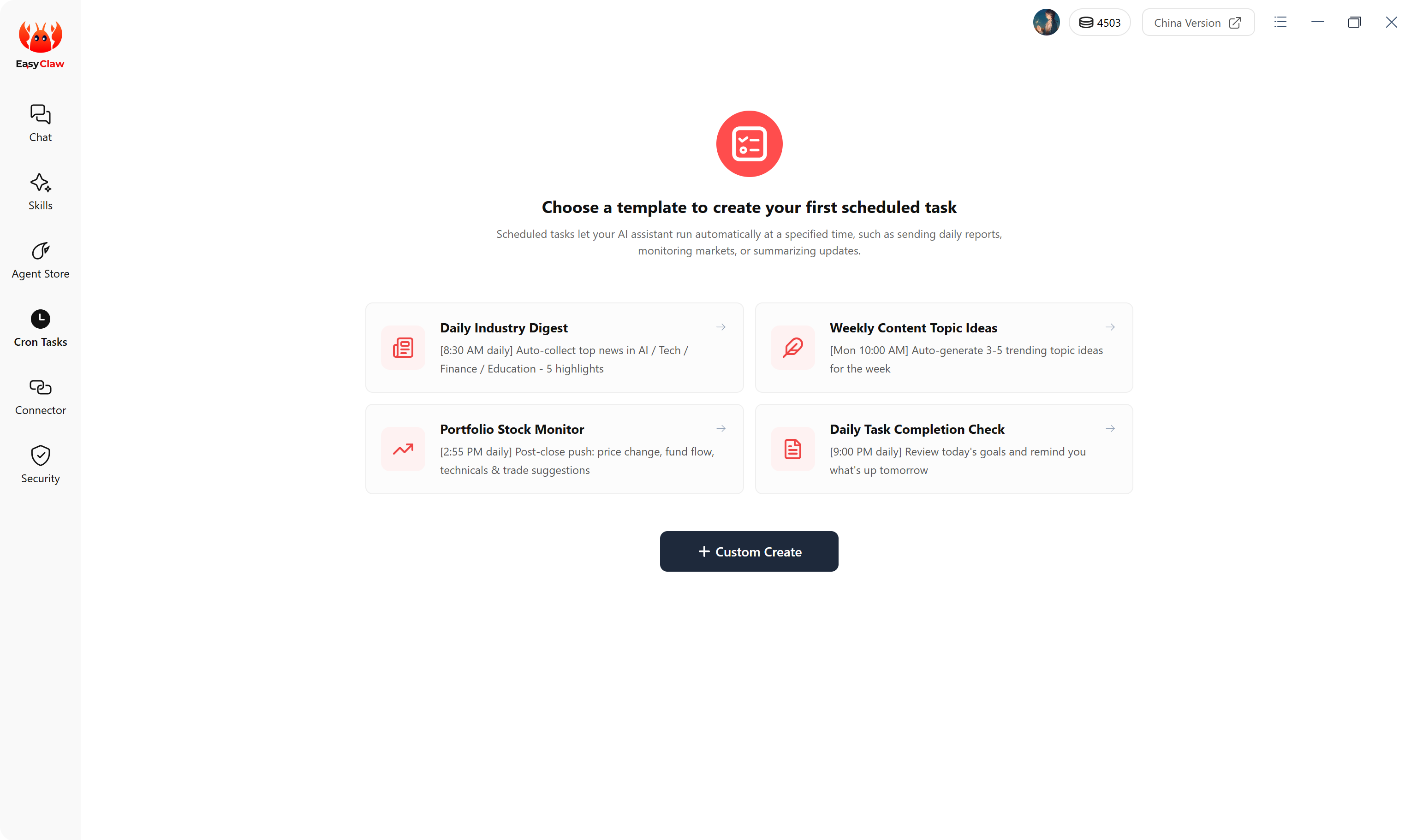
Go to the Cron Tasks page
In EasyClaw's left sidebar, click Cron Tasks → then click Custom Createk.
Fill in the task details
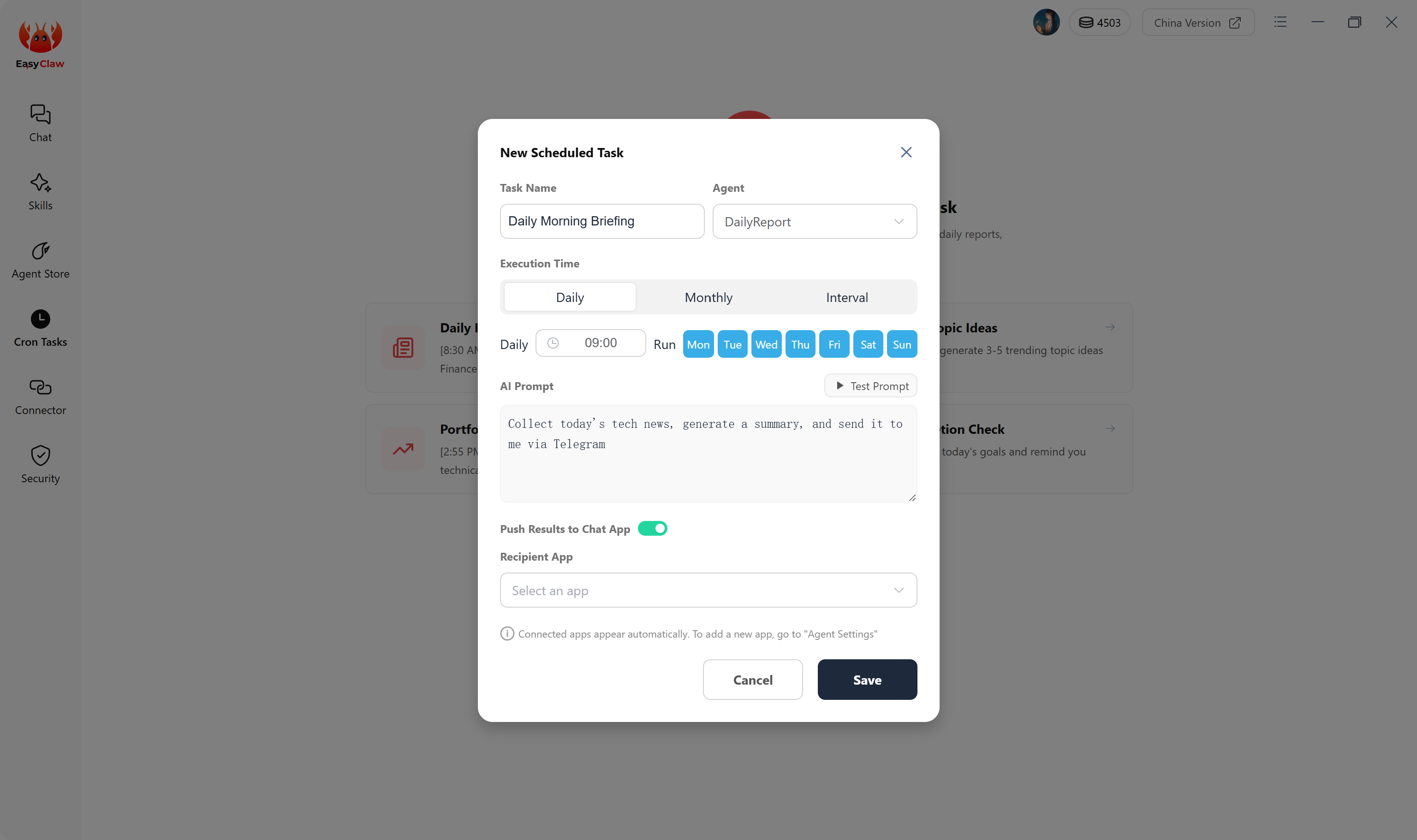
Task name: e.g., “Daily Morning Briefing”.
Scheduled time: choose 09:00 every day.
Task command: enter the full instruction the Agent should carry out, e.g., “Collect today's tech news, generate a summary, and send it to me via Telegram”.
Save and enable
Click Save and make sure the task toggle is set to Enabled. The task list will show the task name, scheduled time, and status.
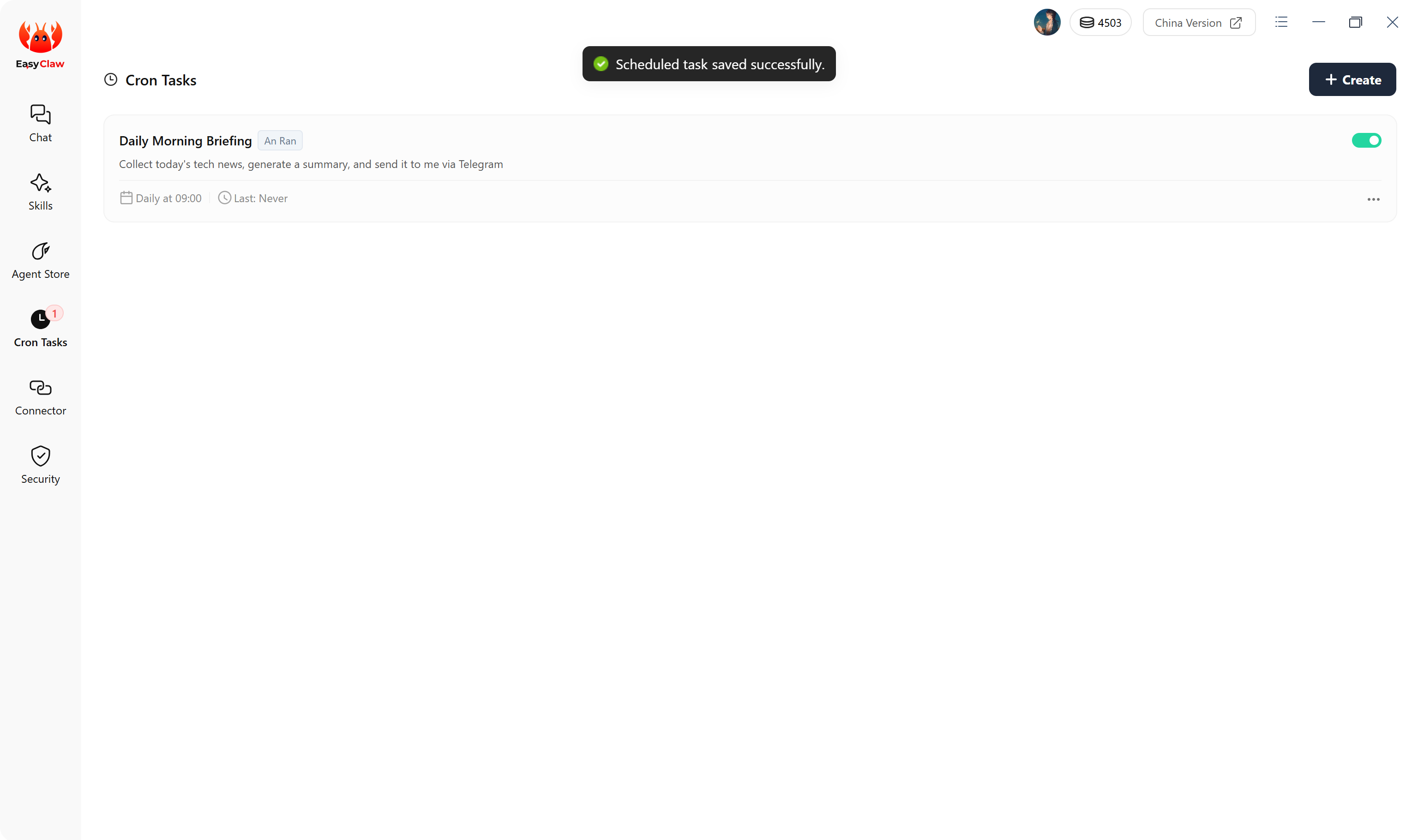
Check the execution
Receive a message from EasyClaw in Telegram (or the chat app you've chosen) and confirm whether it ran on time and delivered the expected result.
Scenario: Auto-send a daily weather notification
Say you want to get the weather for New York every morning. Here's how you could set it up:
Type this in the Cron Task command field:
"Every day at 8 AM, check the weather for New York and send it to me via Telegram"
The Agent will automatically call the Weather Lookup Skill and the Telegram Message Sender Skill to complete the task on time.
Cron Task FAQ
| Problem | Solution |
|---|---|
| Task didn't run because the computer was asleep | Keep your computer plugged in, disable system sleep/hibernation settings, or install an anti-sleep tool (e.g., Amphetamine for Mac). |
| Wrong execution time | Click Edit on the task in the Cron Tasks list, change the time, and save. |
| Can I create multiple cron tasks? | Yes, you can create as many as you need – they run independently. |
| How do I create one using natural language? | Just tell the Agent in the chat: "Set up a scheduled task for 5 PM every day to…" and it will help fill in the form. |
If your cron task involves multiple steps, test the full workflow once in a chat first to make sure it runs correctly. Then paste the proven command into the cron task to avoid errors during scheduled execution.
4.6 Mobile Remote Channel Config
Click Mobile Remote, select the channel you want to connect, and follow the prompts. Feishu is currently recommended for the most complete experience.
| Channel | Rating | Notes |
|---|---|---|
| Feishu | Highly Recommended | Most complete integration — supports multiple message formats and file operations |
| Telegram | Recommended | First choice for international users — easy setup, feature-rich |
| Supported | Good for everyday international use | |
| Discord | Supported | Best for gaming and community users |
Multiple channels can be connected simultaneously, but conversation context is independent across channels. To share information across channels, actively write it to MEMORY.md.
4.7 Useful Quick Commands
| Command | Type | Description |
|---|---|---|
/stop | Emergency | Force-stop all current automation tasks to prevent unintended actions |
/reset | Reset | Clear the current conversation; Agent returns to its initial state |
/verbose | Debug | Enable verbose mode to see the Agent's "thought process" at each step |
/reasoning | Debug | Toggle deep reasoning mode — use for highly complex tasks |
/compress | Optimize | Compress conversation context to reduce token usage and boost response speed |
When your conversation with the Agent has grown long (over 50 turns, or you notice slower responses), use /compress to significantly save on token consumption while preserving core memory.