Connect EasyClaw via Telegram
Telegram is the go-to channel for international EasyClaw users. Create a dedicated bot via the official BotFather, paste the Token into EasyClaw, and you're done.
• EasyClaw is installed and running on your computer
• Telegram client is installed and you're logged in
• Your network can access Telegram
Step 1: Create a Bot via BotFather and Get the Token
BotFather is Telegram's official bot management tool — all Telegram bot creation, configuration, and management goes through it. It's a bot itself; just chat with it to complete everything. No development experience needed.
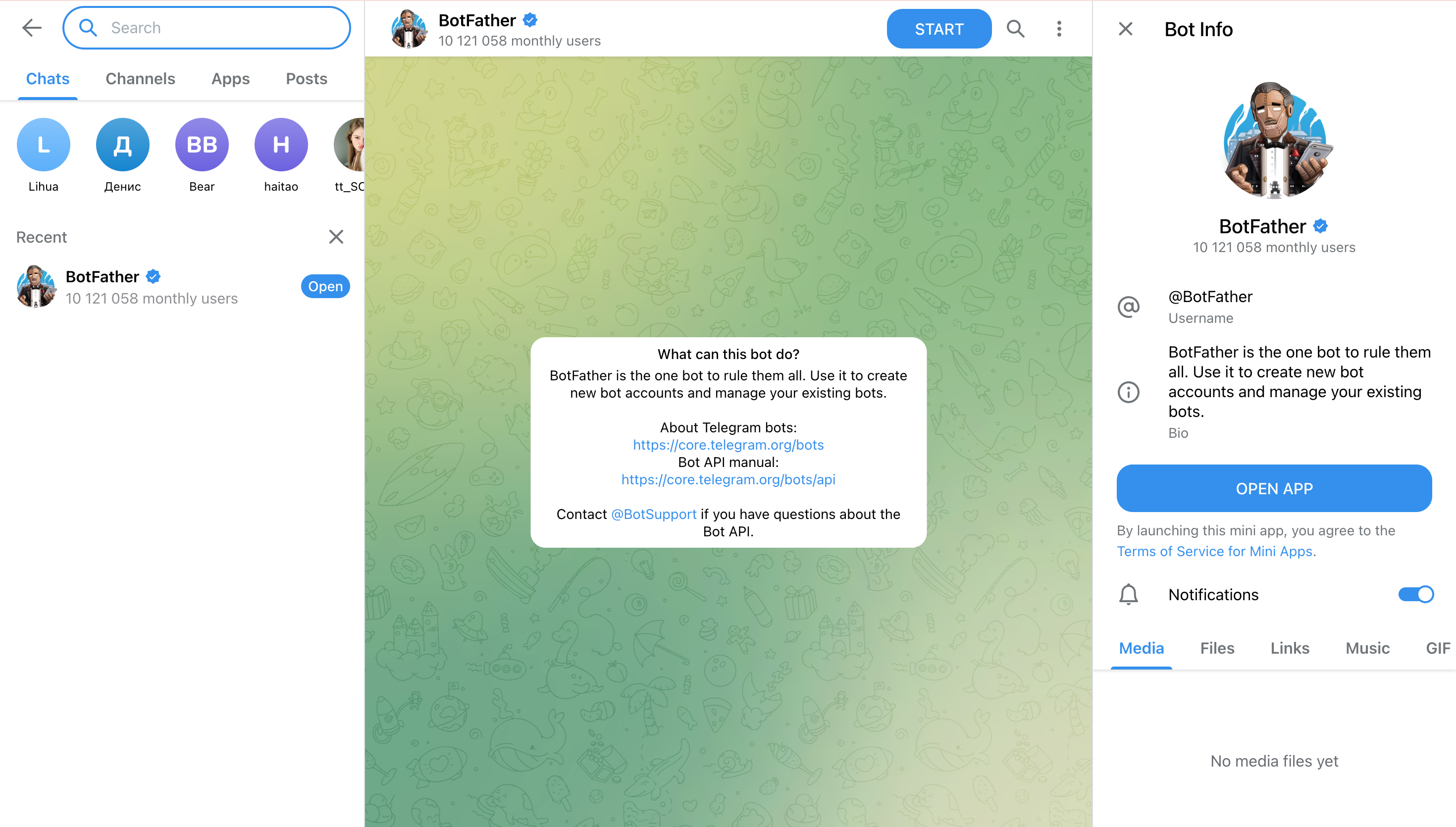
Find BotFather
Search for @BotFather in Telegram. Select the account with the official blue verification checkmark and open a chat.
Send the Create Command
Send /newbot in the chat. BotFather will walk you through the creation flow.
Enter Bot Name and Username
Follow the prompts to provide:
• Display Name: e.g. "EasyClaw Assistant" — can contain spaces
• Username: must end in bot, e.g. easyclaw_helper_bot — English only, must be unique
Get the Bot Token
Once created, BotFather returns a Bot Token (format: 123456789:ABCdef...). Copy and save it — you'll need it in the next step.
Step 2: Paste the Bot Token into EasyClaw
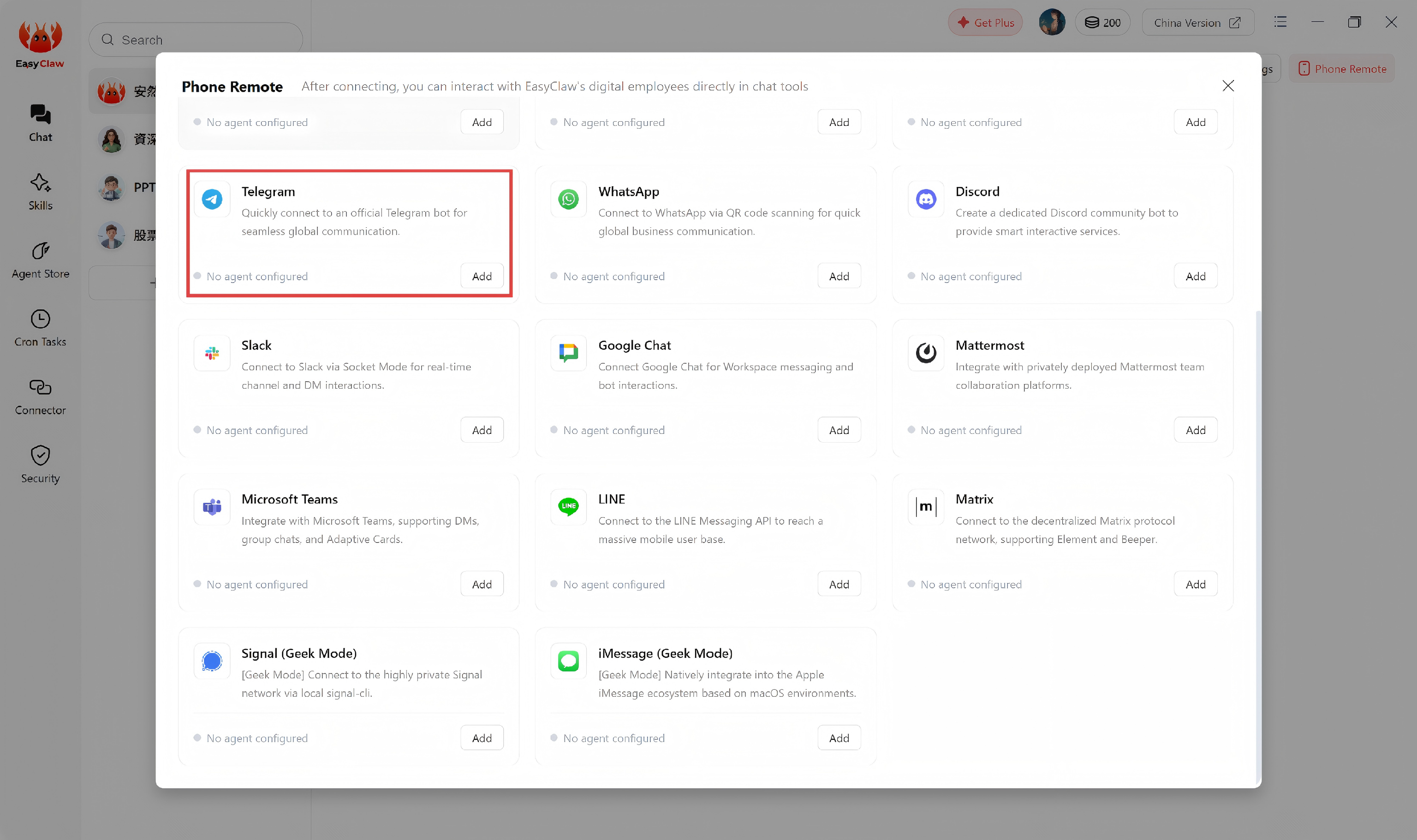
Open Channel Config
In EasyClaw desktop, click Phone Remote on the right → select the Telegram channel → click Configure.
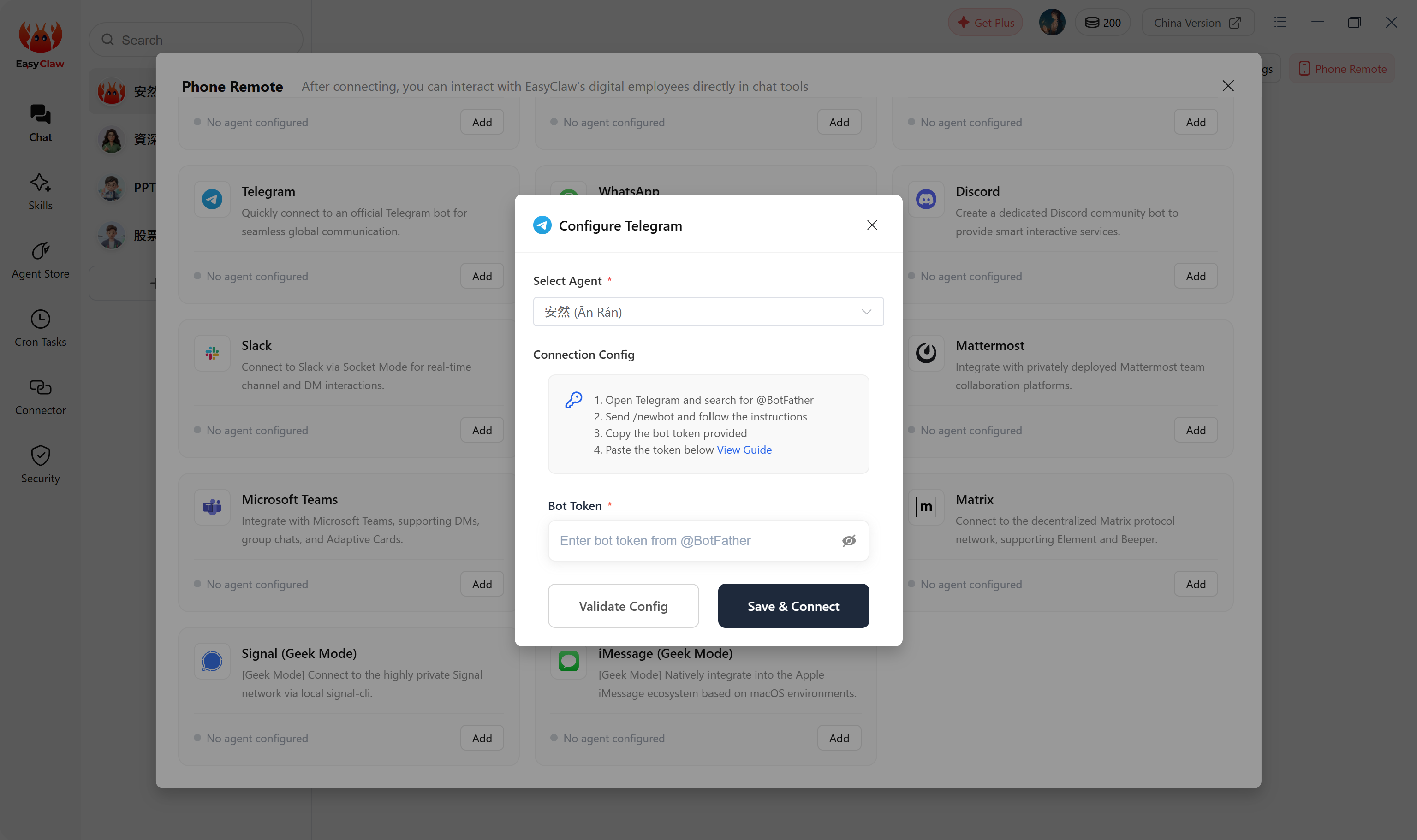
Paste Token and Connect
Paste your Bot Token into the input field and click Connect. Wait for the success confirmation.
Step 3: Start the Bot in Telegram
Find Your Bot
Search for your bot's username (e.g. @easyclaw_helper_bot) in Telegram and open the chat.
Send /start to Activate
Tap the START button at the bottom, or manually send /start. The bot is now active — send any message to give EasyClaw a command.
Advanced: Use the Bot in Group Chats
By default, Telegram bots have Privacy Mode enabled — they can only respond to /commands in groups, not regular messages. To make the bot respond to all messages in a group, disable Privacy Mode.
Return to BotFather
Open the @BotFather chat, send /mybots, and select your bot.
Open Bot Settings
Tap Bot Settings → Group Privacy. The current status will show "enabled."
Turn Off Privacy Mode
Tap Turn off. The bot can now read all group messages and respond automatically.
Re-add the Bot to the Group
After changing the privacy setting, remove the bot from the group and add it again for the new setting to take effect.
With Privacy Mode off, the bot can read all messages in the group. Only use this in private groups or groups you manage — avoid enabling it in large public groups.
Send a message to your bot in Telegram — EasyClaw will automatically execute the operation on your computer and reply with the result.
The Telegram channel's conversation context is independent from the desktop app and other channels. To share important information or preferences across channels, ask the Agent to write it to MEMORY.md.