Connect Feishu to EasyClaw
With the Feishu channel, you can send commands to EasyClaw on your computer from the Feishu mobile or desktop app — anywhere, anytime. Two setup methods are available; choose the one that fits you.
• EasyClaw is installed and running on your computer
• You have a Feishu enterprise account with permission to create custom apps
Method 1: Scan QR Code on Mobile Recommended for new users
Best for users who don't have an existing bot and want a one-click setup.
Open the Channel Config Page
In EasyClaw desktop, click Mobile Remote in the top-right → select the Feishu channel. A dedicated QR code will appear.
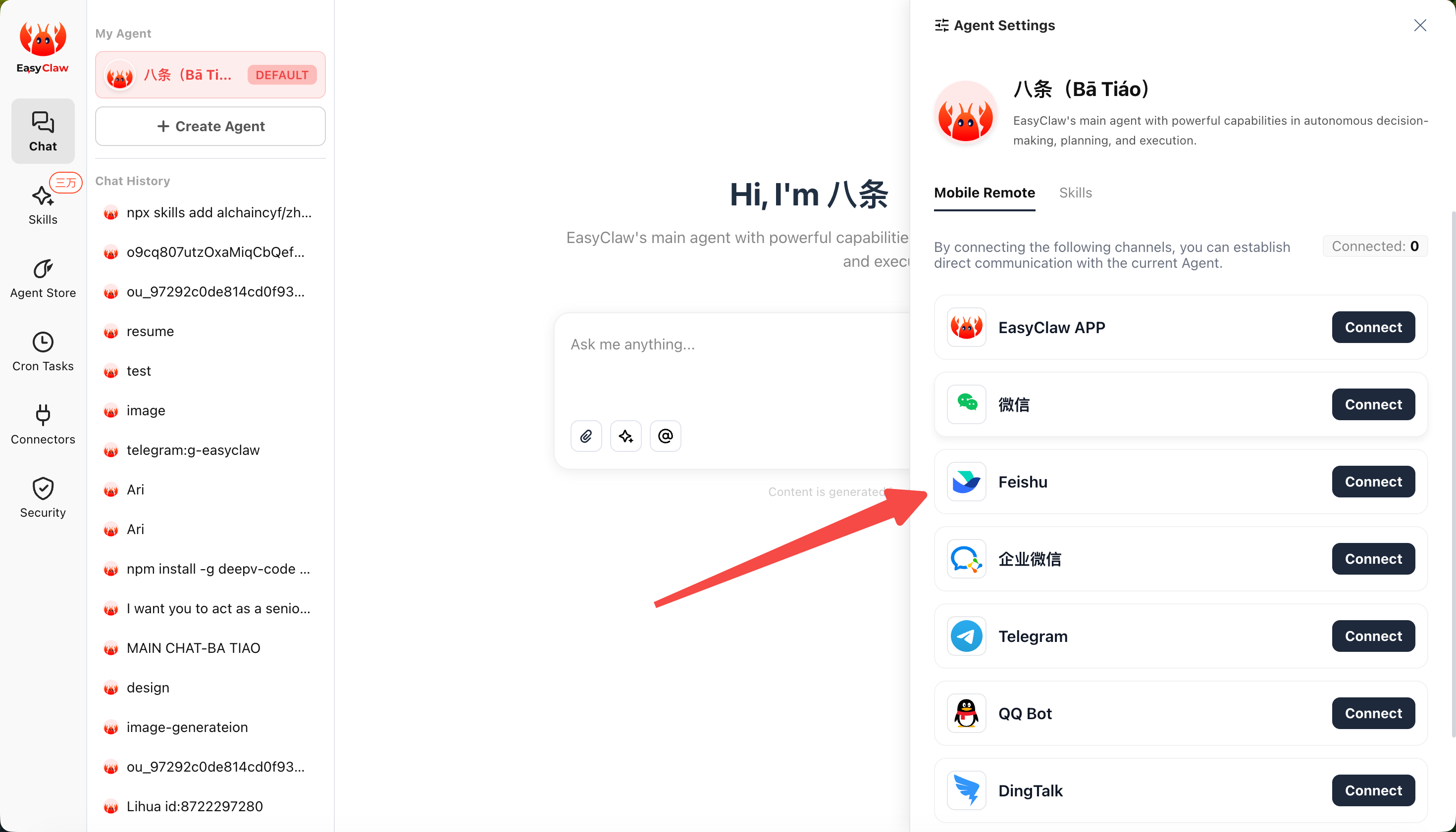
Scan with Feishu Mobile
Use the Feishu mobile app to scan the QR code on screen.
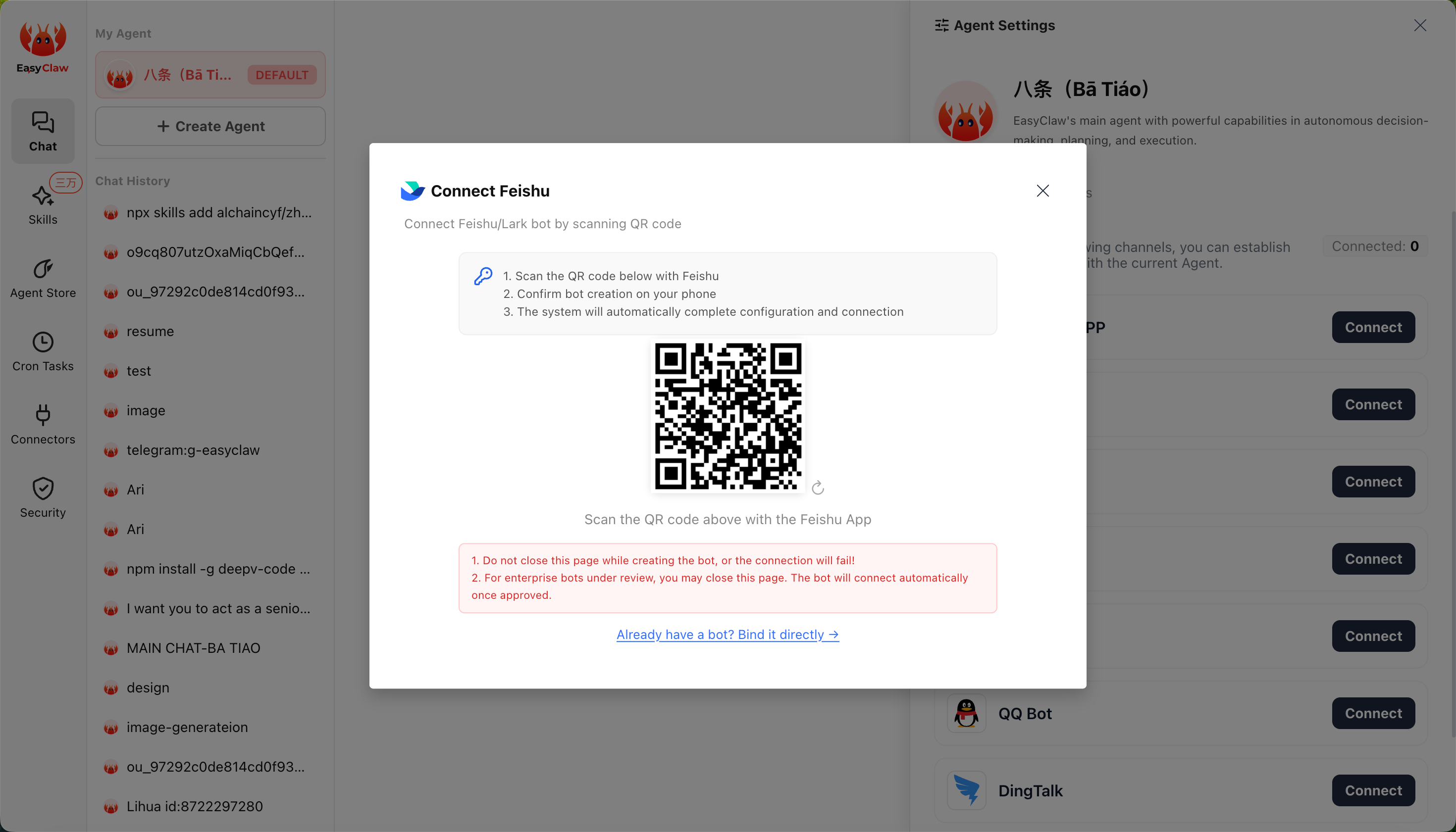
Confirm Bot Creation
Confirm on your phone when prompted. The system will complete the entire setup and connection automatically — no extra steps needed.
• Do not close the desktop page during scanning — the connection will fail
• For enterprise bots, after submission the app enters a review process; once approved it will connect automatically — you can close the page and wait
Method 2: Bind an Existing Bot Manually
Best for enterprise users who already have a Feishu custom app and want to reuse it. Four steps total.
Step 1: Get App ID and App Secret
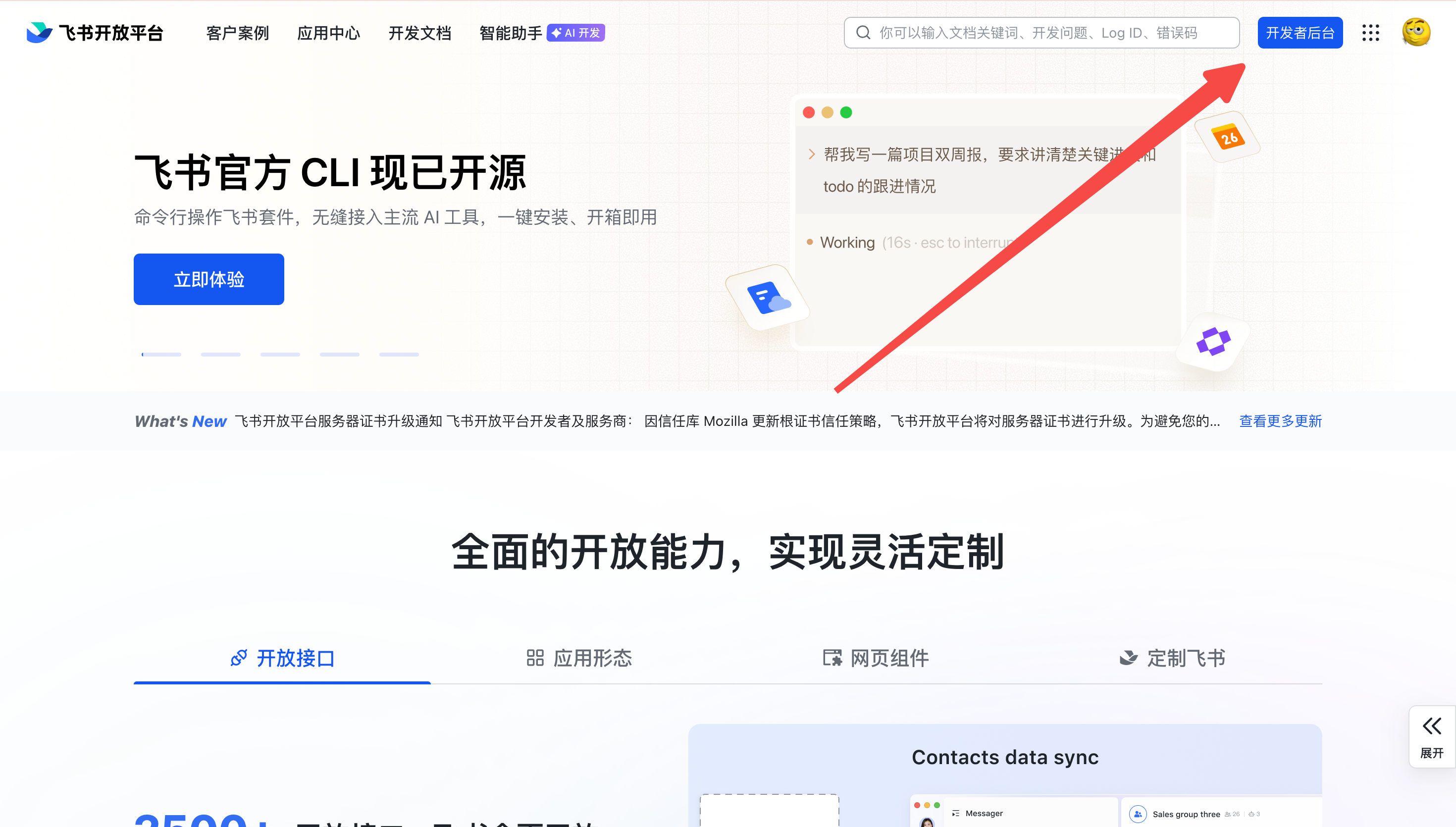
Go to Feishu Open Platform and Create a Custom App
Visit open.feishu.cn and log in (a personal account is recommended; enterprise accounts require admin approval for subsequent steps). Click Developer Console in the top-right.
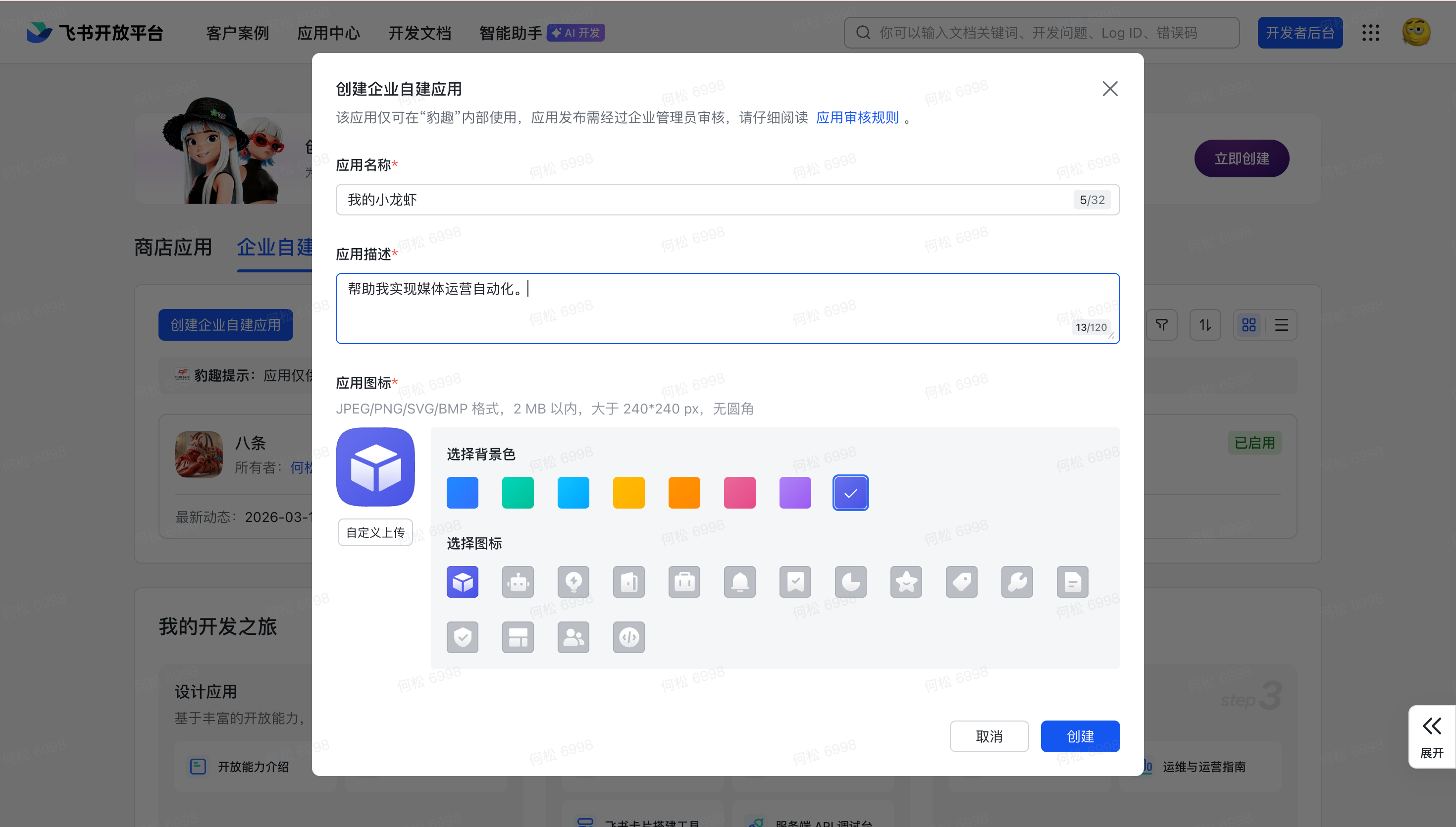
Create an Enterprise Custom App
Click "Create Enterprise Custom App," fill in the app name and description, then click Create.
Step 2: Grant App Permissions
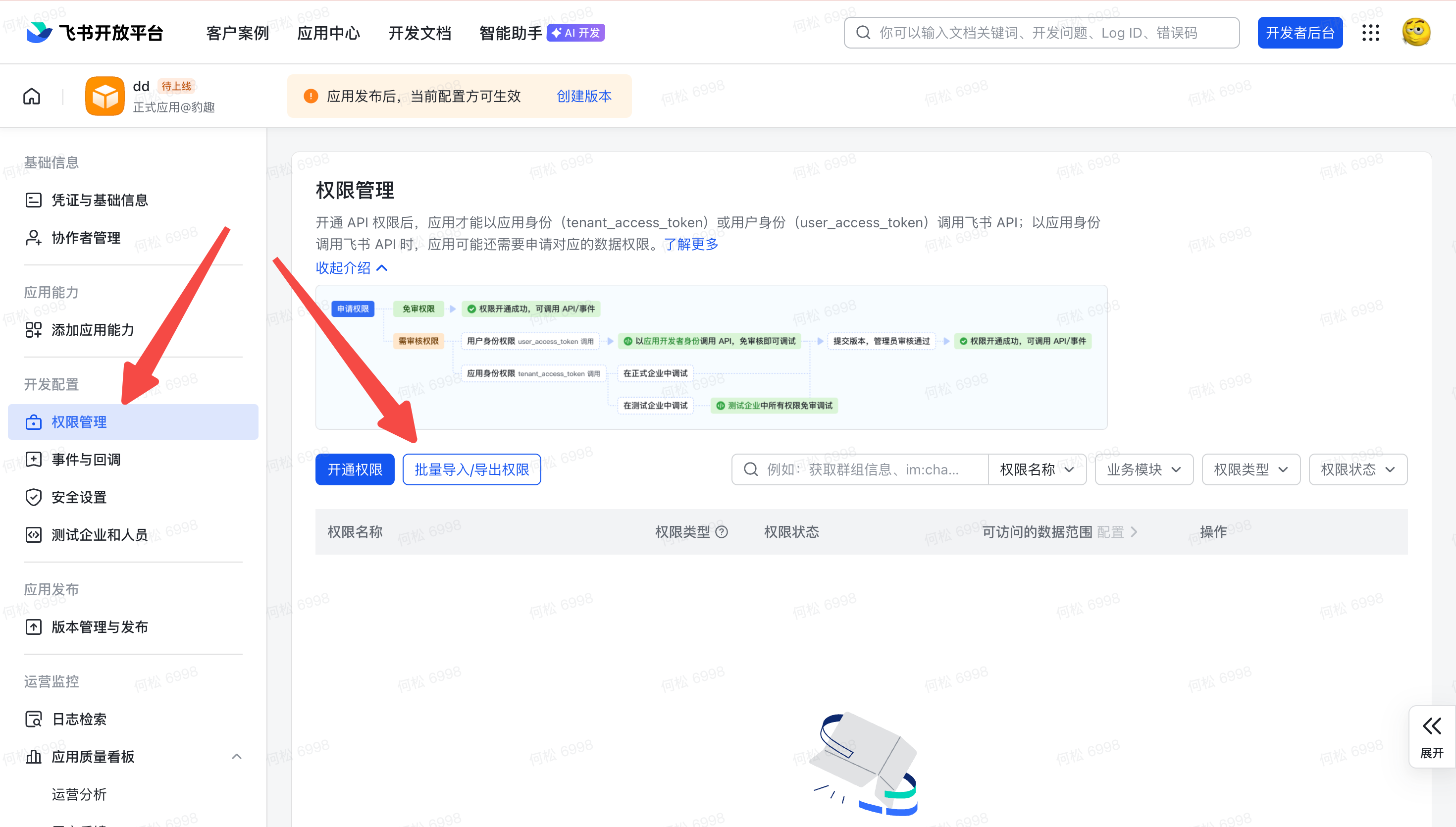
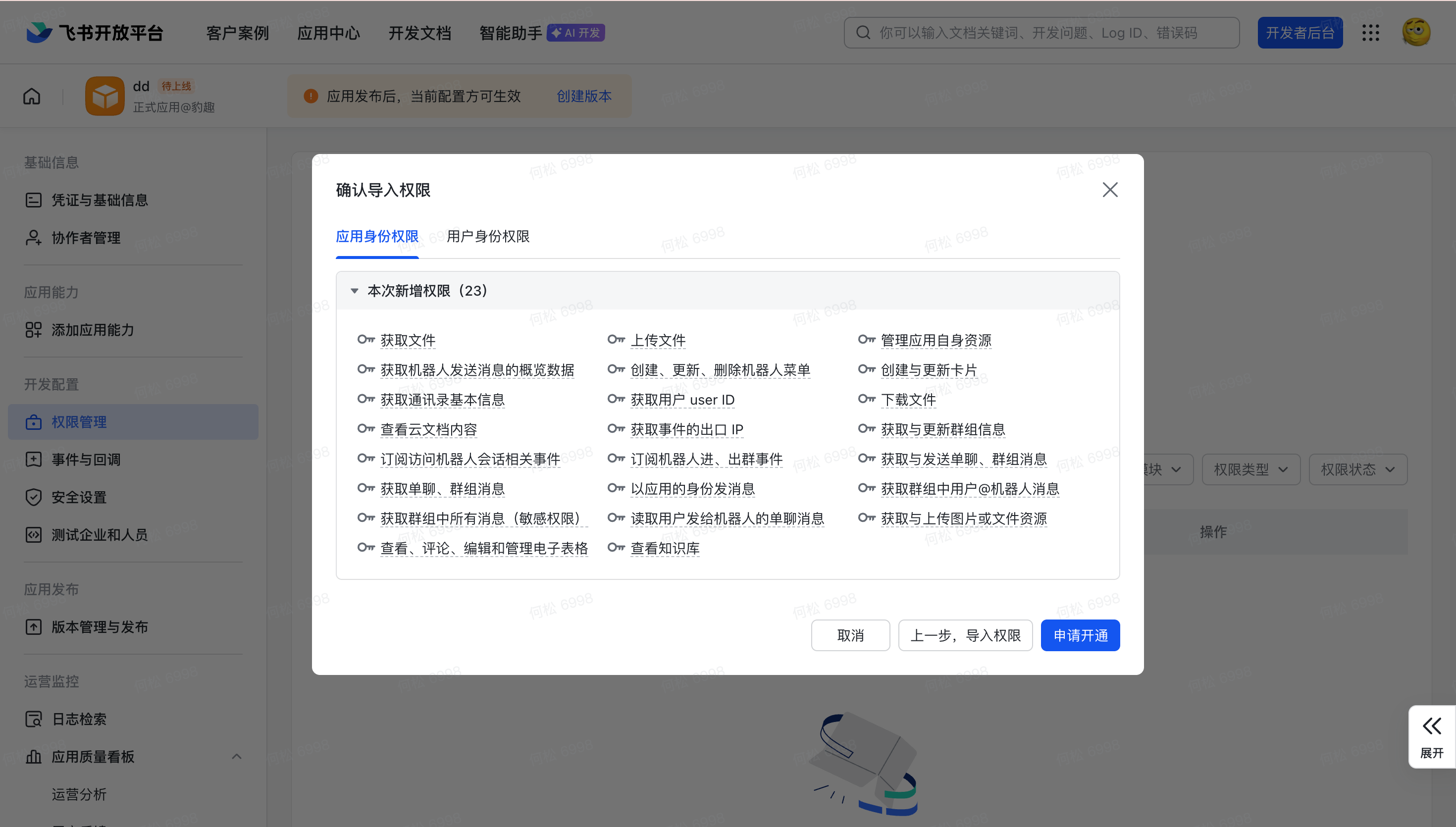
Bulk Import Permission Scopes
Go to Permission Management → Bulk Import/Export Permissions, then paste the following JSON.
{
  "scopes": {
    "tenant": [
      "aily:file:read","aily:file:write",
      "application:application.app_message_stats.overview:readonly",
      "application:application:self_manage","application:bot.menu:write",
      "cardkit:card:write","contact:user.employee_id:readonly",
      "contact:contact.base:readonly","corehr:file:download",
      "docs:document.content:read","event:ip_list","im:chat",
      "im:chat.access_event.bot_p2p_chat:read","im:chat.members:bot_access",
      "im:message","im:message.group_at_msg:readonly","im:message.group_msg",
      "im:message.p2p_msg:readonly","im:message:readonly",
      "im:message:send_as_bot","im:resource","sheets:spreadsheet",
      "wiki:wiki:readonly"
    ],
    "user": ["aily:file:read","aily:file:write","im:chat.access_event.bot_p2p_chat:read"]
  }
}
Bind the App to EasyClaw and Publish
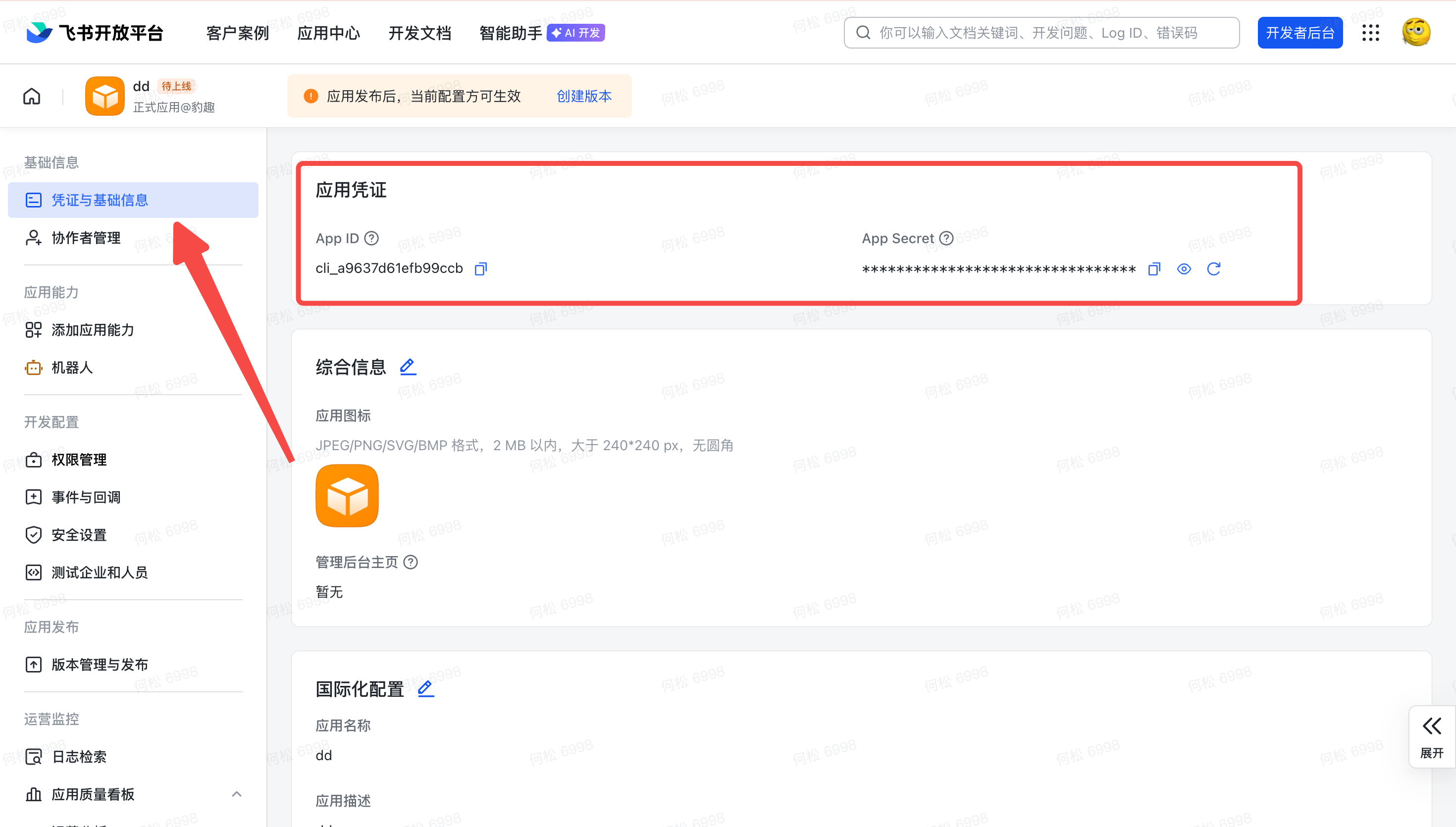
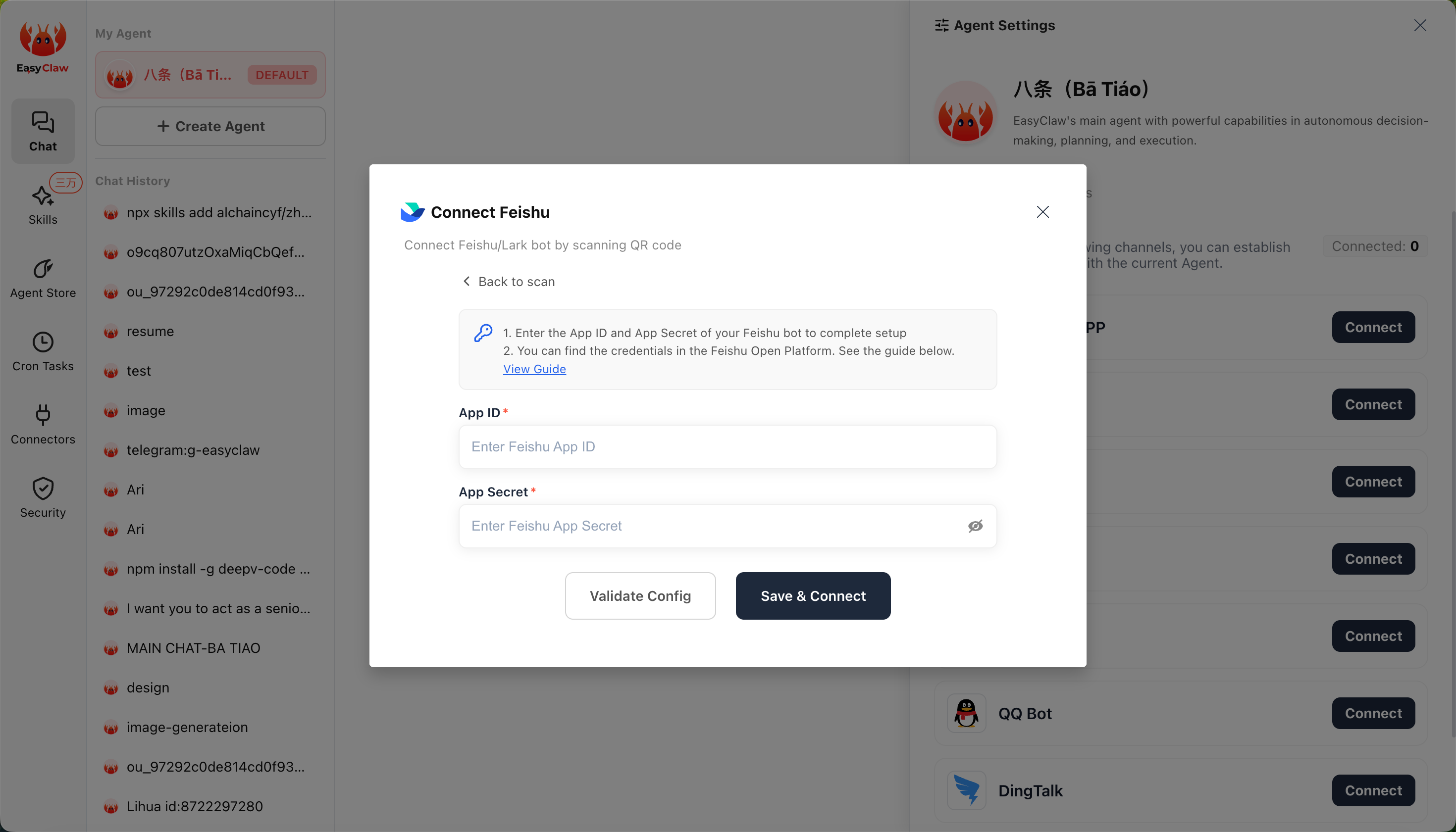
Go back to Credentials & Basic Info and copy the App ID and App Secret. In EasyClaw's Mobile Remote → Feishu tab, paste them and click Confirm. Once you see "Setup successful," return to Feishu to finish the event configuration.
Step 3: Configure Events & Callbacks
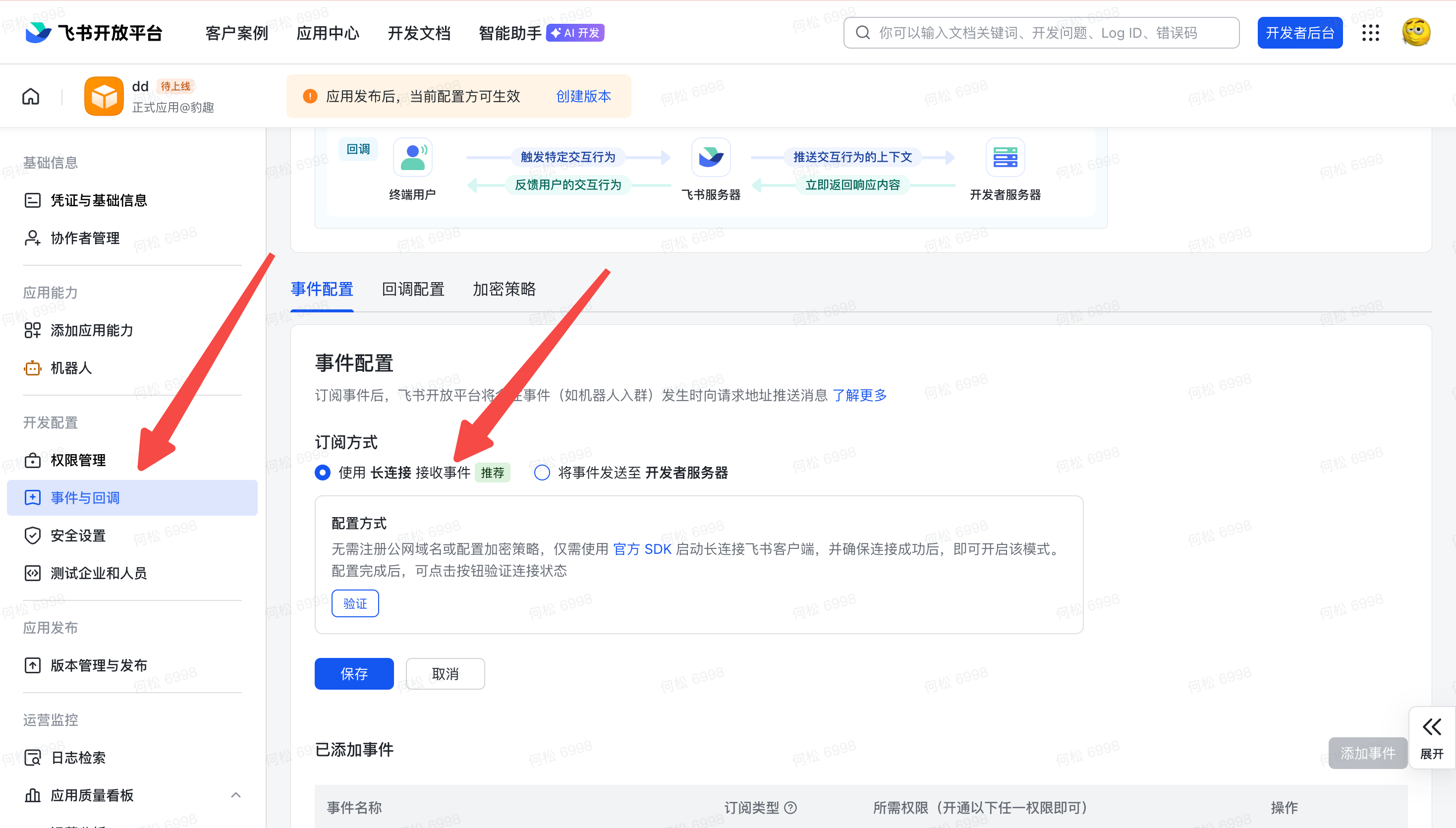
Enable Long Connection for Events
Back in your Feishu app, go to Events & Callbacks → select Use Long Connection to Receive Events → Save. (⚠️ This step only succeeds after completing the previous step — otherwise it will fail.)
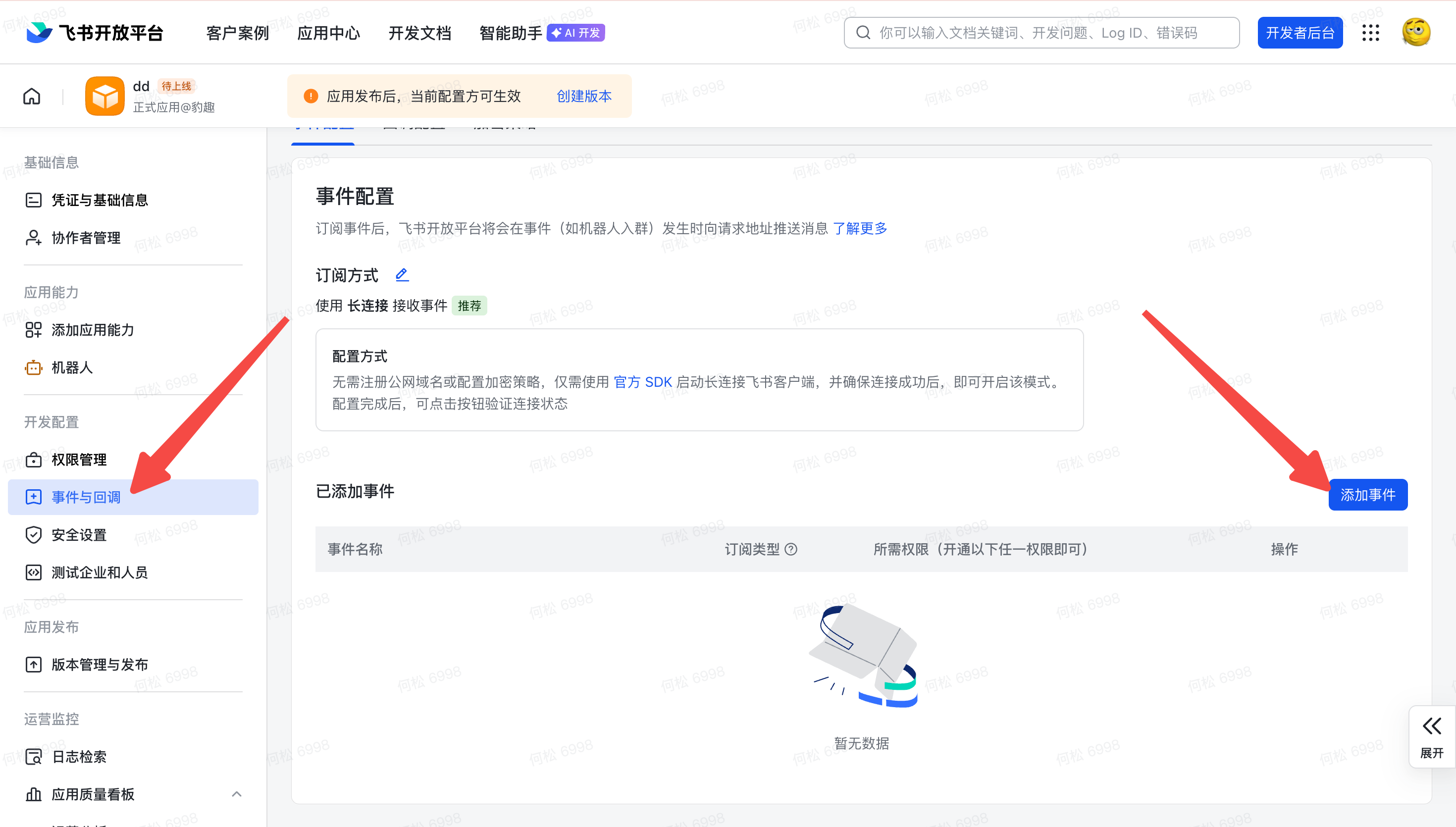
Add Event
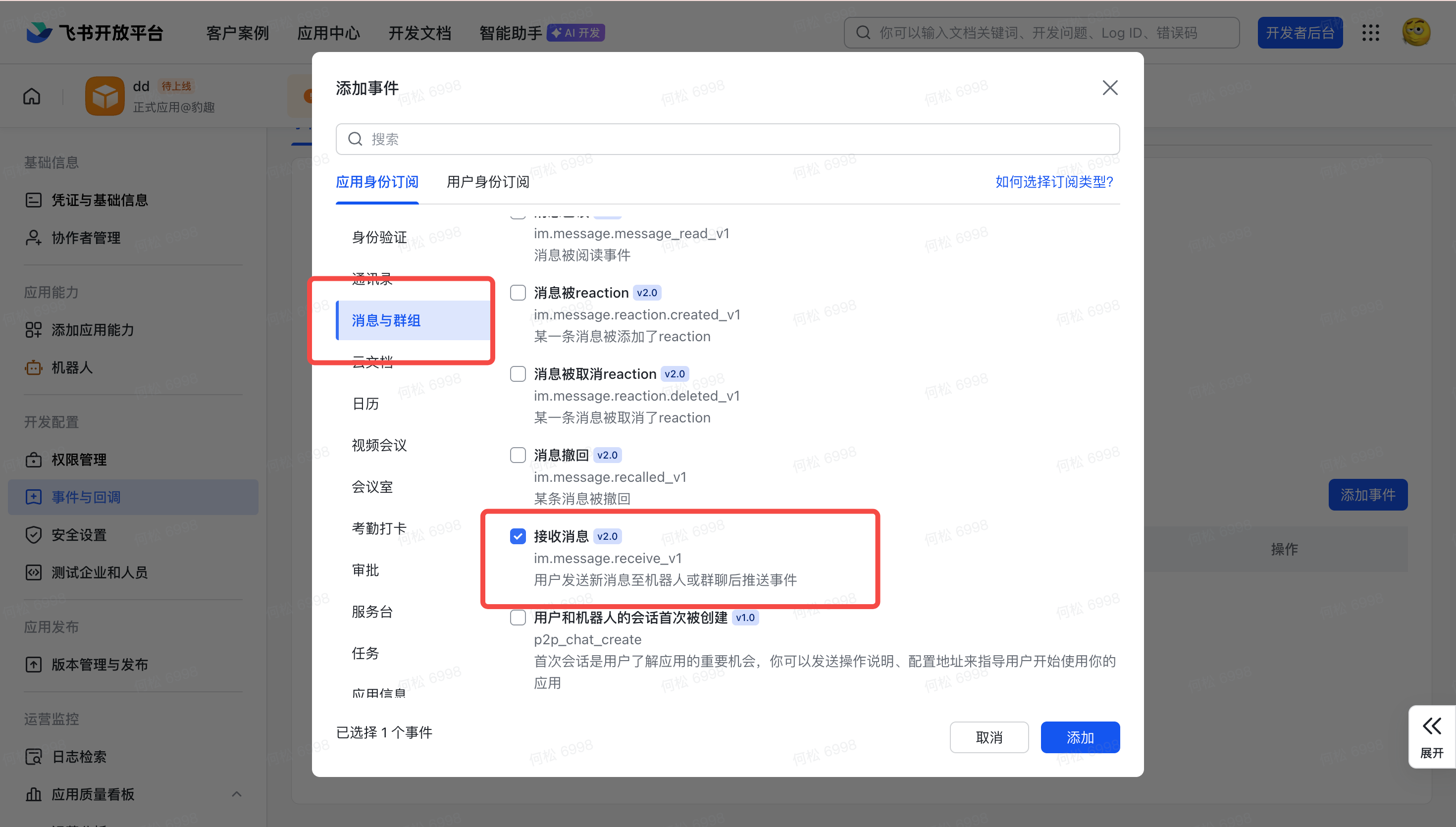
Click Add Event, find "Receive Message" under the app identity subscription column, and confirm.
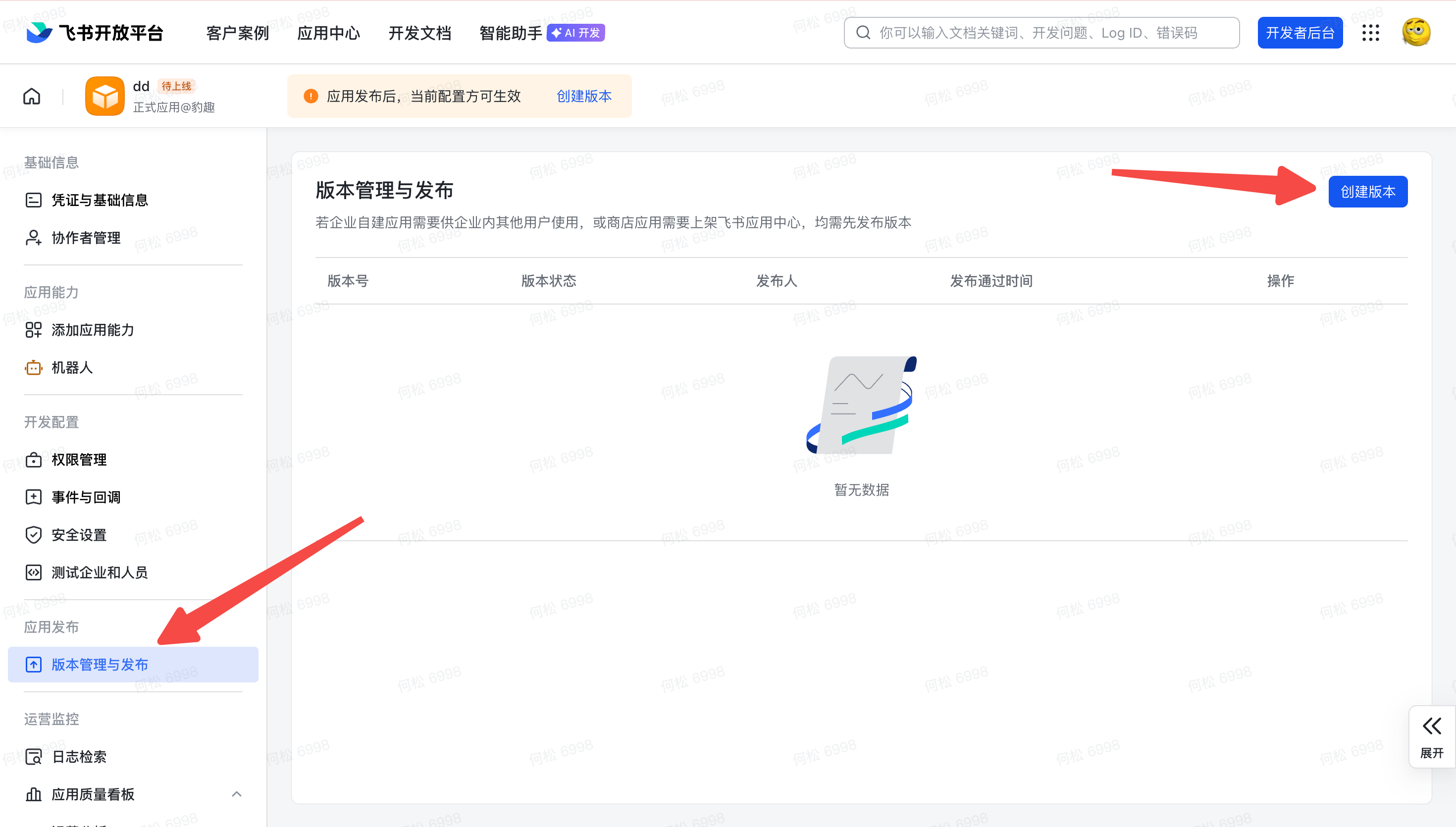
Publish the Version
Click Version Management & Release → Create Version, fill in a version number and release notes (anything works), then click Save and Publish.
Step 4: Add the Bot in Feishu Mobile
Search and Add to Favorites
Open Feishu mobile → go to Workplace → tap + in the top-right → search for the custom app name you just created → add to favorites.
Start Using
The bot will appear in your Feishu message list. Send it a message and EasyClaw will execute the corresponding action on your computer and reply with the result.
Send a message to the bot in Feishu mobile and EasyClaw will automatically execute actions on your computer and reply.
Message from Feishu anywhere — EasyClaw operates your PC remotely.
The Feishu channel's conversation context is independent from the desktop and other channels. To share important info or preferences across channels, ask the Agent to write them to MEMORY.md.